That’s frustrating. Your iPhone is running low on storage, and you’ve deleted everything you can think of.
Now what?
Here’s the thing: your iPhone is secretly holding onto tons of data you don’t actually need. Cached files, app data, and temporary files are just sitting there taking up space. The good news? You can clear iPhone cache and free up a bunch of storage without losing anything important.
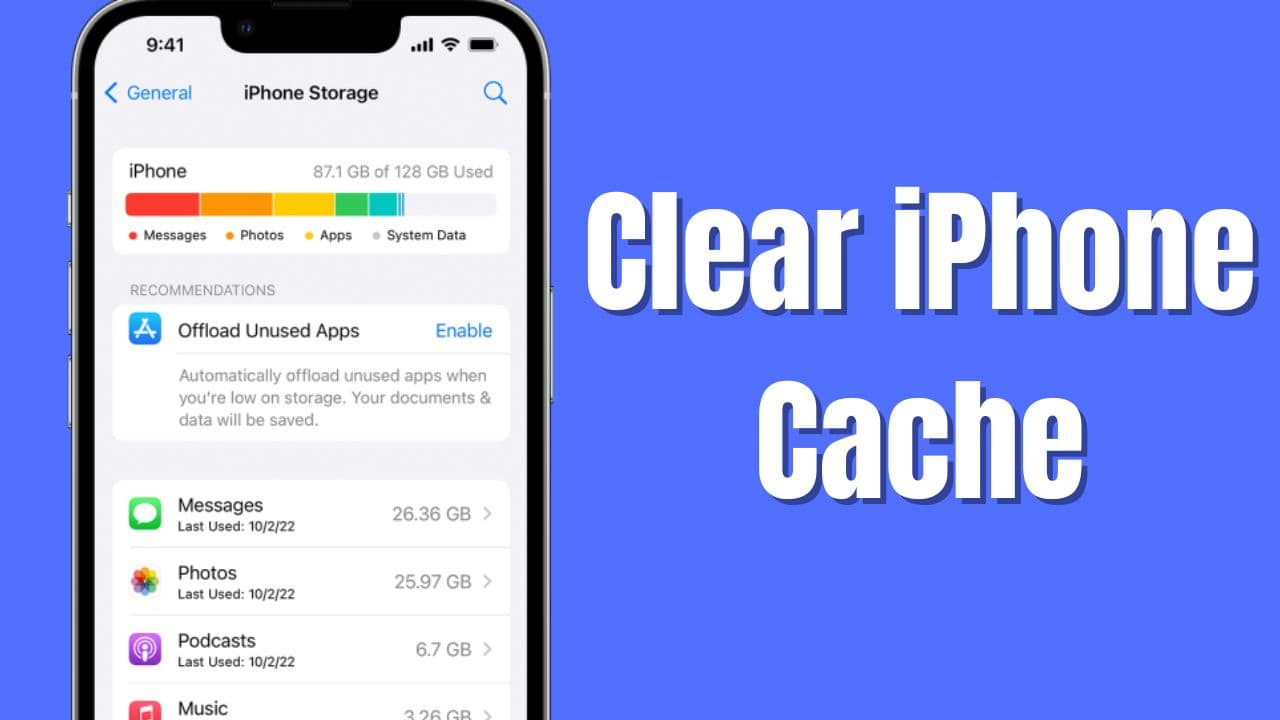
Let me walk you through it.
Table of Contents
Let’s Clear Cache on iPhone to Free Up Space
So your apps cache data constantly. They store pieces of photos, videos, websites, login info. It speeds things up the next time you open the app.
The problem? It piles up. Fast.
Unlike your actual photos or messages, you can safely delete cache. Your apps will just rebuild it the next time you use them.
Spensio Expense Tracker for iPhone
Track your Expenses, Subscriptions, Loans and EMIs all in One App. Try Spensio for iPhone Free today.
Clear Safari Cache (Easiest)
If you browse on Safari, this is the quickest win.
- Open Settings on your iPhone
- Scroll down and tap Safari
- Scroll to the bottom
- Tap “Clear History and Website Data”
- Choose the time range (“All time” clears everything)
- Tap “Clear History and Data”
Done. Safari just freed up space on your device. You will notice good difference most of the time in iPhone Storage page. not immediately, but it will take sometime and show up on the iPhone storage.
Clear App Cache Individually
Want to target specific apps? You can delete their cache without deleting the app itself.
- Go to Settings
- Tap General
- Tap iPhone Storage
- Find the app you want to clear
- Tap on it
- Tap “Offload App” (this removes the app but keeps your data)
- Or tap “Delete App” if you want to reinstall it fresh
- Tap the app again from the App Store to reinstall
When you reinstall, the cache gets cleared automatically. Your game progress, account logins, everything important stays intact.
Check Your Storage After
Want to see what you freed up?
- Go to Settings
- Tap General
- Tap iPhone Storage
- Look at the “Available” number at the top
It should be higher now. Mission accomplished.
Pro Tip: Offload Unused Apps
See those apps you haven’t touched in weeks? iPhone can offload them for you automatically.
- Go to Settings
- Tap General
- Tap iPhone Storage
- Turn on “Offload Unused Apps”
Your phone automatically removes apps you don’t use much, but keeps your data. Install them again whenever you need them.

Apple Watch Series 11 Deals
Apple Watch Series 11 - Aluminum 46mm Smartwatch with Sleep Score, Fitness Tracker, Health Monitoring, Always ON Display and Water Resistant.
🛒 Buy on AmazonThe Nuclear Option: Clear Everything
🚨 Warning: This Erases a lot and you need a computer.
Make sure to take backup of your iPhone using iTunes or Apple Devices app (Windows) and Finder (macOS) app to perform Restore.
Download iOS file from ipsw.me website or you can do the iOS Restore download from apple server after connecting your iPhone with computer. I have explained about manual download of .ipsw file and perform downgrade in the following video.
After iOS Restore, then restore your backup to get all your data back on the device. This helps to clear cache on iPhone with all the temporary files in it.
Remember, this is the last step to follow if above steps didn’t help. Only if above steps didn’t help. most users find above steps effective.
When to Clear Cache
Clear cache when:
– Your iPhone is running out of storage
– Apps are crashing or running slow
– You haven’t cleared it in a few months
– A specific app is being weird
It’s safe to do whenever. Your important stuff is safe.

The Bottom Line
Clearing iPhone cache takes five minutes and can free up gigabytes. Seriously. Your photos stay, your messages stay, your passwords stay.
Only the temporary junk goes.
So grab some storage back today. Your iPhone will thank you.
Having storage issues? Let me know in the comments if this helped or if you found another trick that works better. Always curious what works for other people. Have a wonderful day.