

Clearing an app’s cache on your iPhone can free up storage space, improve app performance, and resolve various issues. In iPhone or iPad, Cache clearing happens automatically most of the time.
Rarely, do people experience poor cache management results in iPhone hanging or stuck while using.

This guide provides a step-by-step process on how to clear apps cache on your iPhone, ensuring your device runs smoothly.
Spensio Expense Tracker for iPhone
Track your Expenses, Subscriptions, Loans and EMIs all in One App. Try Spensio for iPhone Free today.
Table of Contents
Clear Apps Cache on iPhone
The following steps also work on iPads. Clear Apps Cache on iPad if you are experiencing iPad Hangs, Apps Crash, or other App-related problems, then do try these tips.
Also Read, iPhone 15 vs iPhone 15 Pro – Comparison Guide for Confused Buyers
How do I clear WhatsApp Cache on iPhone?
As mentioned earlier, Apps cache management is done automatically on iPhone. To clear data from an App, navigate to its storage and data settings and delete any unwanted data.
For example, How do I clear data from WhatsApp or Telegram? And let me answer the question step by step.
Step 1: Go inside “Whatsapp settings – storage and data – manage storage.” Scroll down a bit to access Person or group-wise storage consumption.
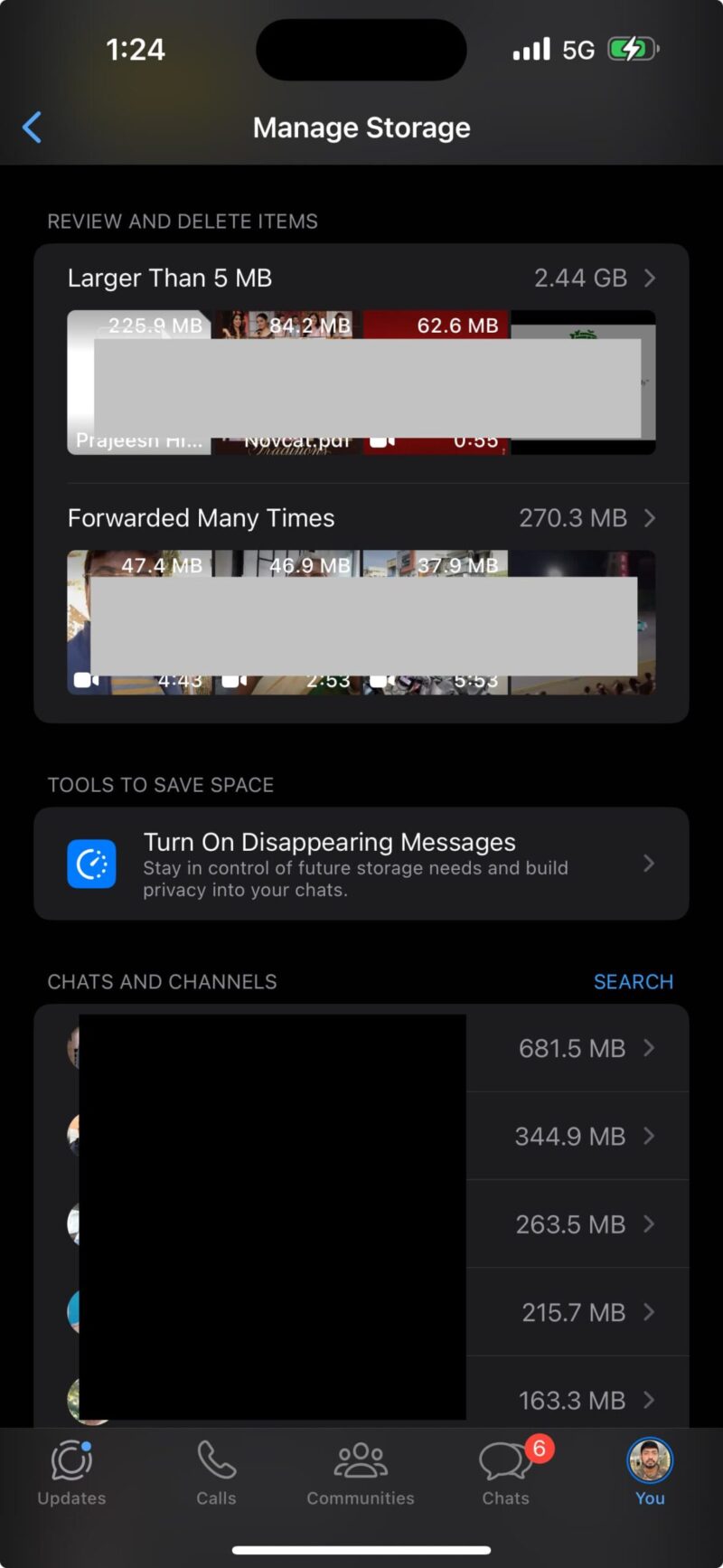
Step 2: Navigate inside a specific chat or group, and you can select and delete any media you have received. It’s time for those Good Morning, Good Night messages to be deleted. Additionally, forwarded videos and photos can be deleted from this section.
If you are a member of a busy group where people forward tons of photos and videos, you can delete all of them from this page.
Once done, you will see refreshed iPhone Storage in a few minutes.
If not, perform an iPhone Restore, which will show updated reduced iPhone Storage.
Affiliate link. As an Amazon Associate I earn from qualifying purchases.
How do I Clear Data from an App on my iPhone?
- Understanding Cache: Before proceeding, it’s important to know that cache stores temporary data to help apps load faster. However, this data can accumulate over time and slow down your iPhone.
- Check Storage: Go to “Settings – General – iPhone Storage.” This section provides an overview of the storage used by each app, helping you identify which apps have the most cache.
- Offloading Apps: Consider the ‘Offload App’ feature for apps with significant cache. This removes the app but retains its documents and data. To offload, tap on the app in the iPhone Storage list and select ‘Offload App.’
- Reinstalling Apps: After offloading, reinstall the app from the App Store. This clears the cache while keeping your important data.
- Clearing Safari Cache: To clear the cache of Safari, go to “Settings – Safari” and tap “Clear History and Website Data.” This will remove browsing history, cookies, and other browsing data.
- Using Third-Party Apps: Some third-party apps offer options to clear cache within the app settings. Explore the settings of individual apps for such options. Apps like Gemini help us Delete Duplicate Photos.
- Regular Maintenance: Make sure you have updated iOS to the latest version; if there are bugs related to storage, then it’s fixed with the latest update.
Also Read, Exquisite Picks: iPhone 15 Pro Max Cases for Luxury Enthusiasts
Clear Apps Cache on iPad, iPad Air and Pro
Clearing the app cache on your iPhone is a simple yet effective way to maintain your device’s performance. By following these steps, you can ensure your iPhone runs optimally, freeing it from unnecessary hiccups, hangs, and stuck problems.
Do these steps only if you have such performance problems. No need to do it without any issues.
If you find this post useful, you know what to do. Have a wonderful day.



You have really well detailed about how to clear the apps cache on Iphone which i have never seen before. This is really a great and very informative article that I was looking for a long time. Thank You for Sharing.