
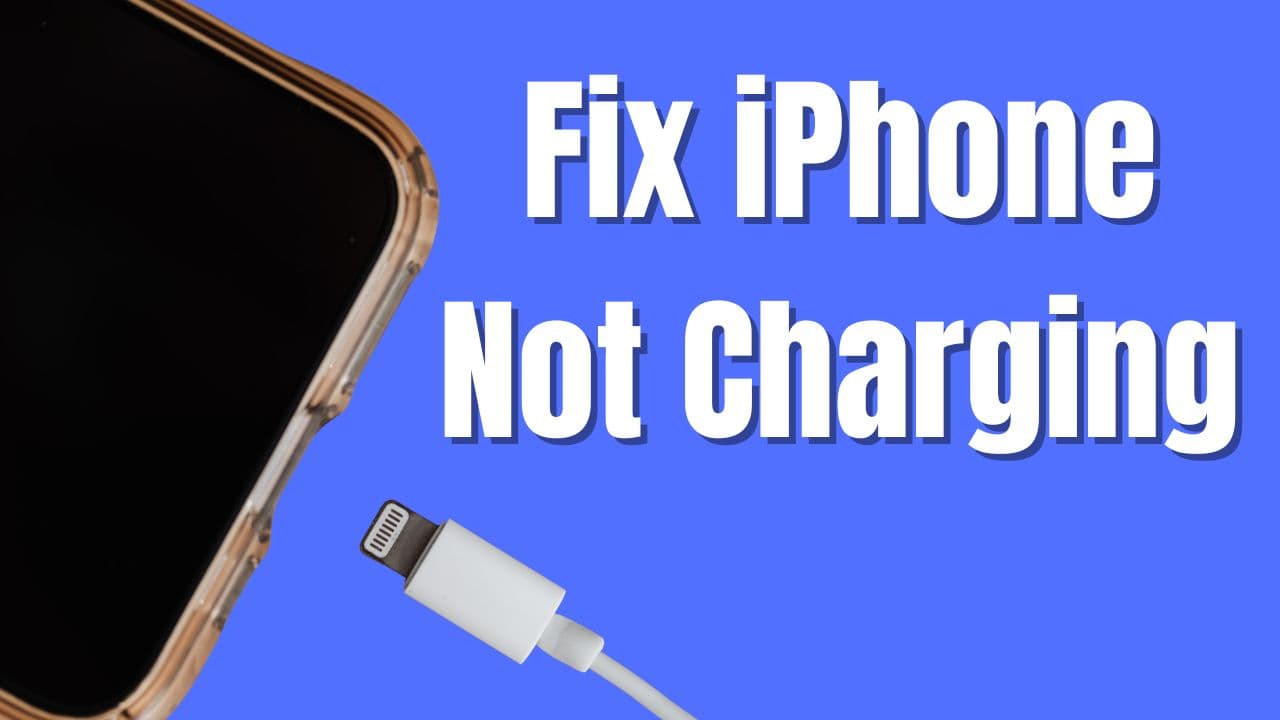
Step-by-Step Guide to Get Your Phone Charging Again. Super annoying when your iPhone refuses to charge. You plug it in, and nothing. Battery stays dead, screen stays black, frustration builds fast.
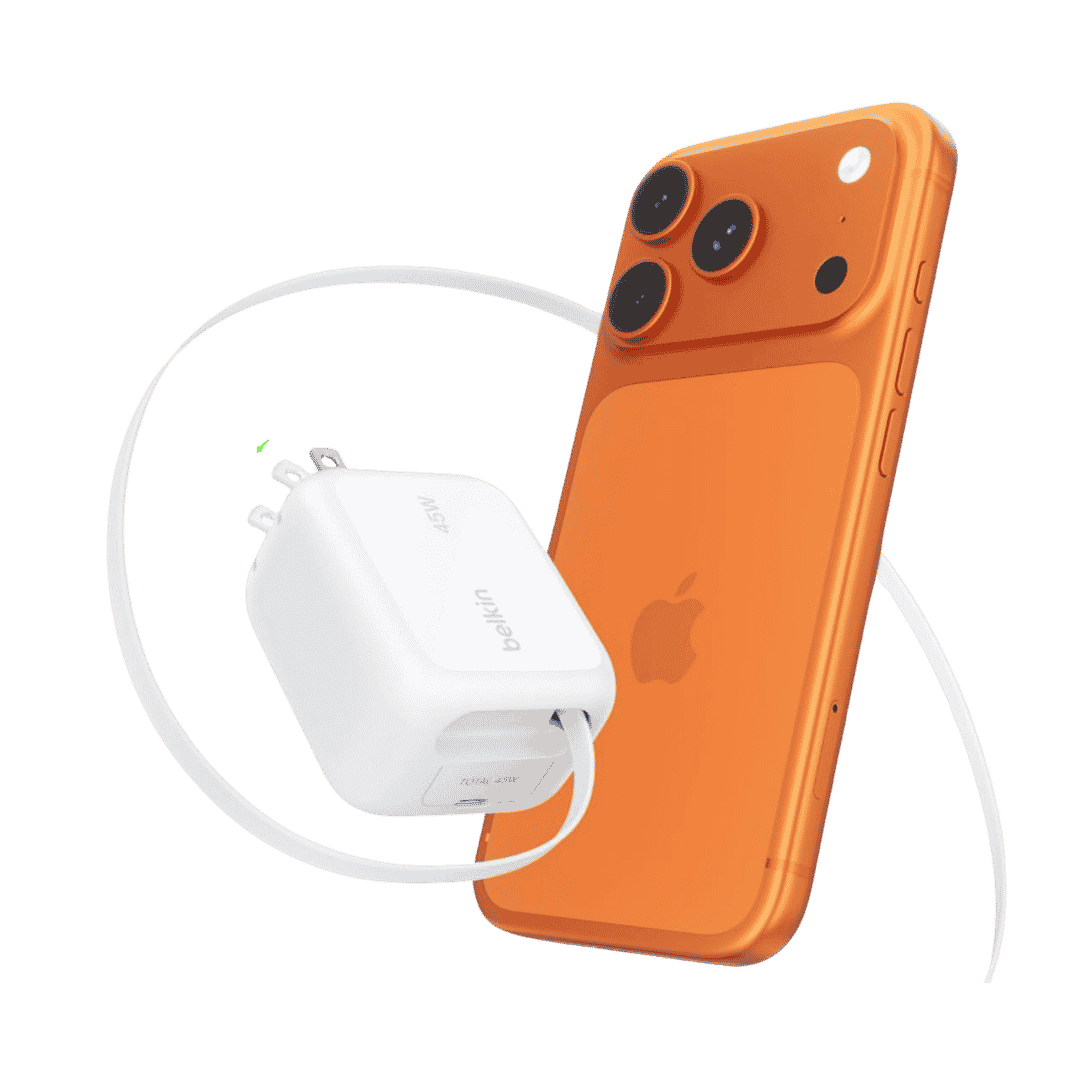
Belkin Wall GaN Charger 45W Retractable USB C Cable
Belkin GaN Charger 45W Power with Retractable USB C Cable. Supports iPhone Fast Charging and suitable for other AirPods, Apple Watch and more.
Affiliate link. As an Amazon Associate I earn from qualifying purchases.
Good news though, this happens to tons of people, and most times it’s an easy fix you can do yourself right now. Follow these steps one by one, and test charging after each one. Let’s get your iPhone back to life.
Table of Contents
How to Fix iPhone NOT CHARGING Issue?
Let’s start with basics. Try these troubleshooting steps one by one. In the next few minutes we are going to fix your iPhone not charging issue.
Start Simple: Check Your Cable, Charger, and Outlet.
Bad cable or charger causes most no-charge problems.
Look at your Lightning or USB-C cable closely. Any fraying, bends, or damage? Because, physical damage that we cannot easily see, could be the main reason for iPhone Not Charging problem most of the time.
Swap to a different cable and charger if you have one. Even a friend’s Apple-certified one works for testing.
Plug into a wall outlet directly, not a laptop or power strip. Try a different outlet too.
Make sure the connection feels solid, no loose wobble.
If the charging icon or lightning bolt shows up now, you’re golden. If not, keep going.
Clean Out the Charging Port
Pocket lint, dust, and tiny debris love to hide in there and block the connection.
Turn your iPhone off completely first. Hold the side button and a volume button, then slide to power off.
Use a flashlight and look inside the port at the bottom. See fluff or gunk?
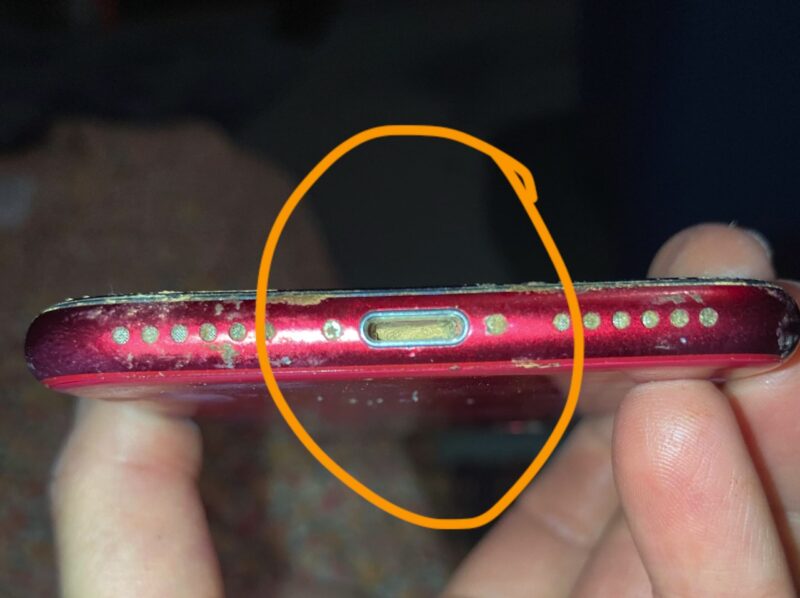
Grab a wooden toothpick, plastic tool, or soft brush. Gently scrape and remove the buildup. Never use metal pins or needles, you could damage the contacts. Blow out any loose bits with your mouth or compressed air if you have it.
Plug the cable back in firmly and see if it starts charging.
This step fixes it for so many people. Check now, does the phone respond?. If not proceed with next step.
Force Restart the iPhone
A quick restart clears temporary software glitches that stop charging.
For iPhone 8 and newer models:
- Press and quickly release the volume up button.
- Press and quickly release the volume down button.
- Press and hold the side button until the Apple logo appears (usually 10 to 20 seconds).
Once it restarts, plug in the charger and give it at least 30 minutes.
Still nothing?
Let’s go with Next step.
Update iOS if Possible
Old software versions sometimes cause weird charging bugs.
If your phone turns on even a little, go to Settings – General – Software Update.
Download and install any available update.
After updating, try charging again for a good while.
Check Battery Settings and Health
The battery itself might be the issue.
Open Settings – Battery – Battery Health & Charging.
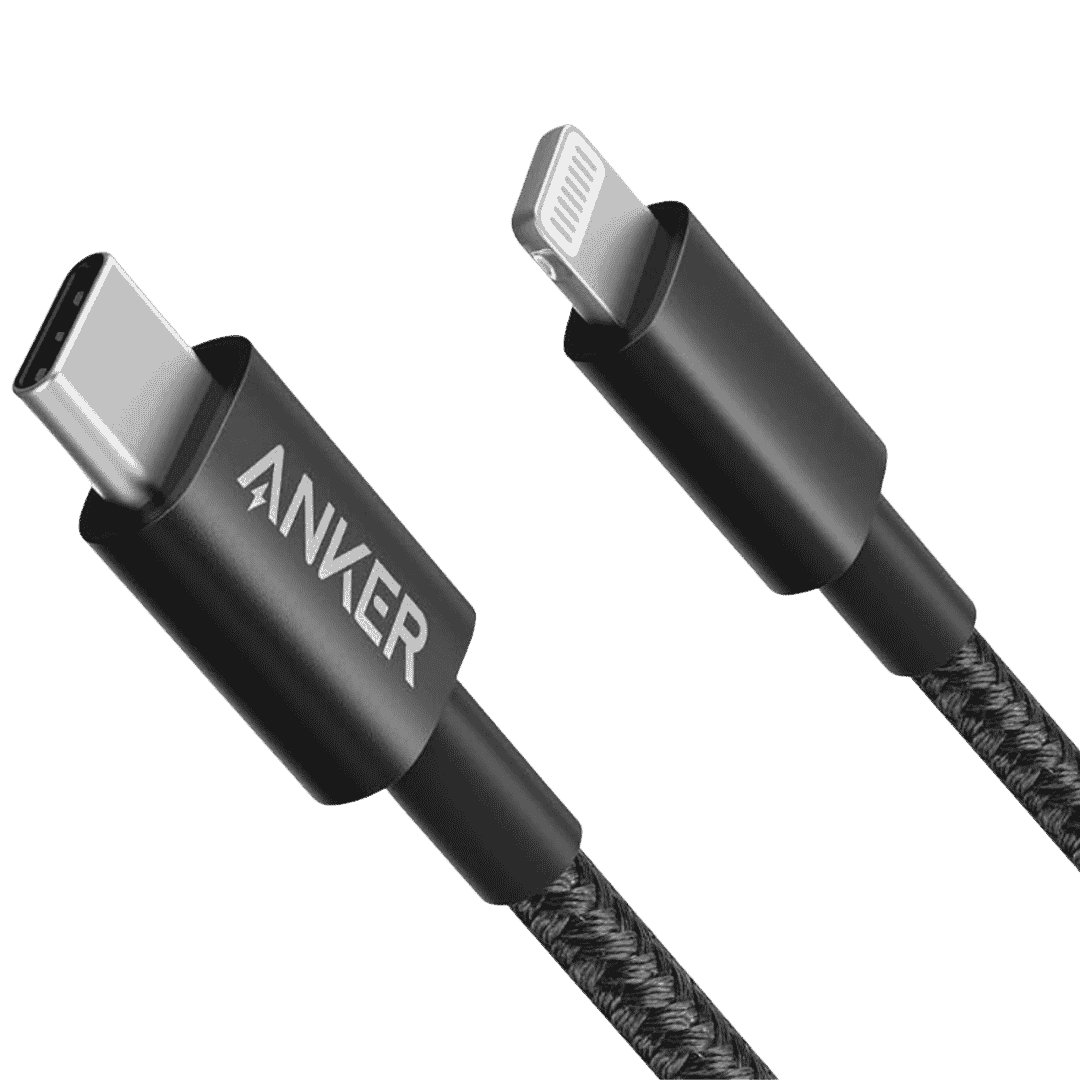
Anker MFi Lightning to USB C Cable (2 Pack)
Anker New Nylon USB C to Lightning Cable, Apple MFi Certified for iPhone and comes in 6.6 feet length. You can select Cable Length and 1 or 2 Packs during Checkout.
Affiliate link. As an Amazon Associate I earn from qualifying purchases.
See the Maximum Capacity number. Below 80% often means it’s time for a new battery.
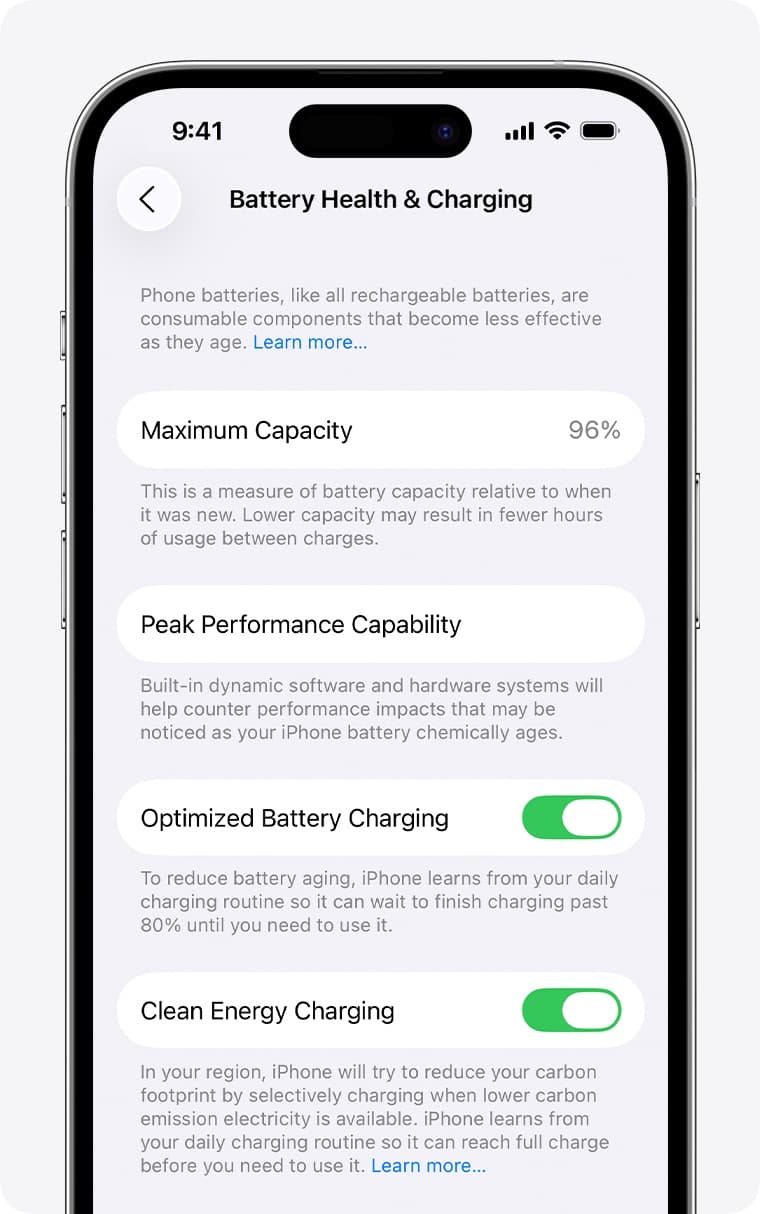
I suggest using Optimized Charging feature to let iOS automatically measure and control charging pattern. If you are not using that feature, give it a try.
iPhone temperature increase during fast charging is normal. But if you notice heating abnormally when the device is not charging, then it could be a problem and needs a check with apple service center.
Move it to a cooler place, overheating stops charging on purpose.
Switch to Wireless Charging
If your iPhone supports it (iPhone 8 and newer), this skips the port completely.
Use a MagSafe charger or any Qi-compatible wireless pad.
- Plug the charger into power.
- Place your iPhone face up on the pad.
- Look for the charging animation on screen.
Works great as a workaround while you fix the port issue.
Last Resort: Get Professional Help
If none of these work after trying everything? Charge it for a full hour anyway just to be sure.
If it’s still dead, it could be a hardware problem like a damaged port or battery. Head to the nearest Apple Store or authorized service center.
They can diagnose it quickly, and many fixes are straightforward. As we tried all the self help troubleshooting steps to Fix iPhone Not Charging Issue as of now.
Your iPhone is built tough, but even powerhouses need a little help sometimes. Run through these steps, and chances are high you’ll fix it yourself.
Did this get your iPhone charging again? Which step worked for you, or what’s still happening? Let me know. Feel free to share this post if you find it helpful, more iPhone users experiencing similar charging issue could be solved. Have a great day.