
Looking for an iPhone wallpaper that hides the dock and gives your Home Screen a cleaner appearance? You may try this minimal black and grey wallpaper. It is designed to create a hidden dock effect while keeping your apps and widgets easy to see.
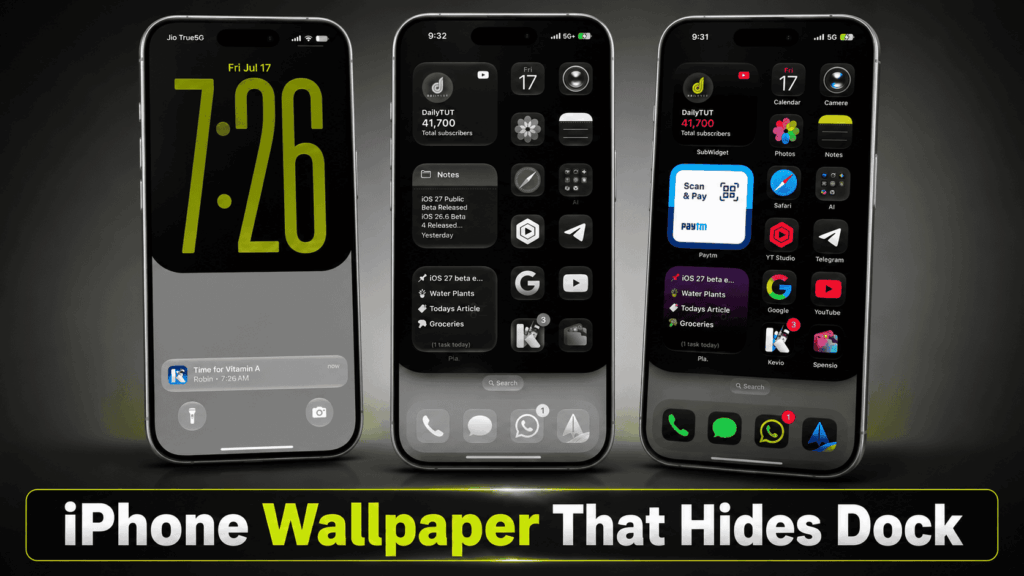
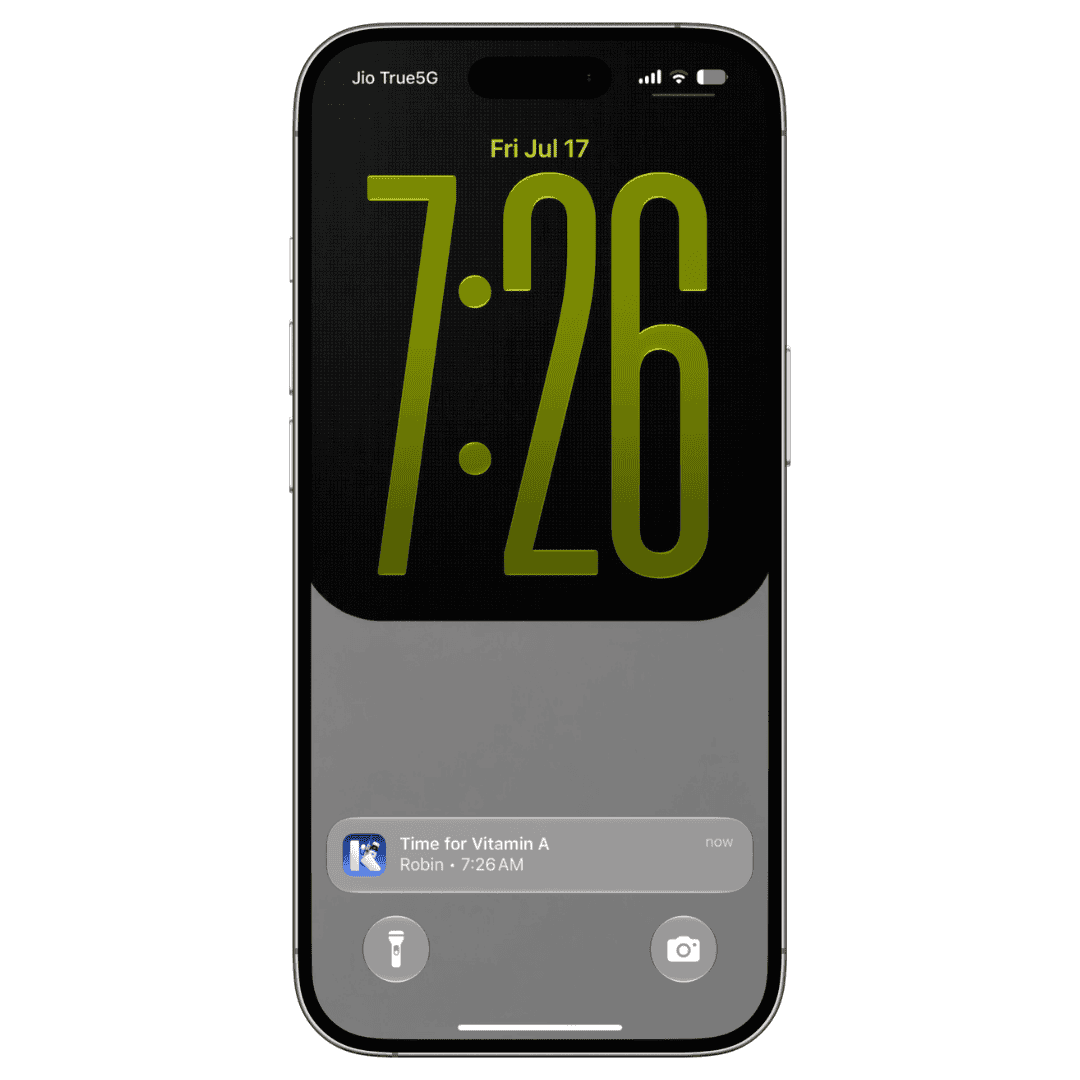
The wallpaper uses a deep black background for the main Home Screen area. A separate matte grey section appears near the bottom, helping the iPhone dock blend naturally with the wallpaper.
I have attached both the wallpapers as one zip file.
Table of Contents
Minimal Black iPhone Home Screen Wallpaper
Black wallpapers work especially well on iPhones with OLED displays. They give the Home Screen a simple appearance and make colourful app icons stand out clearly.
You can use this wallpaper with widgets, folders and different app icon styles. It also looks good with monochrome or tinted icons.
Spensio Expense Tracker for iPhone
Track your Expenses, Subscriptions, Loans and EMIs all in One App. Try Spensio for iPhone Free today.
The wallpaper is available in different layouts. One version is suitable for the iPhone Lock Screen, while the other designs are created for the Home Screen.
Does This iPhone Wallpaper Completely Hide the Dock?
This wallpaper creates the appearance of a cleaner and less distracting dock area. However, the final result may look slightly different depending on your iPhone model, display size and iOS version.
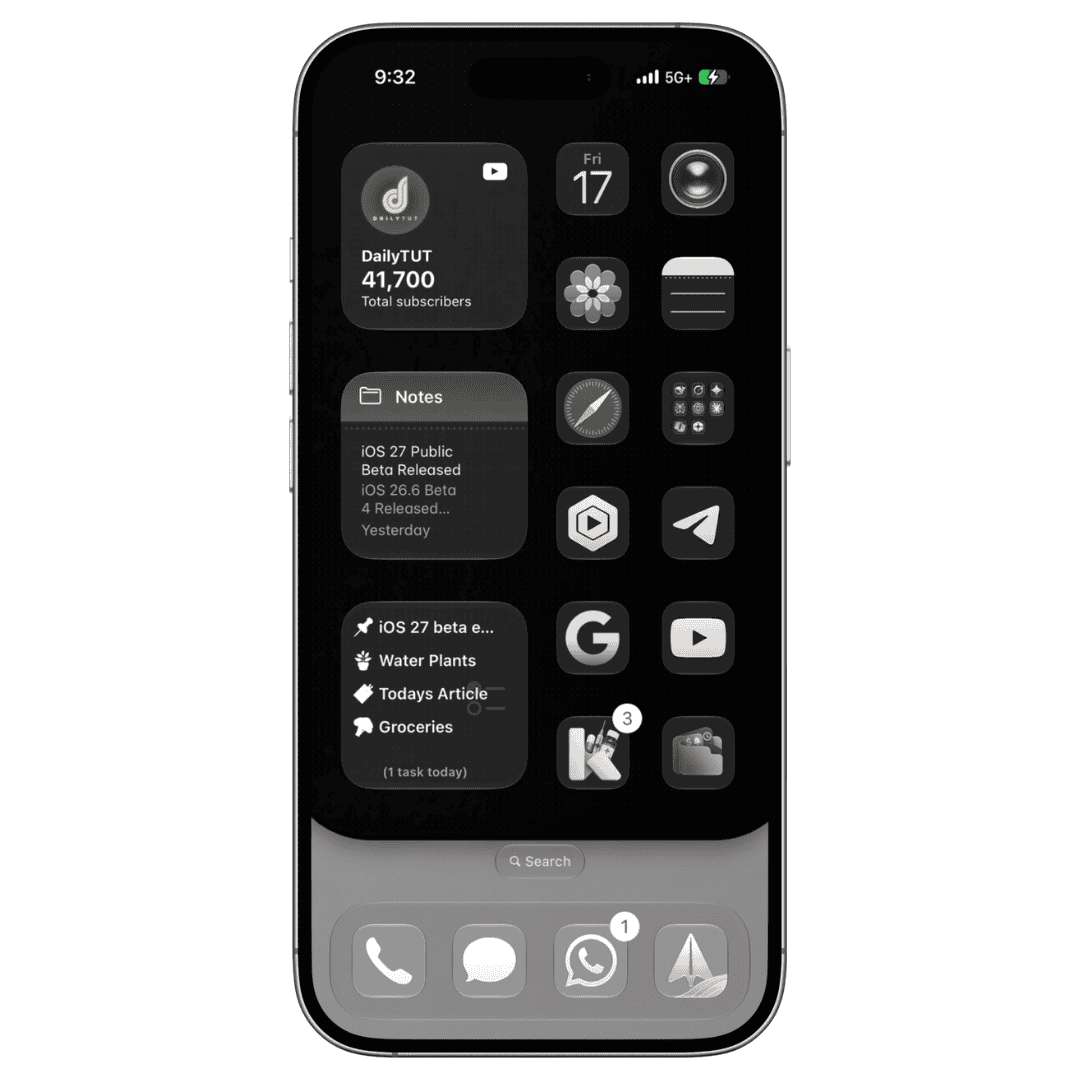
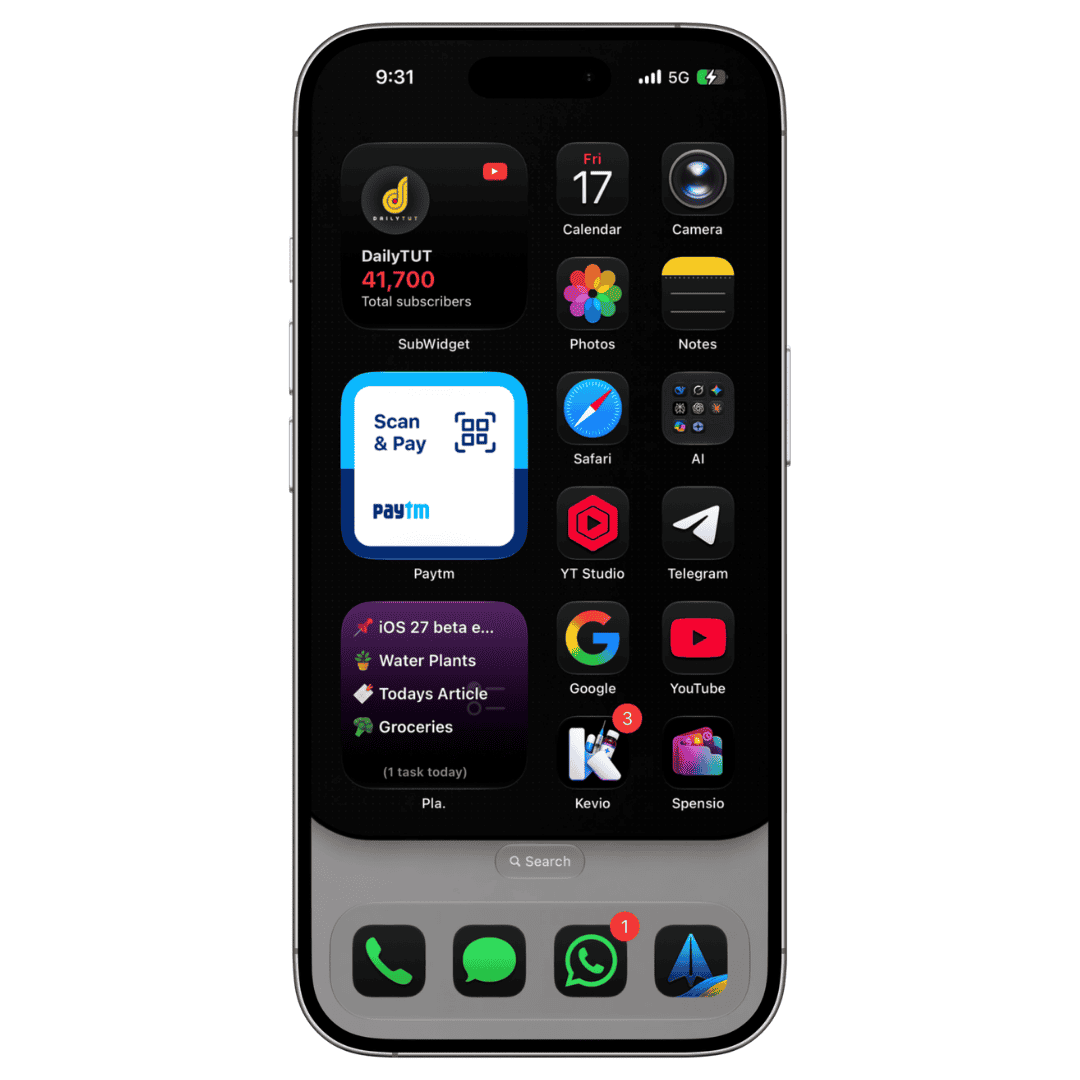
For the best result, turn off wallpaper blur while setting it as your Home Screen background. You may also need to reposition or zoom the wallpaper slightly.
People searching for an iOS wallpaper to hide the dock or an iPhone background that hides the dock can try this design for a similar visual effect.
How to Set the Lock Screen Wallpaper on iPhone
First, download and extract the ZIP file. Then go to Files App – Downloads folder and Save both wallpaper images to the Photos app.
Tap Photos and select the wallpaper designed for the Lock Screen. Adjust its position until the black upper section and grey lower section fit correctly on the display.
You can customise the clock style, colour and Lock Screen widgets if required. Once everything looks good, tap Add in the top-right corner.
Alternatively, you can set Lock Screen Wallpaper right from the Lock Screen by tapping and holding for couple of seconds, then select Customise – Select photos icon from bottom left corner to open Photos app to select the right photo.
Do not select Set as Wallpaper Pair, because the ZIP includes a separate wallpaper designed for the Home Screen.
Instead, tap Customize Home Screen and follow the next steps.

Kevio: Family Medicine Tracker
No more missing of Medications, Tests and Doctor Appointments. Let Kevio keep a track of it, and Remind you right on time. Take Prescriptions, Blood Tests, Injections right on time with Kevio.
How to Set the Home Screen Wallpaper Separately
Step 1: Tap and hold on home screen empty screen area and then selection the Paint Brush icon at the top left corner and select “Edit Wallpaper”.
Step 2: Tap on + button and select the Home Screen wallpaper we just saved from Files app to Photos app.
Step 3: Pinch and zoom and adjust alignment if necessary. Once set, tap Done at the top right corner.
Congratulations! You’ve successfully set both lock screen and home screen wallpaper now. Your iPhone looks stunning with the new wallpaper that hides the dock.
Your iPhone will now use one wallpaper for the Lock Screen and another matching wallpaper for the Home Screen. Feel free to share this with your friends. Have a wonderful day.