
Filling out a PDF form on a Mac sounds simple until you actually try it. Sometimes you click on a blank line and nothing happens. Other times you fill out the whole form in Apple Preview, email it to someone on Windows, and they reply saying all your boxes look blank.
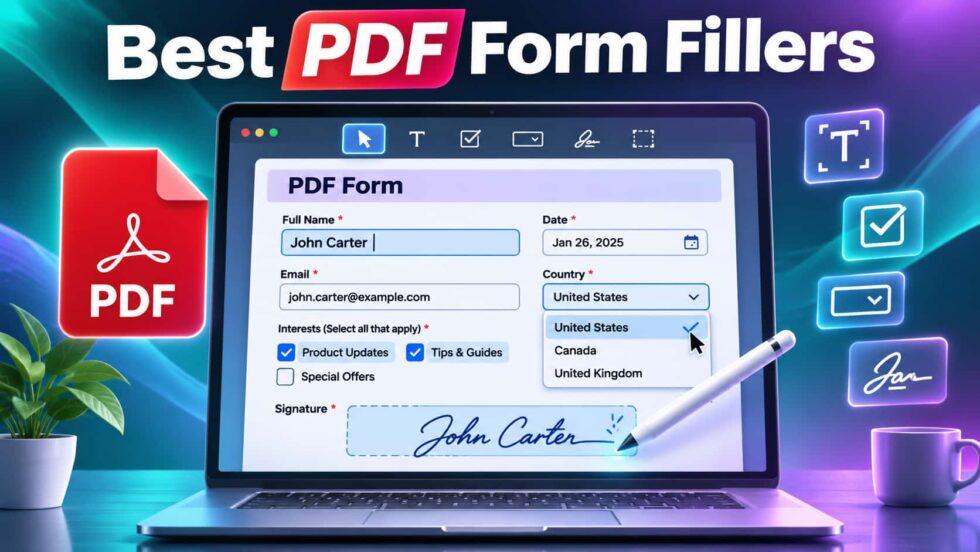
If you are looking for the best PDF filler for Mac, the right app depends on what kind of form you are dealing with. Some forms are clickable interactive files, while others are flat scanned sheets or strict government tax forms.
Below are the 7 best PDF form fillers for Mac in 2026, covering completely free offline tools and pro apps that let you fill, sign, and even create your own fillable forms.
Disclosure: Some links in this guide are affiliate links. If you buy through them, I may earn a small commission at no extra cost to you.
Table of Contents
Quick Comparison: Best PDF Form Fillers for Mac in 2026
| PDF Form Filler | Best For & Key Features | Action |
|---|---|---|
| Apple Preview | Best built-in free filler: Interactive forms, Form AutoFill for flat sheets, trackpad/iPhone signatures (Free) | Built-In (Free) |
| PDFgear for Mac | Best free offline filler for flat forms: Free Text tool, checkmarks, signatures, zero watermarks (Free) | Visit Site |
| Adobe Acrobat Reader | Best free tool for government & tax forms: Opens dynamic XFA forms reliably, Fill & Sign toolbar (Free) | Visit Site |
| PDF Expert by Readdle | Best native Mac experience: Fast macOS UI, AcroForms & static XFA, iCloud + Apple Pencil sync (Paid) | Visit Site |
| Wondershare PDFelement | Best for auto-detecting & creating forms: 1-click Form Field Recognition, dropdowns, Excel data export (Paid) | Visit Site |
| Foxit PDF Reader & Editor | Best for Comb Fields & auto-complete: Evenly spaced ID/phone boxes, predefined text stamps (Free / Paid) | Visit Site |
| Nitro PDF Pro for Mac | Best one-time business license: Fill & create forms, OCR on scanned sheets, reusable signature library (Paid) | Visit Site |
Interactive vs. Flat PDF Forms: Why Some Forms Refuse to Let You Type
Before you install an app, it helps to know why two PDF forms behave differently on macOS:
- Interactive PDF forms (AcroForms): These have clickable text boxes, dropdown menus, and checkboxes already built in. Almost any Mac PDF app can fill them.
- Non-interactive (flat or scanned) forms: These are basically flat pictures of a paper form. Clicking a line does nothing, so you need an app that can place clean text boxes, checkmarks, or auto-detect blank fields.
- Dynamic XFA forms: Many government, immigration, and tax agencies still use Adobe’s XFA format. If you open one in Apple Preview, you will only see a “Please wait…” error message. You need Adobe Acrobat Reader to open and fill these properly.
Best Free PDF Form Fillers for Mac
If you only fill out school forms, job applications, or rental agreements once in a while, these three free desktop tools keep your private documents offline on your Mac.
1. Apple Preview (Best Built-In Free PDF Form Filler for Mac)
You already have Apple Preview installed on your Mac, and for most everyday forms it is still the fastest free PDF form filler for Mac.
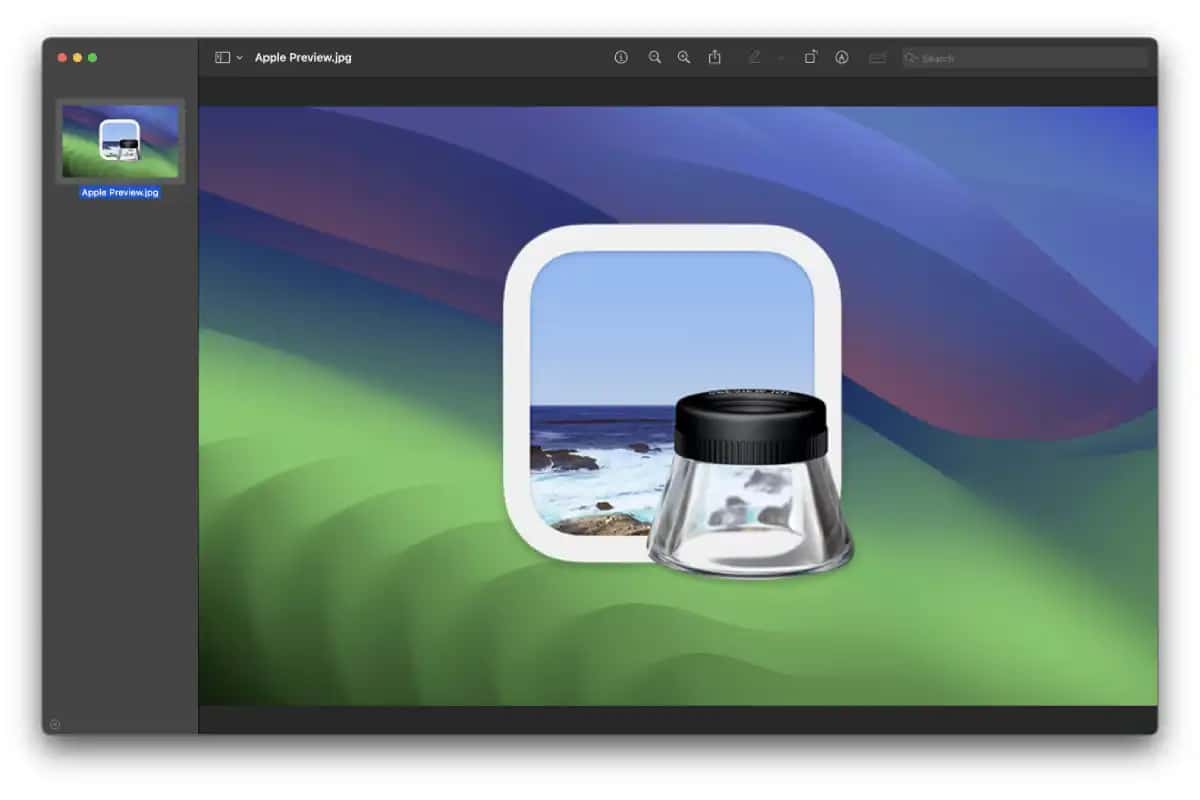
When you open an interactive form, just click any field and start typing. On modern macOS versions, Preview also includes a Form AutoFill button in the Markup toolbar that automatically detects blank lines on flat, non-fillable forms and pulls your name, email, and address straight from your Contacts card. You can also drop in your saved trackpad or iPhone signature in two clicks.
The only catch is that Preview cannot open government XFA forms, and its saved checkboxes sometimes disappear when viewed on Windows unless you flatten the file (see the quick tip in the FAQ below).
2. PDFgear for Mac (Best Free Offline Filler for Flat Forms Without Watermarks)
If Apple Preview misses blank lines on a scanned form or shifts your text around, PDFgear is a great free backup. It runs completely offline on your Mac, adds zero watermarks when you save, and requires no account sign-up.
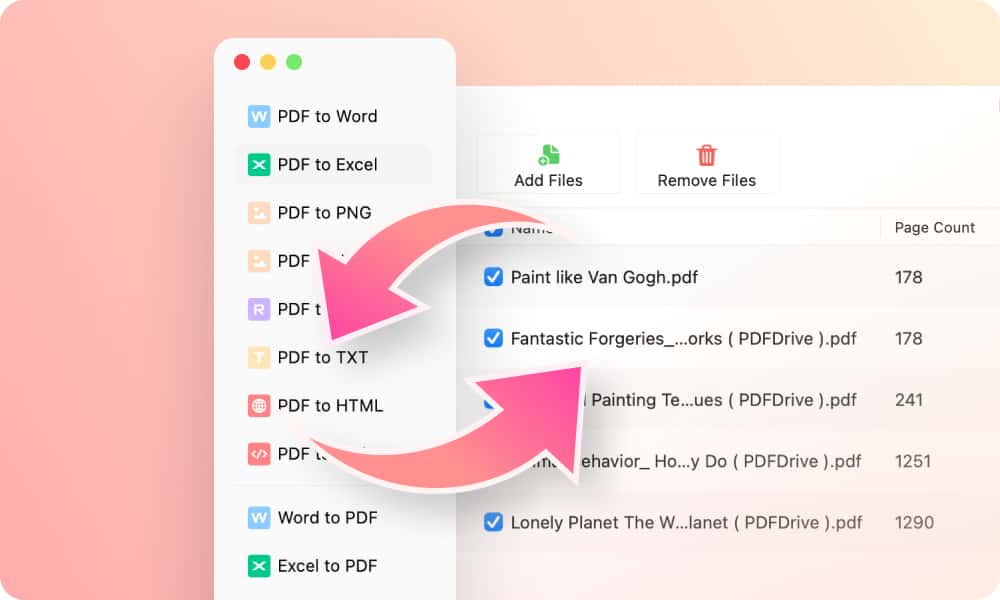
For interactive forms, you type directly into the fields. For flat forms, you can click the Free Text tool to drop clean text anywhere, place checkmarks or X marks inside boxes, and save your signature for future forms. It is an easy pick if you want a free PDF form filler for Mac that handles messy non-interactive files cleanly.
3. Adobe Acrobat Reader for Mac (Best Free Tool for Government & Tax XFA Forms)
Even if you dislike heavy software, keeping the free Adobe Acrobat Reader installed on your Mac is smart for one reason: government and legal forms.
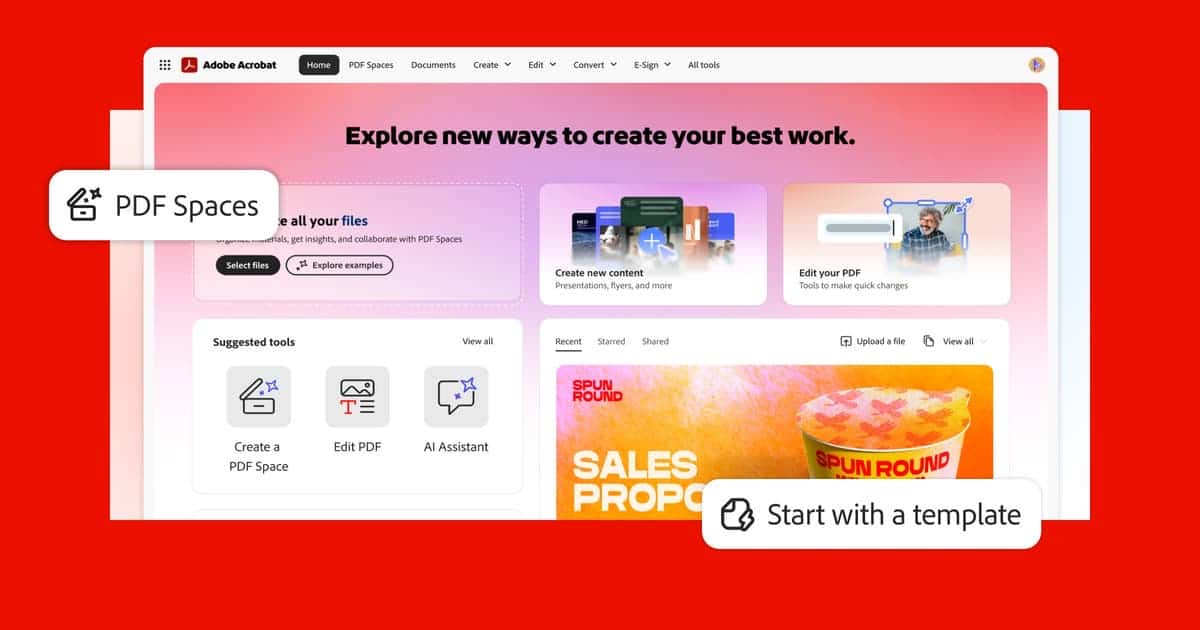
Whenever a tax, visa, or insurance form opens with a “Please wait…” screen in Preview or Safari, Adobe Acrobat Reader opens it without errors. Its free Fill & Sign toolbar lets you type text, add checkmarks, insert dates, and sign documents reliably so Windows recipients see every single field you filled out.
Check Adobe Acrobat Reader for Mac
Best Paid PDF Form Fillers & Form Creators for Mac
If you handle client contracts, invoices, or multi-page applications every week, or if you need to turn a flat document into a clickable fillable form, a dedicated paid app saves a lot of time. (If you also need full text editing and OCR beyond forms, check our full guide to the best PDF editors for Mac.)
4. PDF Expert by Readdle (Best Native Mac Experience for Daily Forms)
PDF Expert feels like an upgraded version of Apple Preview built specifically for macOS. It opens large contracts instantly and handles interactive AcroForms, static XFA forms, checkboxes, radio buttons, and digital signatures without glitches.
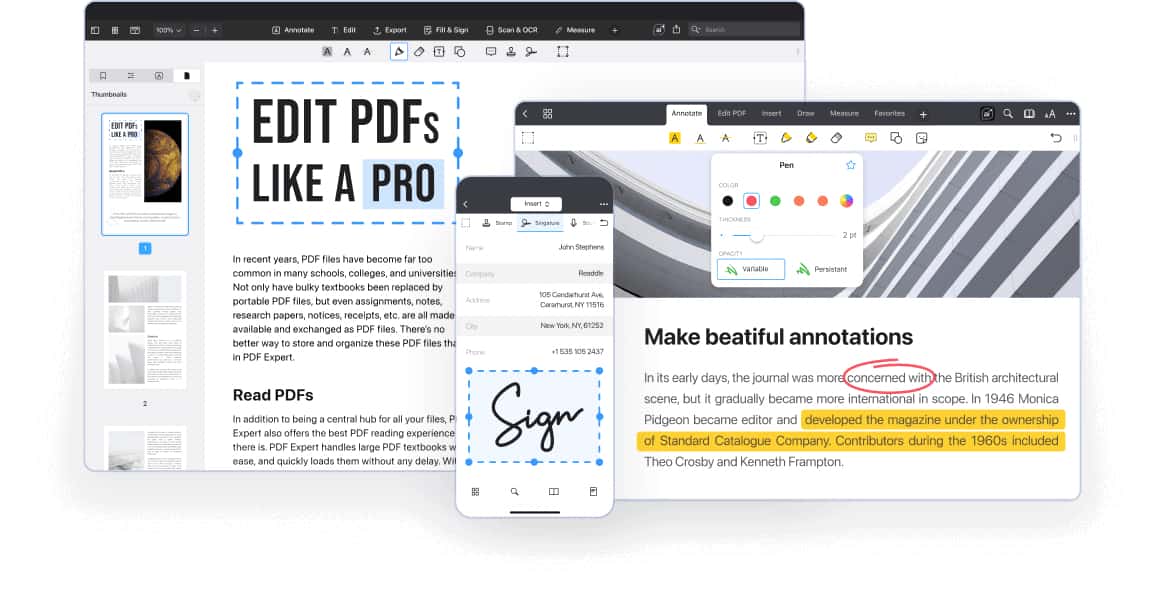
If you work across a MacBook and an iPad, iCloud sync lets you fill out half a form at your desk and sign it with your Apple Pencil on the go.
For Mac users who want speed, reliability, and zero formatting bugs when emailing forms to Windows users, PDF Expert is the smoothest daily choice.
5. Wondershare PDFelement for Mac (Best for Auto-Detecting & Creating Fillable Forms)
Where Wondershare PDFelement really stands out is turning flat, non-fillable forms into clickable forms automatically. Its one-click Form Field Recognition tool scans a flat Word export or scanned PDF and instantly turns blank lines and boxes into real fillable text fields and checkboxes.
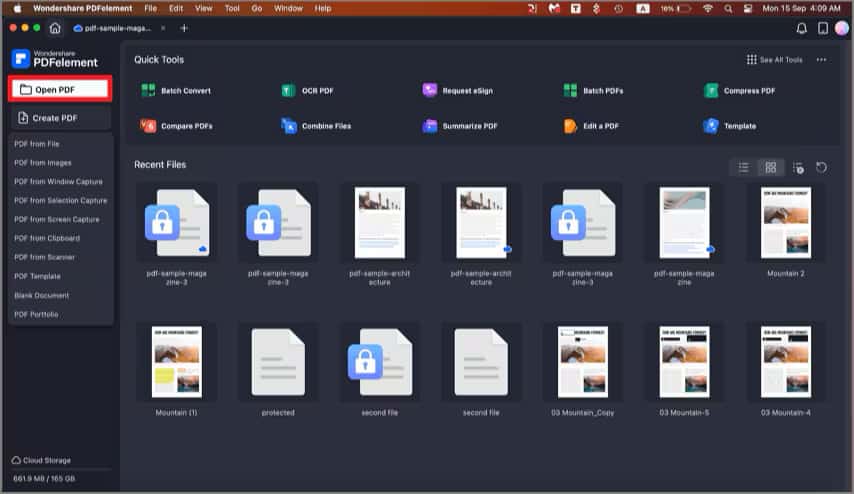
You can also build your own fillable forms from scratch, add dropdown lists, and even extract form data from dozens of returned PDFs straight into an Excel spreadsheet. If you deal with forms for a small business, this is one of the strongest PDF form fillers for Mac available.
Check Wondershare PDFelement for Mac
6. Foxit PDF Reader & Editor for Mac (Best for Comb Fields & Auto-Complete)
Foxit has two form features that most people do not realize they need until they try them: Comb Fields and Predefined Text.
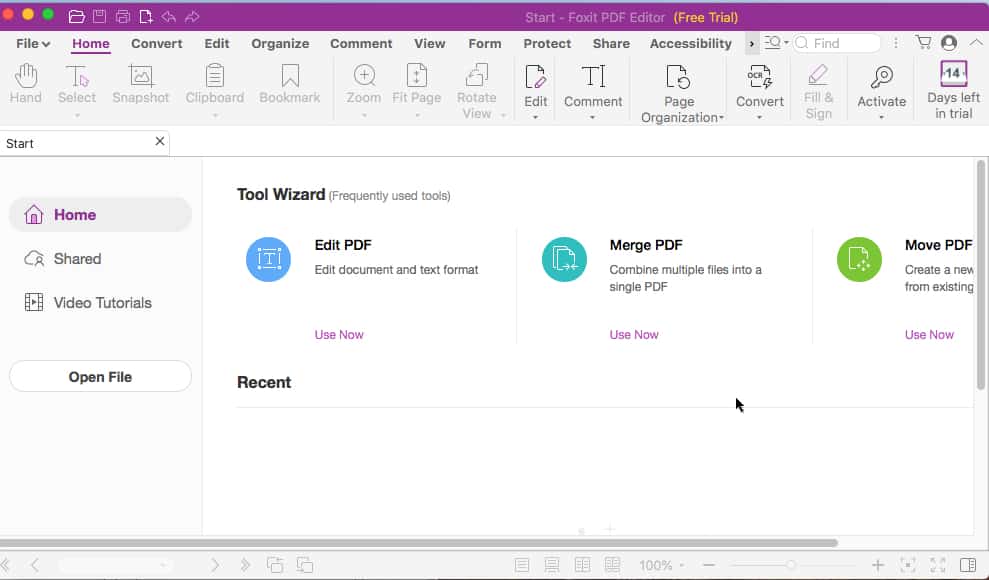
Comb fields automatically space out letters and numbers evenly across separated boxes, which is a lifesaver for phone numbers, ZIP codes, and ID numbers on flat forms. You can also save your name, address, and date as predefined text to stamp them onto forms in one click.
The free Foxit Reader covers basic filling and signing, while Foxit PDF Editor unlocks full form creation.
7. Nitro PDF Pro for Mac (Best One-Time Purchase Option for Business Forms)
Formerly known as PDFpenPro, Nitro PDF Pro for Mac is built for professionals who want strong form tools without paying a monthly Adobe subscription.
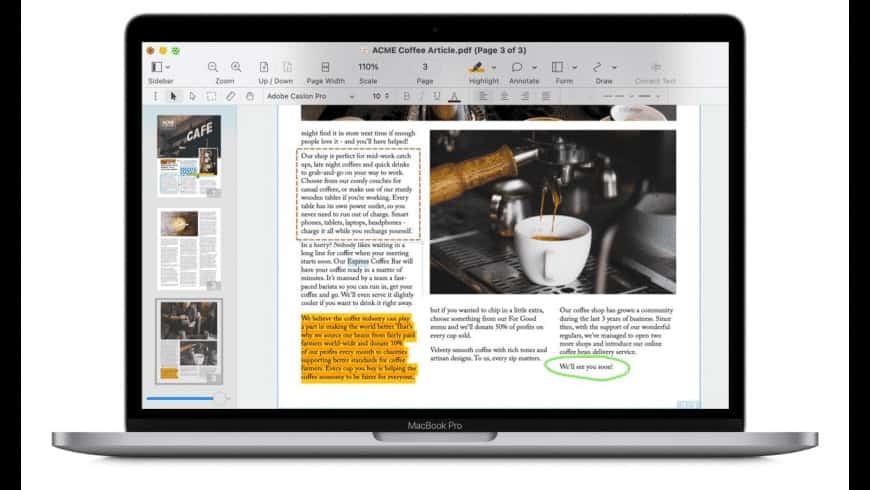
It lets you fill interactive and flat forms, create your own fillable fields, run OCR on scanned paper forms, and save reusable signature stamps in its Library. If you prefer a business-grade Mac app with flexible licensing, Nitro PDF Pro is worth a look.
What Is the Best Way to Fill Out PDF Forms on Mac? (Quick Guide)
If you want a simple rule of thumb so you never waste time fighting a stubborn form:
- Quick personal form: Open it in Apple Preview, click the Markup icon, and use Form AutoFill to fill and sign it in under a minute.
- Flat or scanned form that Preview misses: Open it in PDFgear (free) or Wondershare PDFelement (auto-detects fields).
- Tax, visa, or government form showing “Please wait…”: Open it in the free Adobe Acrobat Reader.
- Before emailing any filled form: Flatten the file by going to File > Print > PDF > Save as PDF. This locks your typed text, checkmarks, and signature onto the page so nobody can accidentally edit them and Windows computers will not display blank boxes.
Frequently Asked Questions
Why do my filled PDF forms look blank when I send them from Mac Preview?
Apple Preview stores form entries in a way that some Windows PDF viewers and web browsers fail to display properly. To prevent blank fields or missing checkmarks, never send the raw saved file straight from Preview. Instead, click File > Print, click the PDF dropdown in the bottom-left corner, and choose Save as PDF. This flattens your answers permanently onto the page so they show up on every device.
How do I fill out a non-fillable or scanned PDF form on Mac?
Open the file in Apple Preview, click the Markup toolbar icon (the pen tip in a circle), and click the Form AutoFill button so macOS detects blank lines automatically. If Preview misses a line, click the Text (T) icon to place a text box manually, or use PDFgear or Wondershare PDFelement for cleaner alignment and checkmarks.
Why does my government or IRS PDF form say “Please wait…” on Mac?
That message appears when a PDF uses Adobe’s older dynamic XFA format, which Apple Preview and Safari do not support. Download and open the file in the free Adobe Acrobat Reader for Mac instead. Make sure you save the PDF to your Downloads folder first and open it inside Acrobat Reader rather than inside your web browser.
What is the best free PDF form filler for Mac with no watermark and no upload?
Apple Preview is the easiest built-in offline option for standard forms. If you need better control over flat forms, checkboxes, and signatures without uploading private tax or medical files to an online website, PDFgear for Mac is completely free, works offline, and never adds a watermark.
Can I create a fillable PDF form for free on Mac?
Apple Preview can fill out forms, but it cannot create new clickable form fields for other people to type into. To create a true fillable PDF form on Mac with text boxes, checkboxes, and dropdowns, you will need a dedicated tool like Wondershare PDFelement, Adobe Acrobat Pro, or Nitro PDF Pro, or a free open-source option like LibreOffice Writer (which can export form controls as a fillable PDF).
How do I lock a filled PDF form on Mac so no one can change my answers?
After you finish typing and signing, flatten the document by going to File > Print, clicking the PDF menu at the bottom left, and selecting Save as PDF. The newly saved file turns your text fields and signature into static page content so they cannot be accidentally edited.
That wraps up the 7 best PDF form fillers for Mac in 2026. For quick one-off forms, Apple Preview and the Print-to-PDF trick will cover almost everything. If you work with flat forms, government paperwork, or client documents every week, stepping up to PDFgear, Adobe Reader, PDF Expert, or PDFelement will save you plenty of frustration.
Which app do you use to fill out PDF forms on your Mac? Let me know in the comments below, and share this guide if it helped you fix a stubborn form.