
Are you getting unwanted Calendar notifications on your Mac saying your device is infected with a virus, your antivirus has expired, or your Mac needs immediate attention?
These fake security alerts can be annoying, especially when they keep appearing throughout the day.

Parallels Desktop for Mac
Run Windows inside macOS seamlessly with Drag and Drop file transfers between Windows and Mac. Windows Apps and Games runs on Parallels smoothly. Save with your Purchase today.
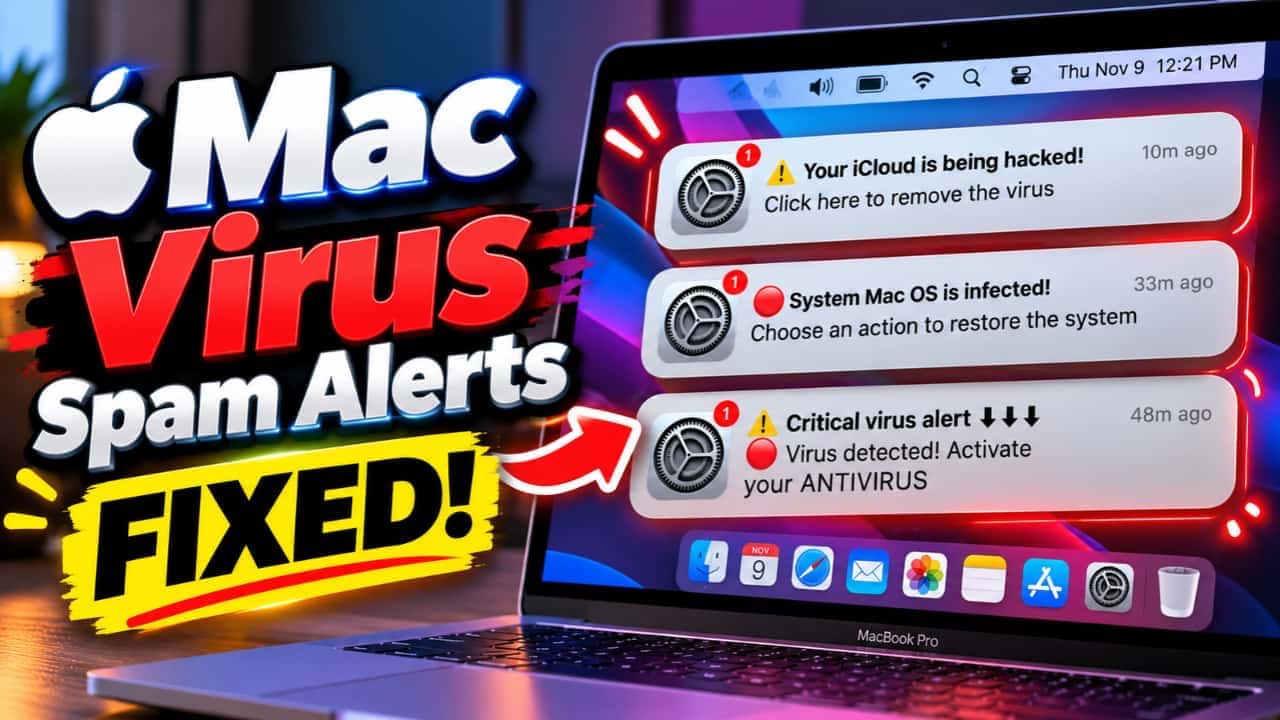
In most cases, these notifications come from unwanted calendar subscriptions, spam events, or suspicious apps. It doesn’t necessarily mean your Mac is infected with a virus.
Here are eight things you can check to remove Mac Calendar virus notifications and prevent them from appearing again on your mac.
Follow our video tutorial below to see the troubleshooting steps demonstrated on a Mac.
Table of Contents
1. Check Calendar Accounts on Your Mac
The first thing to check is whether an unfamiliar account has been added to your Mac.
- Open the Calendar app.
- Click Calendar – Accounts from the menu bar.
- Review the accounts connected to your Mac.
- Select any unfamiliar account and check its details.
If you don’t recognise an account, investigate it before removing it. You can also disable Calendar syncing for an account you don’t want to use.
2. Remove Suspicious Calendar Subscriptions and Events
Unwanted calendar subscriptions are a common reason for repeated spam notifications.
Check Subscribed Calendars
- Open the Calendar app.
- Click View – Show Calendar List if the sidebar is hidden.
- Look for unfamiliar calendars or subscriptions.
- Right-click the suspicious calendar and select Unsubscribe.
Remove Spam Events
If you find suspicious events in an existing calendar, check whether the Report Junk option is available. Otherwise, delete unwanted events that you own.
3. Check Third-Party Mail Apps
Some third-party email apps and connected accounts can add calendar events or process invitations.
If you use apps such as Outlook or other email clients, review their calendar integration settings.
Check whether unfamiliar email accounts have been added and whether any connected app is creating unwanted calendar events.
If you identify a suspicious account or app, disconnect it after confirming that it isn’t required for your regular email or calendar usage.
4. Check Device Management Profiles
Configuration profiles can manage certain settings and accounts on your Mac.
If you installed a profile from an unknown website, it’s worth checking.
- Open System Settings.
- Navigate to General – Device Management, if available.
- Review the installed configuration profiles.
- Remove any suspicious profile that you have confirmed is unnecessary.
Important: Don’t remove legitimate work, school, or organization management profiles without checking with the administrator.
5. Check Login Items and Extensions
Some unwanted applications can automatically launch when you sign in to your Mac.
To review them:
- Open System Settings – General.
- Select Login Items & Extensions.
- Review the apps listed under Open at Login.
- Check background activity permissions and installed extensions.
If you notice unfamiliar software, investigate it and remove any unwanted login items or associated applications.
6. Check Browser Extensions
If you’re still receiving fake virus notifications, check the extensions installed in your web browsers.
Safari
Open Safari – Settings – Extensions and review your installed extensions.
Google Chrome
Open Chrome and enter chrome://extensions in the address bar.

Cleanmymac X
An All-In-One solution to keep your mac storage clean. Declutter, Remove Junk files, Optimise and Boost Performance.
Remove extensions you don’t recognise or no longer use.
You should also review website notification permissions if the fake alerts are appearing from your browser rather than the Calendar app.
7. Consider macOS Restore Options
If the suspicious notifications continue after checking the previous settings, you may need to consider macOS recovery or restore options.
Before proceeding, back up your important files and identify whether the problem is actually caused by Calendar spam, an unwanted app, or something else.
Restoring or reinstalling macOS should be a last resort, not the first solution for unwanted calendar events. Reinstalling macOS alone may not remove a problematic calendar subscription that syncs back from an online account.
8. Prevent Mac Calendar Spam Notifications
Once you’ve removed the unwanted alerts, follow these precautions to avoid similar problems in the future.
- Avoid subscribing to calendars from unfamiliar websites.
- Don’t click suspicious links in calendar invitations.
- Review app permissions and browser extensions.
- Avoid installing unknown configuration profiles.
- Keep your Mac updated with the latest available macOS security updates.
Final Thoughts
Fake virus notifications in Mac Calendar can be frustrating, but they are often caused by spam subscriptions or unwanted events rather than an actual virus infection.
Start by checking your Calendar accounts and subscriptions. If the notifications continue, review your third-party apps, device management profiles, login items, and browser extensions.
Hopefully, these steps help you remove the unwanted Mac Calendar alerts and prevent them from appearing again.