
If you are looking to buy the best usb c hub for your macbook air or pro computer, then you have come to the right place. USB C Hubs with HDMI, Ethernet Port, Charging support and ofcourse, sufficient amount of USB A or USB C ports for your accessories connectivity are here.
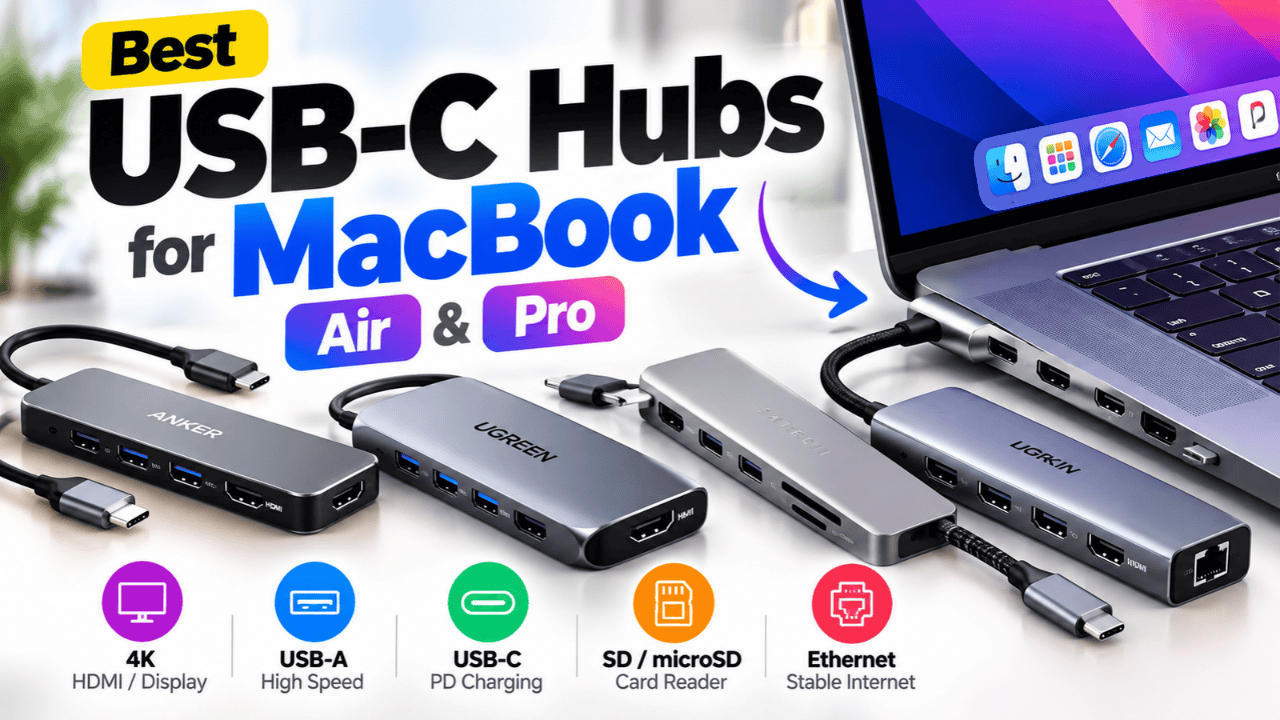
Modern MacBooks are powerful, portable, and great for everyday work. However, having limited ports can become frustrating when you need to connect an external monitor, USB drive, keyboard, mouse, SD card, or other accessories.
This is where a USB-C hub can make a big difference.
Instead of repeatedly disconnecting accessories, you can connect several devices through a single USB-C port. Some hubs also support HDMI output, fast data transfers, Ethernet, and USB-C Power Delivery charging.
Table of Contents
Best USB-C Hubs for MacBook Air and Pro
If you’re looking for a USB-C hub for your MacBook Air, MacBook Pro, or Windows laptop, here are five options worth considering.
MOKiN 14-in-1 USB-C Docking Station – Best for Desktop Workstations
If you frequently connect your laptop to external monitors and multiple accessories, the MOKiN 14-in-1 USB-C Docking Station is worth checking out.
Unlike smaller USB-C adapters, this docking station focuses on providing more connections for a complete desktop setup.
It is listed with two HDMI ports, two DisplayPort connections, USB connectivity, Ethernet, SD and microSD card readers, and up to 87W Power Delivery for the host laptop.
Key highlights:
- Multiple HDMI and DisplayPort outputs for compatible external-monitor setups.
- Wired Ethernet connectivity for users who prefer a physical network connection.
- USB ports for keyboards, mice, external drives, and other accessories.
- SD and microSD card readers for transferring files.
- Up to 87W laptop charging through supported Power Delivery configurations.
- A dedicated screen-control button.
For people working from home, using multiple monitors, or switching between a portable laptop and a desk setup, this type of dock can be especially useful.
Things to Consider:
Multiple display outputs do not automatically mean every MacBook can use them as separate extended displays. macOS, Apple silicon model limitations, and the dock’s display technology determine how many independent monitors are supported. Check compatibility carefully before purchasing.
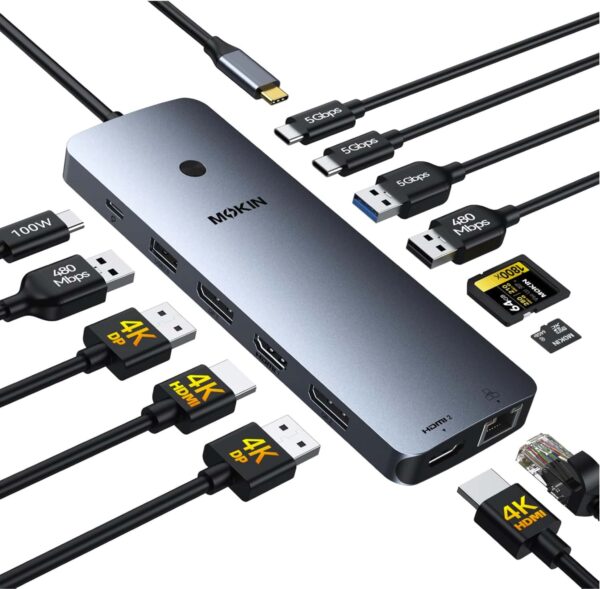
Mokin USB C Hub
Mokin Laptop Docking Station Dual Monitor 4K HDMI USB C Hub for Mac
Satechi 6-in-1 USB-C Hub – Best for Everyday MacBook Usage
Satechi makes several accessories designed to complement Apple’s products, and its 6-in-1 USB-C Hub offers a useful combination of portability and connectivity.
This adapter is particularly interesting for MacBook Air users who need an HDMI connection, traditional USB ports, and memory card readers without carrying multiple dongles.
It supports 4K HDMI output at 60Hz, USB-C Power Delivery, two USB-A ports, and SD/microSD card readers.
Key highlights:
- HDMI output supporting up to 4K at 60Hz on compatible devices.
- Up to 100W USB-C Power Delivery input, with less power available to the laptop after the hub’s operating requirements.
- One USB-A port supporting up to 10Gbps data transfer.
- A second USB-A port for standard peripherals.
- SD and microSD card readers.
- Slim aluminum construction with a braided cable.
For content creators, having a built-in SD card reader can be particularly convenient. You can transfer photos or footage from a memory card without carrying another adapter.
The 4K 60Hz HDMI connection is another useful highlight, especially if you’re connecting your MacBook to a compatible external monitor for a smoother desktop experience.
Things to consider:
This is a single-HDMI hub, not a multi-monitor docking station. It also lacks Ethernet, so users requiring wired networking should consider another option.
Who should buy it? MacBook Air and MacBook Pro users who want a portable, well-equipped hub for everyday productivity and occasional photo or video transfers.
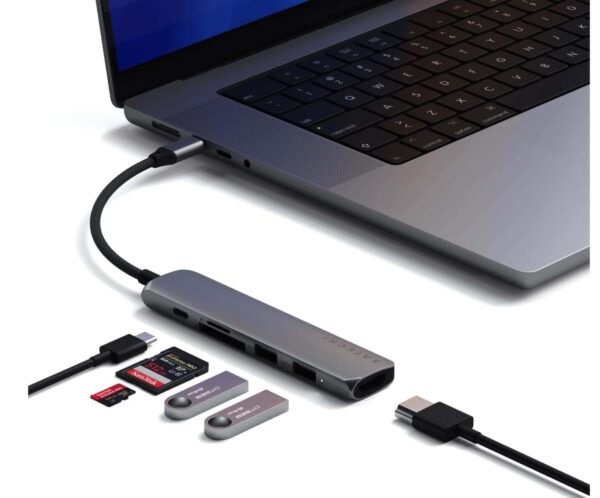
Satechi 6 in 1 USB C Hub
USB hub, 100W PD Charging, 2X USB-A Data Ports, Micro/SD Card Readers, for MacBook Air/Pro/Neo, iPad Air/Pro, Windows.
UGREEN 5-in-1 USB-C Hub – Best for Simple Connectivity
Not everyone needs a large docking station or a premium adapter.
If your priority is connecting a monitor, keyboard, mouse, and USB accessories to a laptop, the UGREEN 5-in-1 USB-C Hub is worth considering.
It offers a straightforward selection of connections, including HDMI, three USB-A data ports, and a USB-C Power Delivery input.
Key highlights:
- HDMI output supporting up to 4K resolution on compatible devices.
- Three USB-A ports for accessories such as flash drives, keyboards, and mice.
- Up to 100W USB-C Power Delivery input for pass-through charging.
- Compact design suitable for everyday carrying.
- Compatibility with supported USB-C laptops and other devices.
One practical benefit is the inclusion of three USB-A ports. This can be useful if you still own accessories that use traditional USB connections.
You could connect a wireless mouse receiver, a keyboard, and a flash drive without constantly switching between devices.
Things to consider:
This model doesn’t include SD/microSD card readers or Ethernet. Also, verify the supported HDMI refresh rate and individual USB port speeds before purchasing, particularly if you plan to use a 4K monitor or transfer large files frequently.
Who should buy it? Students, office users, and laptop owners who want basic connectivity without paying for additional features they may never use.
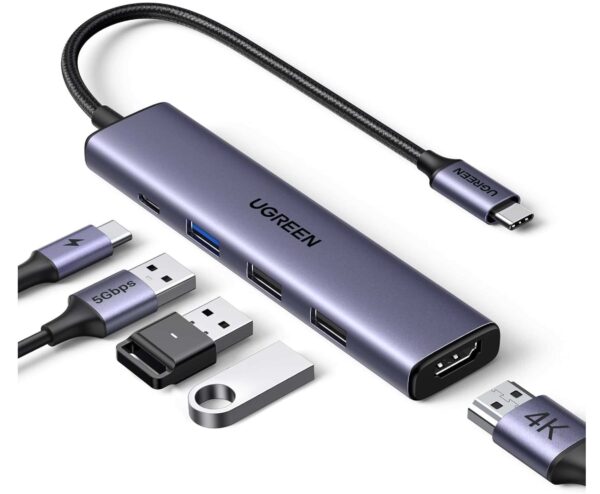
Anker 5-in-1 USB-C Hub – Best for Everyday Productivity
Anker is well known for charging and connectivity accessories, and this 5-in-1 USB-C Hub is another practical choice for laptop users.
It combines an HDMI connection with both USB-A and USB-C data connectivity, making it useful for people who work with a mix of older and newer accessories.
Key highlights:
- HDMI output supporting up to 4K resolution on compatible devices.
- One USB-C data port supporting up to 5Gbps.
- Two USB-A data ports supporting up to 5Gbps.
- Up to 85W maximum pass-through charging to the laptop, subject to a suitable charger.
- Compact design for use with MacBooks and compatible Windows laptops.
- The dedicated USB-C data connection is particularly useful.
Some inexpensive USB-C hubs include a USB-C port only for charging. This Anker model also provides a USB-C data port, allowing you to connect compatible storage devices and other accessories without occupying another laptop port.
For everyday productivity, that extra flexibility can make a difference.
Things to consider:
This hub doesn’t offer SD card readers or Ethernet. Its USB-C data port should not be assumed to support external display output. Check the laptop’s video capabilities and the product’s HDMI refresh-rate specifications before purchasing.
Who should buy it? MacBook and Windows laptop users looking for an adapter with both USB-A and USB-C data connectivity.
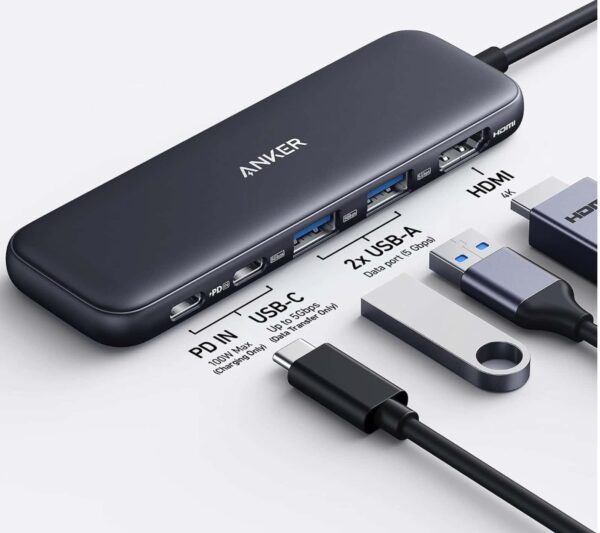
Anker 5 in 1 USB C Hub
85W Max PD, 1 Powered USB-C 5Gbps & 2 Powered USB-A 3.0 5Gbps Data Ports, for MacBook Pro, MacBook Air, Dell and More (Black)
Satechi Pro Slim 7-in-1 USB-C Hub – Best for MacBook Connectivity
If you want more connectivity while maintaining a slim, MacBook-friendly setup, the Satechi Pro Slim 7-in-1 USB-C Hub is another option to consider.
This model combines HDMI connectivity with USB4, USB data connectivity, card readers, and Power Delivery functionality.
Its design is aimed particularly at compatible MacBook models.
Key highlights:
- HDMI output for connecting a compatible external monitor.
- USB4 connectivity for supported devices.
- Additional USB data connectivity for peripherals.
- SD and microSD card readers.
- USB-C Power Delivery support up to the product’s specified input rating.
- Slim construction designed to complement compatible MacBooks.
The advantage is having several useful connections available together, especially if you frequently work with external storage, memory cards, and a monitor.
For photo editing, document work, and everyday productivity, this can reduce the number of separate adapters you need.
Things to consider:
This model’s direct-attachment design and connector arrangement make compatibility especially important. Check the exact MacBook model, port spacing, USB4 capabilities, and charging limitations. Don’t assume it will fit every laptop or deliver Thunderbolt-level performance for every accessory.
Who should buy it? MacBook users who prefer a slim, integrated-style hub with a broader selection of ports.
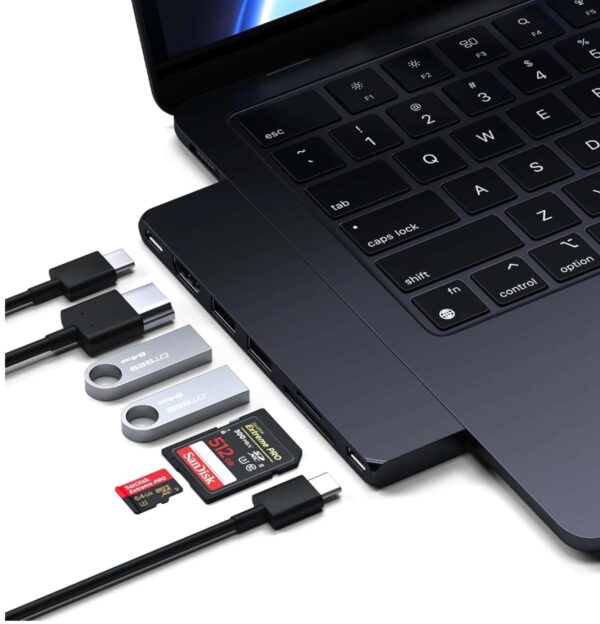
Satechi 7 in 1 USB C Hub
USB hub, 100W Charging, USB 4, USB 3.2 Gen 2, SD/Micro Card Reader, for Mac, MacBook Air/Pro
Things to Check Before Buying a USB-C Hub
Not all USB-C hubs deliver the same performance. Even when two adapters look similar, their internal specifications can be very different.
Here are a few important things to check.
1. HDMI Resolution and Refresh Rate
If you plan to connect a 4K monitor, check whether the hub supports 4K at 30Hz or 60Hz.
For everyday desktop usage, 4K at 60Hz generally provides smoother cursor movement and scrolling than 4K at 30Hz.
However, both your laptop and the connected display must support the required video mode. The cable and USB-C hub also need to be compatible.
2. USB Data Transfer Speeds
USB ports may look identical while offering different transfer speeds.
For keyboards and mice, basic USB connections are usually sufficient. But if you’re transferring large video files or using external SSDs, look for USB connections supporting 5Gbps or 10Gbps, or faster standards where required.
Remember that the hub’s connection to the laptop may share bandwidth across several devices.
3. USB-C Power Delivery
Many USB-C hubs advertise 100W Power Delivery support.
However, this doesn’t always mean your MacBook receives the full 100W.
Some power is used by the hub itself, and charging speed also depends on your power adapter, cable, and laptop.
Check whether the listed wattage refers to input power or the maximum power delivered to the computer.
4. External Monitor Compatibility
This is particularly important for MacBook Air users.
A docking station with two or three HDMI or DisplayPort outputs does not necessarily support two or three independent external displays on every Mac.
Always confirm supported extended-display configurations before buying a multi-monitor docking station.
5. SD Card Readers and Ethernet
If you frequently transfer photos and videos from a camera, a hub with an SD card reader can be useful.
Similarly, an Ethernet port may be worth having if you frequently work on wired networks or need a reliable physical network connection.
But if you rarely use these features, a smaller USB-C hub may be more convenient.
Which USB-C Hub Should You Buy?
Choosing the right USB-C hub depends on how you use your laptop.
For a desk setup involving multiple monitors and peripherals, the MOKiN 14-in-1 Docking Station provides the broadest selection of listed connections among these five products. Just make sure your laptop supports the display configuration you want.
For everyday MacBook usage, the Satechi 6-in-1 USB-C Hub is a balanced option thanks to its HDMI output, USB-A ports, and memory card readers.
If you mainly need additional USB ports and an HDMI connection, the UGREEN 5-in-1 Hub offers a simpler approach.
The Anker 5-in-1 Hub is particularly appealing if you want an additional USB-C data port alongside traditional USB-A connections.
Meanwhile, the Satechi Pro Slim 7-in-1 Hub may be better suited to compatible MacBook owners who want an integrated-style adapter with several connectivity options.
Frequently Asked Questions
Can I use a USB-C hub with MacBook Air?
Yes. A compatible USB-C hub can expand the available connections on a MacBook Air. However, features such as external display output, USB data speeds, and charging depend on the MacBook model and the hub’s specifications.
Can a USB-C hub charge my MacBook?
Many USB-C hubs support Power Delivery pass-through charging. Connect a compatible USB-C power adapter to the hub’s PD input, and the hub can supply power to the laptop. The actual charging wattage depends on the adapter, hub, cable, and MacBook.
Can I connect two monitors using a USB-C hub?
It depends on the hub and your computer. Some docks provide multiple video outputs, but your MacBook must support the intended external-display configuration. Certain setups may require additional drivers or display technologies.
Is a USB-C hub the same as a Thunderbolt dock?
No. Although both may use USB-C connectors, Thunderbolt docks can provide different bandwidth and display capabilities. A basic USB-C hub shouldn’t be assumed to offer the same functionality as a Thunderbolt dock.
Do USB-C hubs reduce data transfer speeds?
They can, especially when several high-bandwidth devices share the hub’s connection. For external SSDs and large file transfers, check the supported USB speeds and available bandwidth.
Final Conclusion:
A good USB-C hub can make a MacBook or Windows laptop much more convenient to use.
Instead of carrying separate adapters for HDMI, USB accessories, and memory cards, you can connect several devices through one hub.
But more ports don’t necessarily mean a better purchase.
The right choice depends on whether you need external monitors, fast storage transfers, charging, memory card readers, or simply a few extra USB connections.
Before buying, check compatibility with your laptop and make sure you’re paying for features you’ll actually use.
Which USB-C hub are you currently using with your MacBook or Windows laptop? Share your experience in the comments.