
Is your iPhone ringing 10 times a day with loan offers, scam calls, and fake customer care numbers? I know how frustrating that is. The iPhone already has built-in tools to stop spam calls.
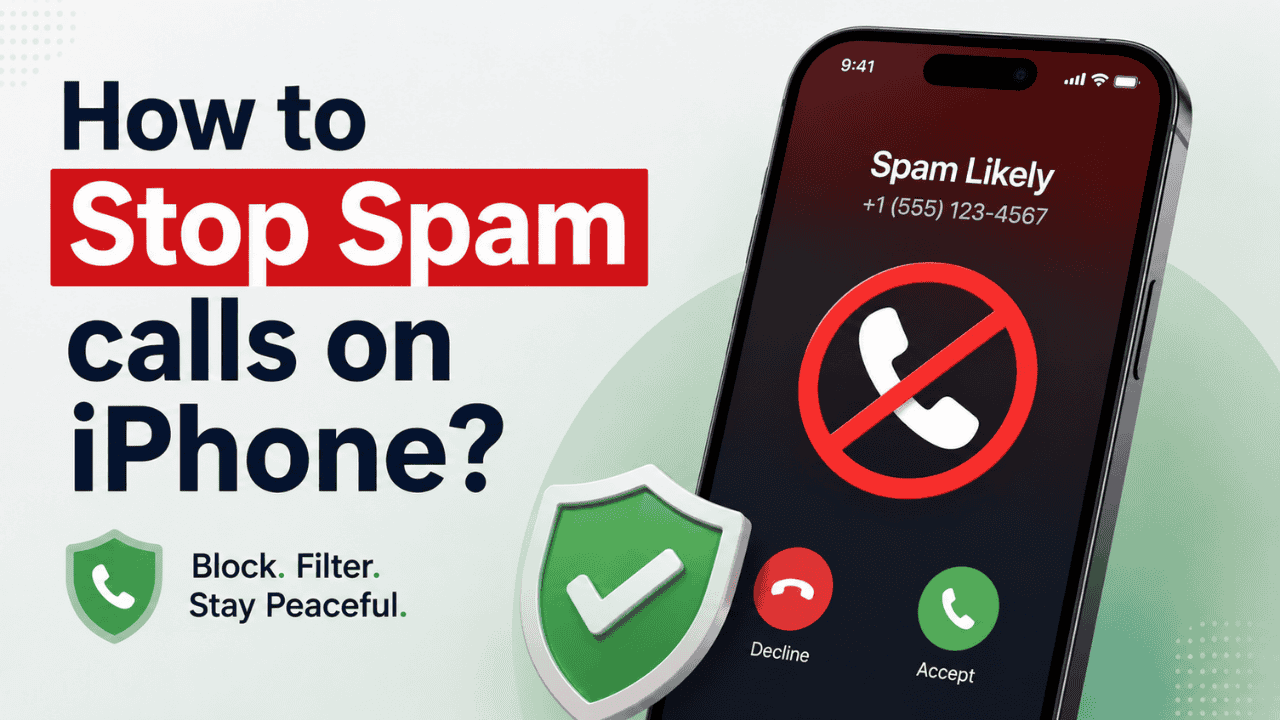
You just need to set them up right.
Let me walk you through the best settings and one app that actually helps.
Table of Contents
Best iPhone Settings to Block Spam Calls
Open Settings, search for Phone, and tap on it. Scroll down to Silence Unknown Callers. In iOS 26, this feature got much stronger.
You get three options:
Never: Default setting. All calls come through normally.
Ask Reason for Calling: My personal favorite. Unknown callers have to state why they are calling before it rings. You see a live transcript on your lock screen and decide whether to pick up or ignore. Saves a lot of time.
Silence: Silences all calls from numbers not saved in your contacts. They still go to voicemail and show up in Recents. Good to use for a week or two when spam suddenly spikes.
Affiliate link. As an Amazon Associate I earn from qualifying purchases.
There is also a Call Filtering toggle on the same page. Turn it on and unknown callers get moved to a separate list. You can check them later without getting disturbed during the day.
Also check out our recent post that will help you to learn How to Clear Cache on iPhone to Free Up Storage Space.
How to Block Repeat Spam Numbers
For numbers that keep calling back, manual blocking works great.
- Open the Phone app and go to Recents tab.
- Tap the info icon next to the spam number.
- Scroll down and tap Block this Caller.
- You can also tap Report as Junk to flag it.
By default, Blocked Numbers are saved under Settings – Phone – Blocked Contacts. You can manage or remove them anytime.
Affiliate link. As an Amazon Associate I earn from qualifying purchases.
Use Truecaller for Extra Protection
Built-in settings are good. But pairing them with Truecaller makes a real difference, especially for loan offers and fake customer care calls.
The free version lets you check numbers manually before calling back. With Premium, you get live caller ID that shows who is calling before it even rings. It also auto-blocks known spam numbers and filters spam SMS too.
Try the free trial first and see how it works for you. Family plans are available if you want to cover multiple numbers.
Also Read, iPhone 17 Display Oleophobic Coating Wearing Out? How to Fix?
Additional Quick Tips
- Use Ask Reason for Calling or Silence for 1-2 weeks when spam is high, then switch back.
- Always keep iOS updated. Apple keeps improving spam protection with each update.
- Combine iPhone built-in settings with Truecaller for the best results.
These three things on your iPhone settings plus Truecaller, will bring spam calls way down. I have seen a big difference after setting these up.
Have these tips helped you? Or do you have another method that works better? Drop it in the comments below. It will help others too!