
Some iPhone users are saying their phone feels warm and heating after installing iOS 26.5.2 update. If yours is also getting a bit hot, don’t worry too much right away. This can happen after updates because your iPhone is doing a lot of background work, and you can try these fixes if you notice heating after iOS Update.
After any iOS update, the system software performs ReIndexing of files, Background optimization to improve the overall performance. This shows the signs of warm temperature increase and sometimes users do notice heating depending on their usage.
It settles down in a day or two normally. If it lasts for more than a week after iOS update, then we need to proceed with the following checks and troubleshooting steps to see it improves or fixes the heating issue after iOS Update.
Kevio: Family Medicine Tracker
No more missing of Medications, Tests and Doctor Appointments. Let Kevio keep a track of it, and Remind you right on time. Take Prescriptions, Blood Tests, Injections right on time with Kevio.
Table of Contents
Check Your Battery Health
Before trying any fixes, open Settings App and go to Battery – Battery Health & Charging. Check the Maximum Capacity number.
If it is around 80% or lower, your battery is likely getting old. In that case, heating and fast battery drain can happen even with normal use. Software fixes may not help much here.
The proper solution is to get the battery replaced at an Apple Store or authorized service center.
About iPhone Battery Health Reduce
iPhone batteries reach 100 to 80% level over 2.5 to 3 years of maximum time for normal users. Depending on your usage and charging practice this time period may change.
Why iPhone Heats After iOS 26.5.2 Update?
iOS 26.5.2 is a small security update. But the update size was huge for most users. For some model it was 10GB and even upto 15GB.
Sometimes, small updates can make your iPhone work harder in the background for a while. It reindexes files, processes photos, syncs iCloud data, and optimizes the system.
This extra work often causes heating, faster battery drain, and slightly slower performance for the first couple of days. It is normal and usually goes away on its own.
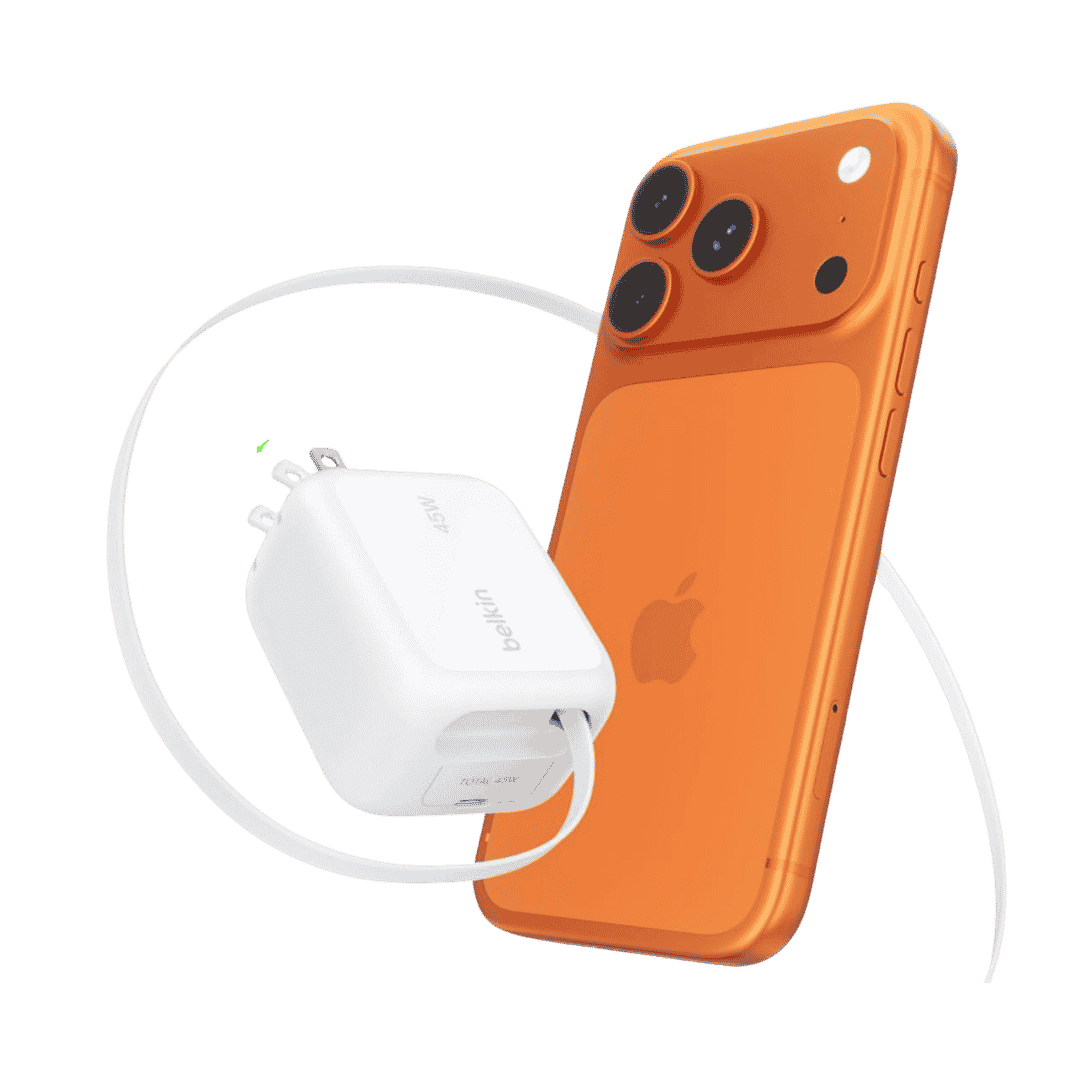
Belkin Wall GaN Charger 45W Retractable USB C Cable
Belkin GaN Charger 45W Power with Retractable USB C Cable. Supports iPhone Fast Charging and suitable for other AirPods, Apple Watch and more.
Affiliate link. As an Amazon Associate I earn from qualifying purchases.
Troubleshooting Steps You Can Try:
Start with a restart. Just restart your iPhone once and use it normally for a day or two. This clears minor glitches and refreshes background processes.
Also make sure all your apps are updated from the App Store. Old app versions sometimes cause extra heating after a new iOS update.
Go to Settings – Battery and check which apps are using the most power.
If one app is using too much, update it or delete it for a while. Heavy apps like social media, navigation, and games can make your phone warm.
If your iPhone heats up only while charging, try using an original or certified charger and cable. That’s very important to protect iPhone Battery over long run. Many people charge with whatever they can find, and that definitely puts a dent on Battery Health over months of usage.
Some suggestions when it comes to Adapter and USB C Cable. If its Lightning to USB C cable, then consider going for apple original usb c cable or any MFi certified cables. That should be safe to use.
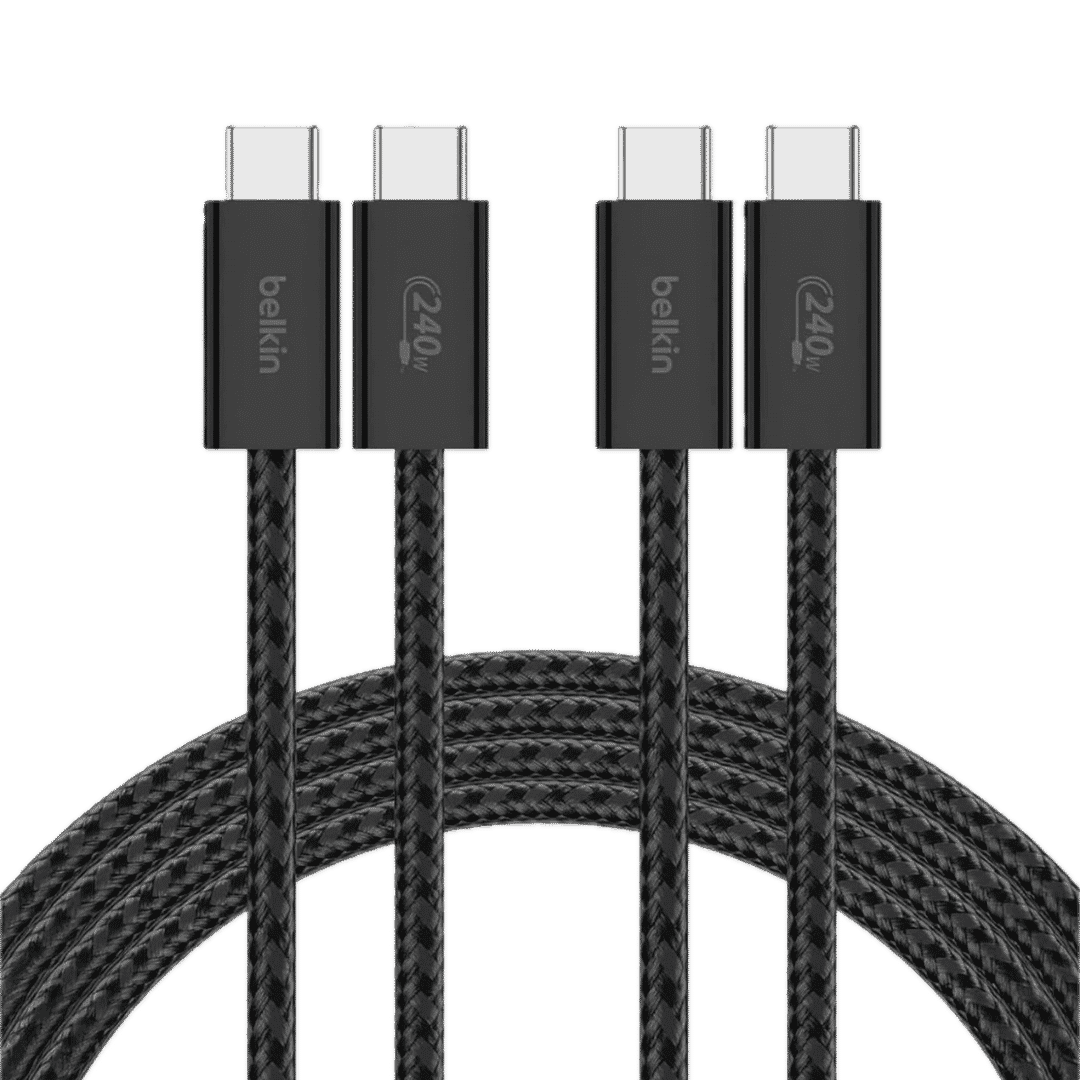
Belkin USB C to USB C Cable (2 Pack)
Belkin USB C to USB C Cable, Soft Braided, Flexible and Durable for iPhone. 240W Power and 6.6 feet length.
Affiliate link. As an Amazon Associate I earn from qualifying purchases.
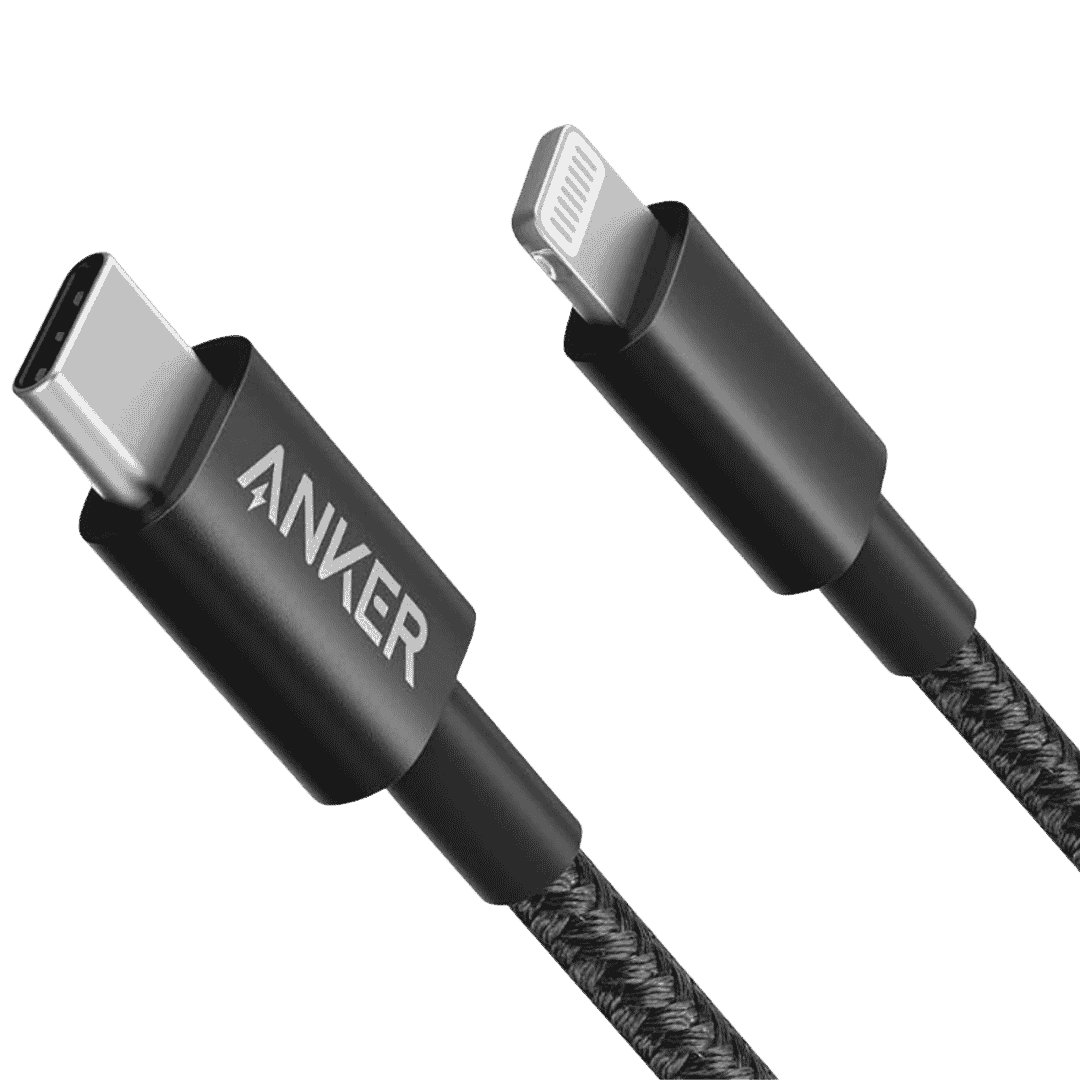
Anker MFi Lightning to USB C Cable (2 Pack)
Anker New Nylon USB C to Lightning Cable, Apple MFi Certified for iPhone and comes in 6.6 feet length. You can select Cable Length and 1 or 2 Packs during Checkout.
Affiliate link. As an Amazon Associate I earn from qualifying purchases.
Reset All Settings Only If Needed
If the heating continues even after one week and your battery health is above 83 or 85%,then try Reset All Settings.
Go to Settings – General – Transfer or Reset iPhone – Reset – Reset All Settings.
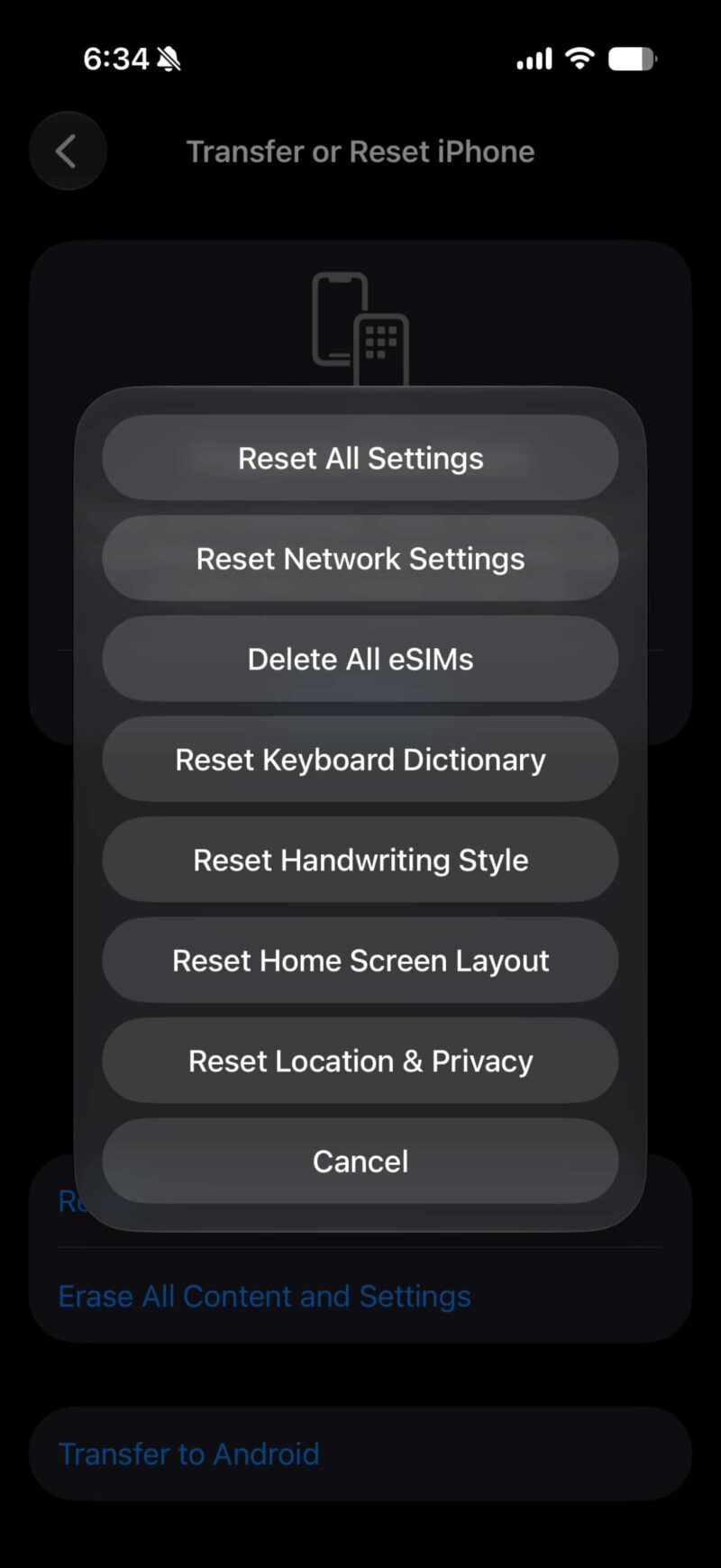
This will not delete your photos, apps, or data. It only resets Wi-Fi, Bluetooth, keyboard, location, and privacy settings. Many people find this fixes heating issues after iOS updates.
- If your iPhone started heating only after iOS 26.5.2, give it a few days first. Restart it, update your apps, and check battery usage.
- But if your battery health is already 80% or lower, battery replacement is the real fix. Software steps won’t help much with a weak battery.
- If the problem continues after a week and your battery is still good, then Reset All Settings is worth trying. In most cases, these simple steps solve iPhone heating after updates.
Have you noticed heating after this update? What is your battery health showing? Let me know in the comments.