

Are you seeing random posts, unwanted videos, or irrelevant content on your X (Twitter) feed? Sometimes, the For You feed starts showing posts that we are not interested in, even from accounts we don’t follow.
If you are looking for a way to reset the X (Twitter) algorithm and start fresh, there are a few settings you can change.

Twitter, now known as X, doesn’t have a dedicated button to reset the algorithm completely. However, we can make some changes to content preferences and train the algorithm to show posts based on our interests.

Table of Contents
How to Reset X (Twitter) Feed
Let’s explore how to reset your X (Twitter) feed and improve the posts you see on your timeline.
Switch from For You to Following Tab
The first thing I recommend is switching to the Following tab instead of the For You feed.
As we know, the For You tab shows recommended posts based on your activity, interests, and other signals. Sometimes, we see random posts that have nothing to do with our interests.
Open the X app and tap on the Following tab at the top.
Now, you will mostly see posts from accounts you follow instead of random recommendations. This is one of the easiest ways to avoid unwanted posts on Twitter.
Change Twitter Content Preferences and Location
Another important setting to check is your content preferences. X may recommend posts based on your location and the topics you interact with.
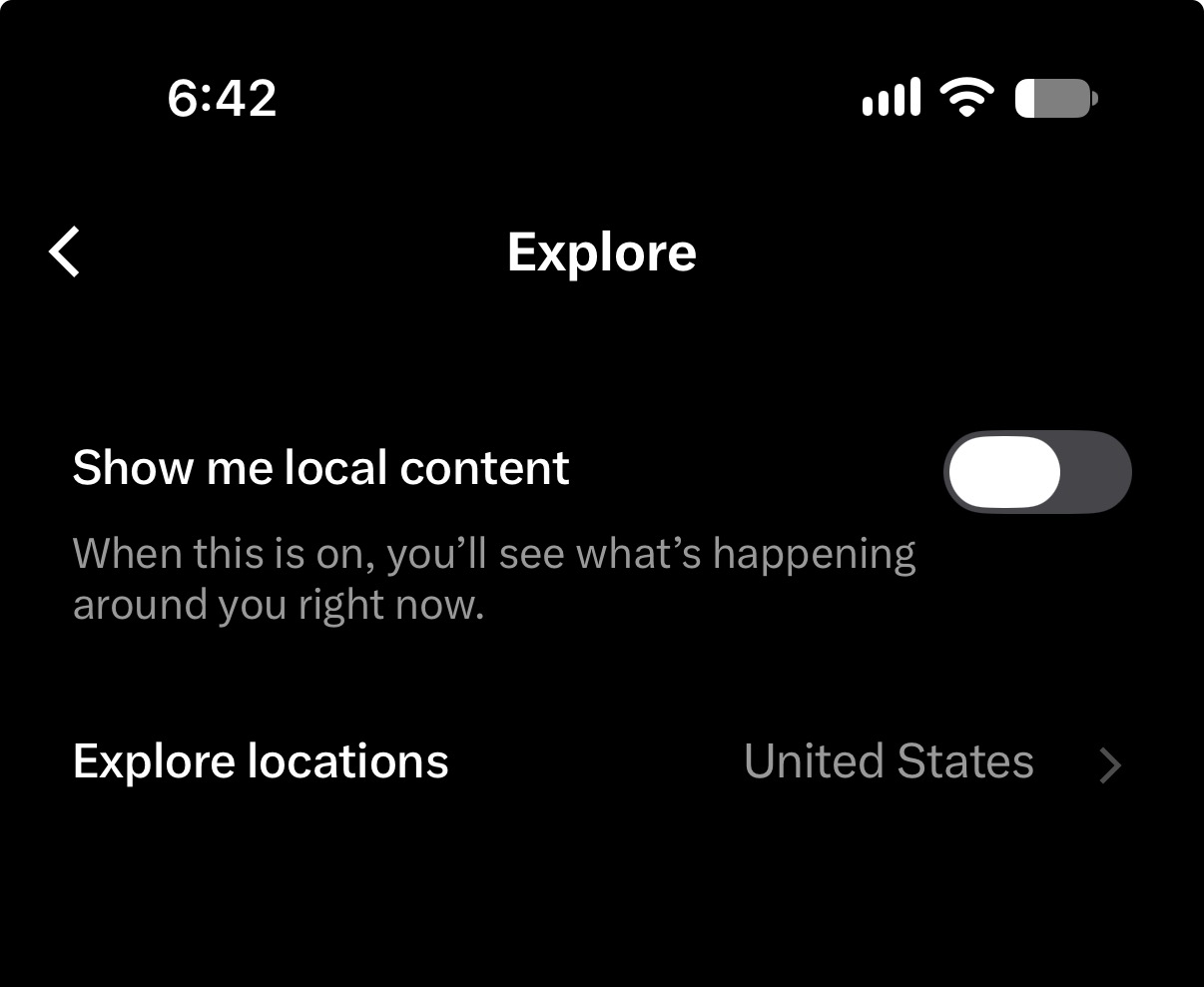
To change these settings:
- Open the X app and tap your Profile Picture.
- Go to Settings and privacy.
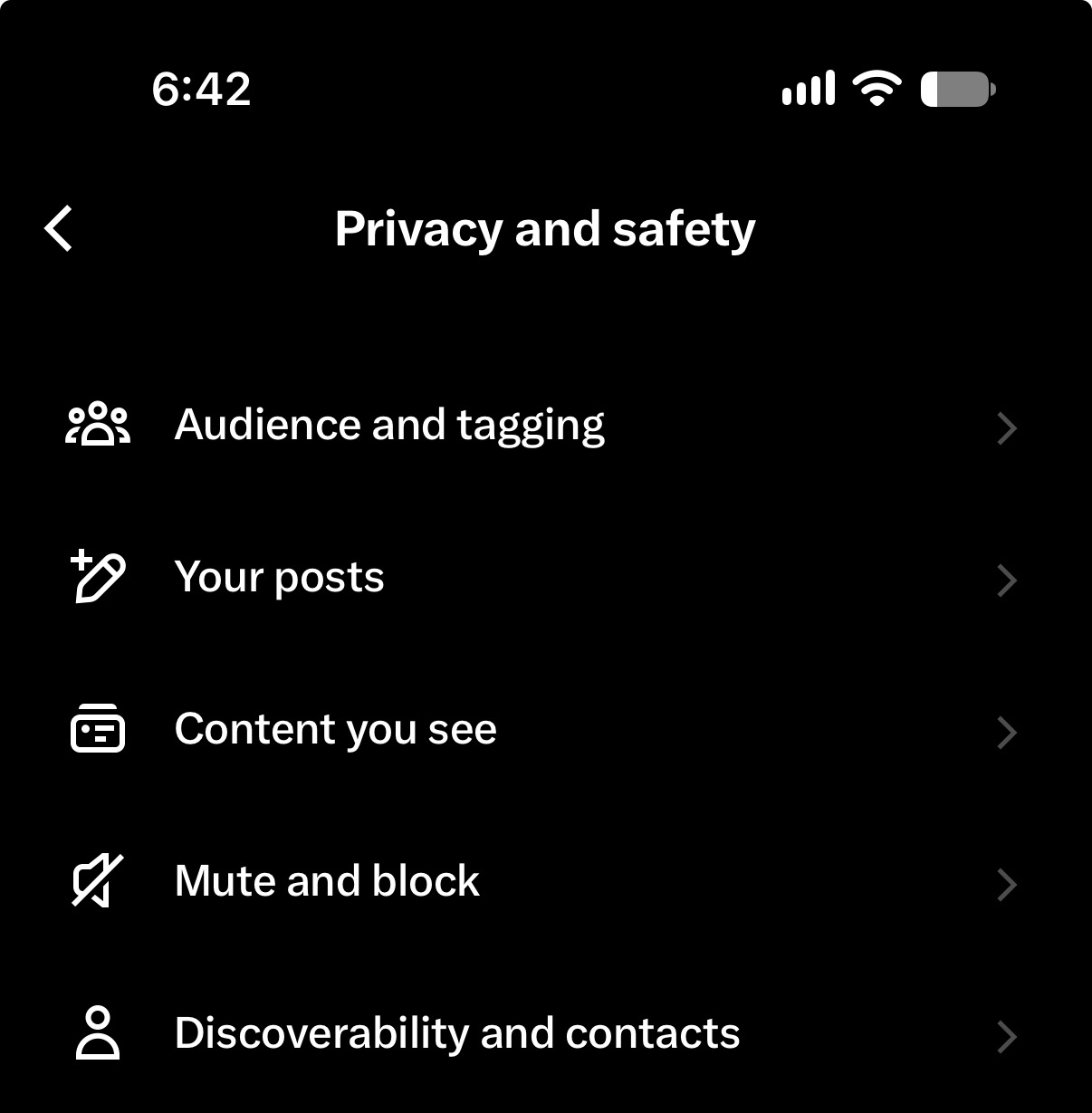
- Select Privacy and safety.
- Tap Content you see.
- Open Explore settings.
Here, you can turn off location-based personalization if you don’t want to see regional trending topics. You can also choose a different location for Explore trends.
This setting mainly affects Explore content and trends. It doesn’t completely remove location-based recommendations from your For You feed.
Turn Off Sensitive Content on Twitter
Are you seeing violent, disturbing, or unwanted media on your Twitter feed?
You can reduce sensitive content by changing a simple setting. Some sensitive media settings may not be available directly in the iPhone app, so you may need to use a web browser.
Open the X website and sign in to your account.
Find the option Display media that may contain sensitive content and turn it off.
This should help reduce sensitive media appearing on your timeline. However, it may not filter every unwanted post.

Insta360 Link 2 Pro is a 4K Webcam for PC and Mac. 1/1.3" Sensor delivers excellent low light, AI Tracking, HDR and Directional Noise Cancelling MIcs. Supports Stream Deck, Zoom, Youtube Live, Twitch and more.
Affiliate link. As an Amazon Associate I earn from qualifying purchases.
Change Twitter Search Settings
Apart from your timeline, you may also see unwanted posts and accounts when searching on Twitter.
To improve your search results, open the Search settings under Content you see.
Enable these two options:
– Hide sensitive content: Helps filter sensitive posts from search results.
– Remove blocked and muted accounts: Prevents posts from blocked and muted accounts from appearing in search results.
These settings are useful if you frequently search for news, technology updates, or trending topics.
Mute Unwanted Words and Topics
One of the useful features on X (Twitter) is the ability to mute specific words.
For example, if you are seeing too many posts about a topic you don’t like, you can add related keywords to your muted words list.
Go to Settings and privacy – Privacy and safety – Mute and block – Muted words.
Tap the Add button and enter the word or phrase you want to mute.
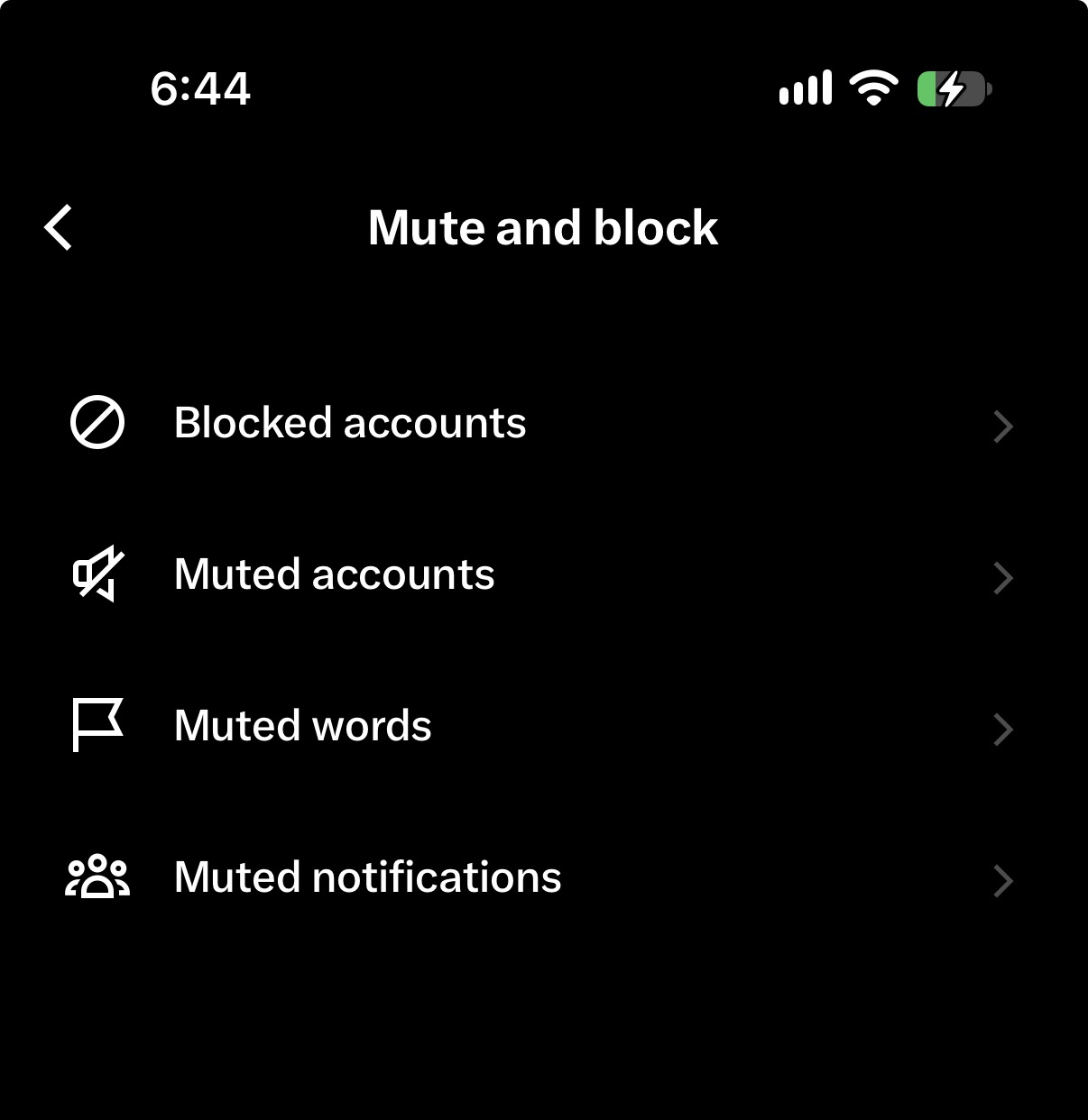
You can also choose where the muted words should apply and how long they should remain muted.
Another simple trick is to tap the three dots on an unwanted post and select Not interested in this post.
Doing this regularly can help X understand what type of posts you don’t want to see.
Train the Twitter Algorithm with Your Interests
Now comes the important part. We have changed the settings to reduce unwanted posts. But how do we make Twitter show the content we actually want?
I recommend spending a few minutes searching for topics you are interested in.
For example, if you like technology, photography, Apple products, or health-related topics, search for those keywords.
Try searching for 10 to 20 topics and interact with relevant posts.
Like, bookmark, repost, or comment on posts that you genuinely find useful. You can also follow accounts that regularly share content related to your interests.
These activities send signals to the X (Twitter) algorithm about the type of posts you prefer.
Don’t expect the entire feed to change immediately. It may take some time for the recommendations to improve.
Can You Completely Reset the Twitter Algorithm?
Unfortunately, Twitter doesn’t provide a one-click option to reset your For You feed.
But by changing content preferences, muting unwanted topics, using the Following tab, and interacting with posts you like, you can gradually improve your Twitter feed.

Anker 5 in 1 USB C Hub
85W Max PD, 1 Powered USB-C 5Gbps & 2 Powered USB-A 3.0 5Gbps Data Ports, for MacBook Pro, MacBook Air, Dell and More (Black)
I suggest trying these methods for a few days and checking whether the For You recommendations improve.
You don’t have to create a new X (Twitter) account just to start seeing better content. Making these changes to your existing account is worth trying first.