
Hey everyone. Seeing the “Update your phone’s software to log back in” screen inside WhatsApp is super annoying. You open the app, the message blocks everything, and the only button is Learn More. No chats, no calls, nothing.
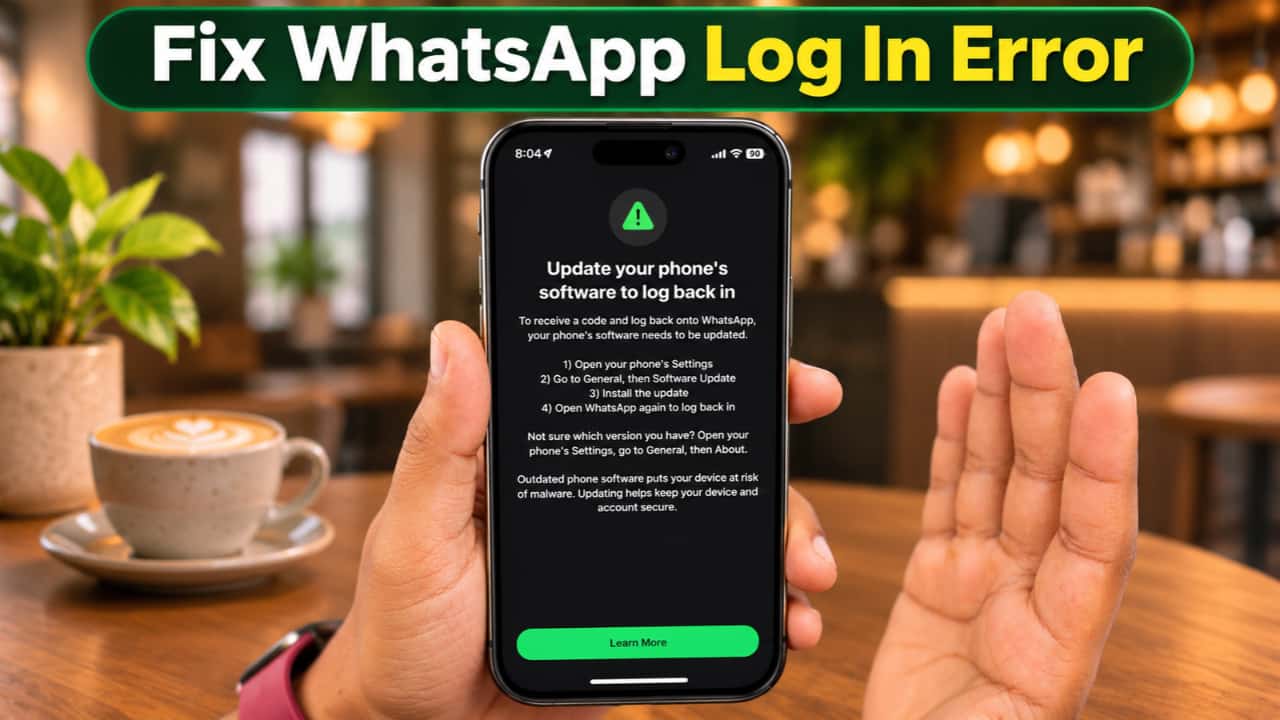
Good news is this is a common iOS compatibility block, and most people fix it in a few minutes by updating to a supported iOS version. Here’s exactly what causes it and how to clear the WhatsApp login block.
Table of Contents
Why Does WhatsApp Say “Update Your Phone’s Software to Log Back In”?
According to WhatsApp’s supported operating systems guidelines, the app officially supports iOS 15 and newer. That part is clear. The problem shows up when you are running an older sub-version inside a major release.
Even if you are on iOS 18 or another supported major version, an outdated build can trigger the security check. As explained in WhatsApp’s iOS update prompt documentation, the app looks for recent security patches. If your phone is missing them, it shows the “update your phone’s software to log back in” popup and stops you from logging in.
It is not a bug in your account. It is an outdated iOS build. Once you install a newer compatible version, the popup disappears and WhatsApp works normally again.
How to Fix WhatsApp “Update Your Phone’s Software” Error on iPhone
Try these steps in order. Most people clear the error with the first or second method.
1. Install the Latest Sub-Update Within Your Current iOS Version
If you are holding back from a brand-new major iOS release (for battery or performance reasons), you can still fix this without jumping to the newest major version.
- Open the Settings app.
- Tap General.
- Tap Software Update.
- If an update is available inside your current major version (for example, moving from an older iOS 18 build to iOS 18.7.2), download and install it. You can also follow Apple’s official guide on updating your iPhone if you need to update via a computer.
- Restart your iPhone when it finishes.
- Open WhatsApp and check if the popup is gone. Verification: The blocking error screen disappears and your WhatsApp chat list loads normally.
This is the safest first step. You stay on the same major iOS version you already trust, but you pick up the security patches WhatsApp wants.
2. Upgrade to an Intermediate iOS Version (e.g., iOS 26 Instead of iOS 27)
If updating inside your current version did not clear the error, check Software Update again. Apple sometimes offers an intermediate major version instead of forcing the absolute latest one.
- Go back to Settings > General > Software Update.
- Look for any other available option (for example, iOS 26 if you are still on iOS 18 and do not want to jump straight to iOS 27).
- Download and install that intermediate version.
- Restart your phone.
- Open WhatsApp. Verification: The app successfully authenticates your credentials and bypasses the compatibility check screen.
This middle step satisfies WhatsApp’s requirements while avoiding a full jump to the newest major release. Many people with older iPhones (especially those sitting around 80% battery health, where Apple’s battery and performance management applies) prefer this route—as we covered in our iOS 26 vs. iOS 27 update comparison—so they keep better performance and battery life.
3. Update WhatsApp to the Latest Version via the App Store
While your iPhone is updating, also make sure the WhatsApp app itself is current.
- Open the App Store.
- Tap your profile picture in the top right.
- Scroll down and look for WhatsApp.
- If an update is available, tap Update.
- Once both the iOS update and the WhatsApp update are finished, open WhatsApp. Verification: You are able to send and receive messages without any software restriction popups.
The combination of a supported iOS version plus the latest WhatsApp app removes the blocking screen. You should be able to log back in and use the app normally.
Frequently Asked Questions
Can I bypass the “Update your phone’s software” popup on WhatsApp?
No reliable bypass exists. The screen is a hard compatibility check. The only real fix is to install a supported iOS version and the latest WhatsApp update. Once those are in place, the popup goes away on its own.
Does WhatsApp still support iOS 18 in 2026?
Yes, WhatsApp still supports iOS 15 and newer. The catch is that you need a recent enough sub-version of iOS 18 (or whatever major version you are on). An old iOS 18 build can still trigger the “update your phone’s software to log back in” message until you install the latest available patch for that version.
Will updating iOS drain my older iPhone’s battery health?
A normal software update does not permanently damage battery health. However, major version jumps can sometimes feel heavier on older devices. That is why many people prefer updating only within their current major version or stepping up to an intermediate release instead of going straight to the newest one. If your battery health is already around 80%, the intermediate path is usually the safer choice.
That’s it. Update within your current iOS version first, step up to an intermediate version if needed, and make sure WhatsApp itself is up to date. If you encounter login verification issues later, you can also check our guide on fixing the WhatsApp Couldn’t Send SMS error.
Which step worked for you? Let me know in the comments. Share this post if it helped so more people can get past the same WhatsApp popup.