
Trying to sign out of the Mac App Store so you can switch Apple IDs? A lot of people get stuck here. On iPhone and iPad you can sign out right inside the App Store app, but on a Mac it’s different. There’s no sign out button in the Mac App Store itself.
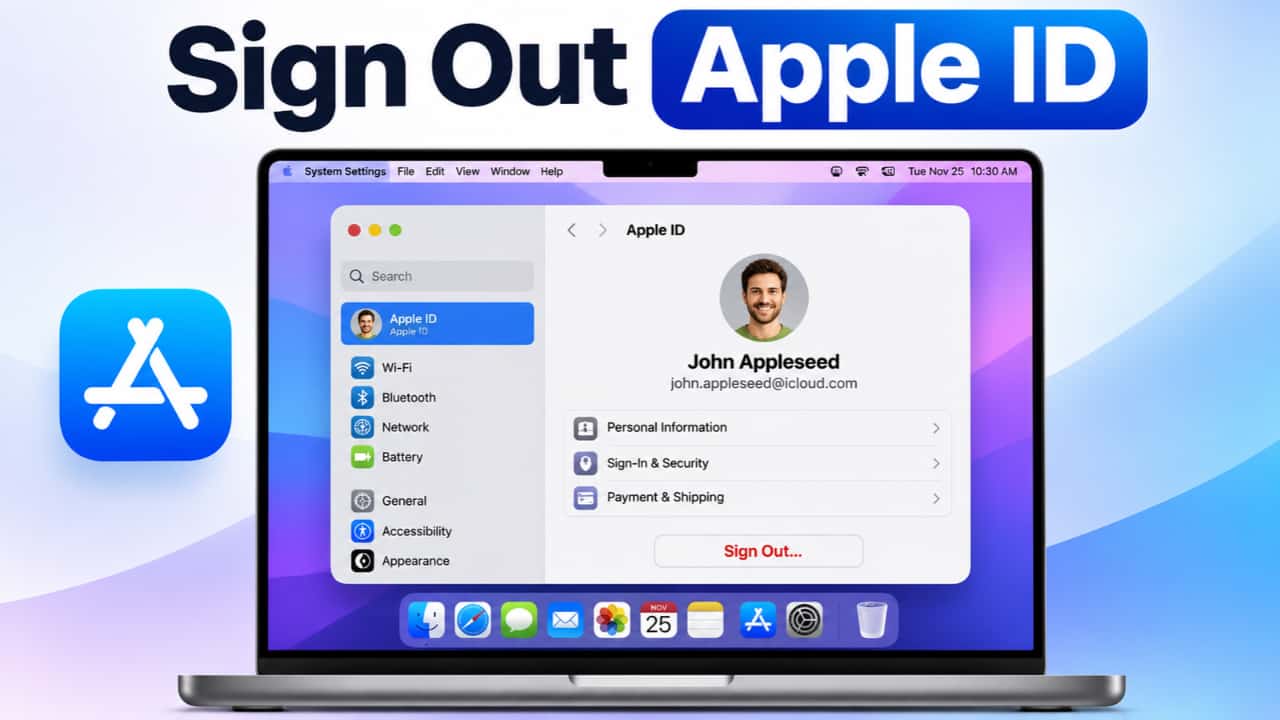
Here’s the simple way to sign out of the Mac App Store and switch Apple IDs on Mac.

Parallels Desktop for Mac
Run Windows inside macOS seamlessly with Drag and Drop file transfers between Windows and Mac. Windows Apps and Games runs on Parallels smoothly. Save with your Purchase today.
Table of Contents
Why Is There No Sign Out Button in the Mac App Store?
If you open the Mac App Store and click your name at the bottom left, it only shows your account details or takes you to the Apple website. You’ll see options to view your account, but there’s no “Sign Out” or “Log out” button anywhere.
This confuses a lot of people. The Mac App Store does not let you sign out directly from inside the app. The option available inside System Settings.
How to Sign Out of the Mac App Store
Follow these steps to sign out:
Step 1: Open System Settings on your Mac.
Step 2: Click your name / Apple ID at the top left corner.
Step 3: Select Media & Purchases.
Step 4: Click Sign Out next to your account.
That’s it. Once you sign out, the Mac App Store will show that no media account is signed in. You can close and reopen the App Store if you want to confirm.
How to Switch Apple IDs on Mac
After you’re signed out, you can sign in with a different Apple ID the same way:
Step 1: Go back to System Settings.
Step 2: Click your name at the top.
Step 3: Select Media & Purchases.
Step 4: Sign in with the Apple ID you want to use (personal, school, work, or any other account).
Anker MFi Lightning to USB C Cable (2 Pack)
Anker New Nylon USB C to Lightning Cable, Apple MFi Certified for iPhone and comes in 6.6 feet length. You can select Cable Length and 1 or 2 Packs during Checkout.
Affiliate link. As an Amazon Associate I earn from qualifying purchases.
Here after, the mac app store will use the new Apple ID for downloads and purchases.
Note: Signing out of Media & Purchases only affects the App Store, Apple Music, and related media purchases. It does not sign you out of iCloud or your main Apple ID on the Mac.
Quick Tips
-
If you only need to download a free app with another account, you can usually sign in temporarily, download it, then switch back.
-
Apps you’ve already downloaded stay on your Mac even after you switch Apple IDs. You just won’t be able to update them unless you sign back in with the original account.
-
The same Media & Purchases section is where you manage Family Sharing purchases too.
That’s the whole process. The Mac App Store has no sign out button on purpose, so you always do it through System Settings under Media & Purchases.
Did this help you switch Apple IDs on your Mac? Let me know in the comments if anything didn’t work or if you ran into a different issue. Have a great day.