
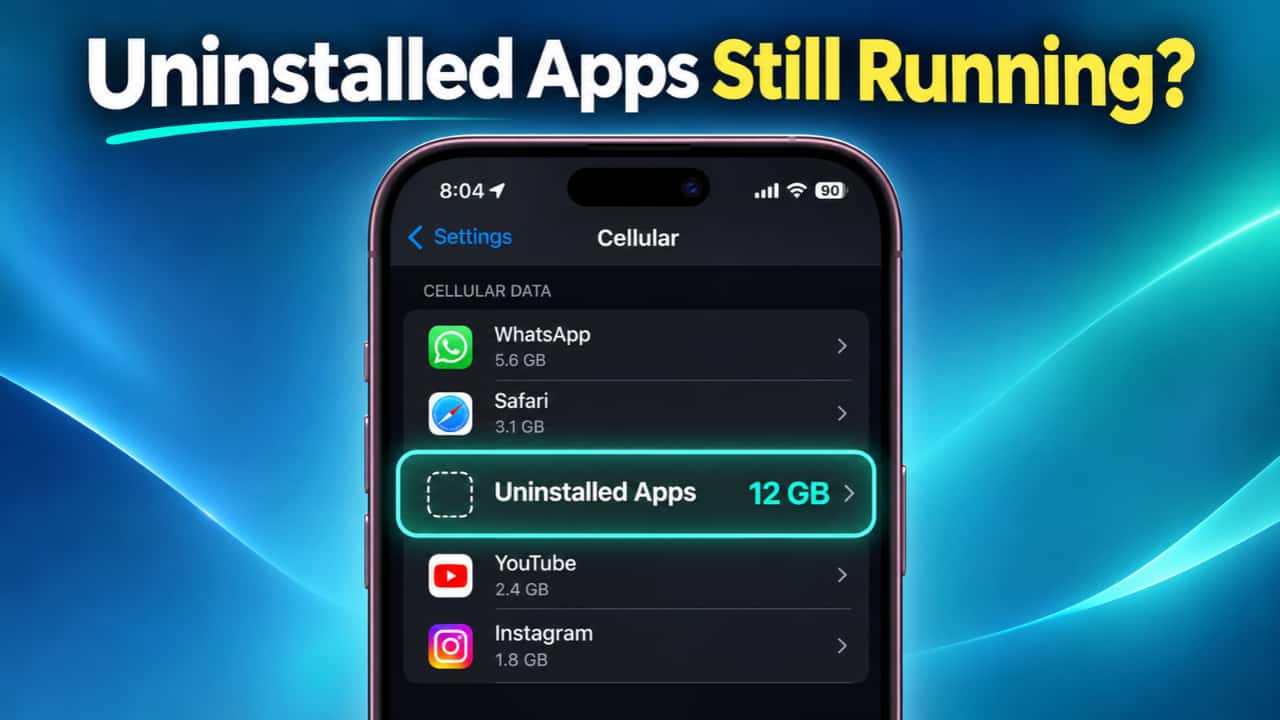
If you opened Settings and saw an “Uninstalled Apps” section using mobile or cellular data, you’re not the only one. A lot of people notice this and immediately think something’s wrong. Did the apps get deleted properly?
Is something still running in the background? Is my iPhone hacked or compromised?
The short answer is no. This is normal on iPhone, and it’s not something to worry about. Here’s what’s actually happening and what you can do about it.
Table of Contents
Why Do Uninstalled Apps Show Data Usage on iPhone?
When you go to Settings – Cellular (or Mobile Service depending on your region), you’ll see a list of apps and how much data they’ve used. At the bottom of that list, there’s often a section called Uninstalled Apps.
This does not mean those apps are still installed or secretly using data right now.

Kevio: Family Medicine Tracker
No more missing of Medications, Tests and Doctor Appointments. Let Kevio keep a track of it, and Remind you right on time. Take Prescriptions, Blood Tests, Injections right on time with Kevio.
Here’s the real reason:
-
It’s old data from the last 30 days. iOS keeps a rolling record of cellular data usage. If you deleted an app last week (or even a few weeks ago), its past usage can still appear in that Uninstalled Apps section until the 30-day cycle rolls over.
-
Offload Unused Apps. If you have the “Offload Unused Apps” feature turned on under Settings > App Store, iOS automatically removes apps you haven’t opened in a while to free up storage. The app itself is gone, but the data it used before it was offloaded can still show up in your statistics.
In both cases, the apps are not running in the background and they are not using any data now. It’s just a historical record.
Is My iPhone Hacked or Are Deleted Apps Still Running?
No. Seeing uninstalled app in the cellular data list does not mean your iPhone is compromised or that Deleted apps are still running in the background. iOS is simply showing past usage from apps that were on the phone at some point during the current 30-days tracking period.
Once the statistics cycle resets (or you manually reset them), those entries disappear.

How to Clear Uninstalled Apps from Cellular Data
If the list bothers you and you want a clean start, you can reset the statistics.
Follow these Steps:
-
Step 1: Open the Settings app.
-
Step 2: Go to Cellular (or Mobile Service).
-
Step 3: Scroll all the way to the bottom of the page.
-
Step 4: Tap Reset Statistics.
-
Step 5: Confirm when asked.
This wipes the current data usage history and starts tracking fresh from today. The Uninstalled Apps section should clear out.
Note: This only resets the statistics. It does not delete any apps, photos, or personal data.
Other Quick Checks (Optional)
Additionally, you can follow these two steps to make sure there are no software bugs causing such uninstalled apps showing in the cellular data statistics page.
Update iOS
Go to Settings – General – Software Update and install any available update. Newer versions sometimes clean up small reporting glitches in the cellular statistics page.
Reset Network Settings (if you want extra peace of mind)
Go to Settings – General – Transfer or Reset iPhone > Reset > Reset Network Settings.
This clears saved Wi-Fi passwords, so you’ll need to reconnect to your networks afterward. It does not delete your apps or files.
Most people don’t need either of these. Resetting the statistics is usually enough.
Final Thoughts
Seeing uninstalled apps using data looks alarming at first, but it’s just how iOS tracks usage over time. Those apps are gone, and nothing is secretly running in the background.
If the list is bothering you, just reset the statistics and you’ll start fresh.
Spensio Expense Tracker for iPhone
Track your Expenses, Subscriptions, Loans and EMIs all in One App. Try Spensio for iPhone Free today.
Did this clear things up for you? Let me know in the comments if you still see the Uninstalled Apps section after resetting, or if anything else looks off. Have a great day.