

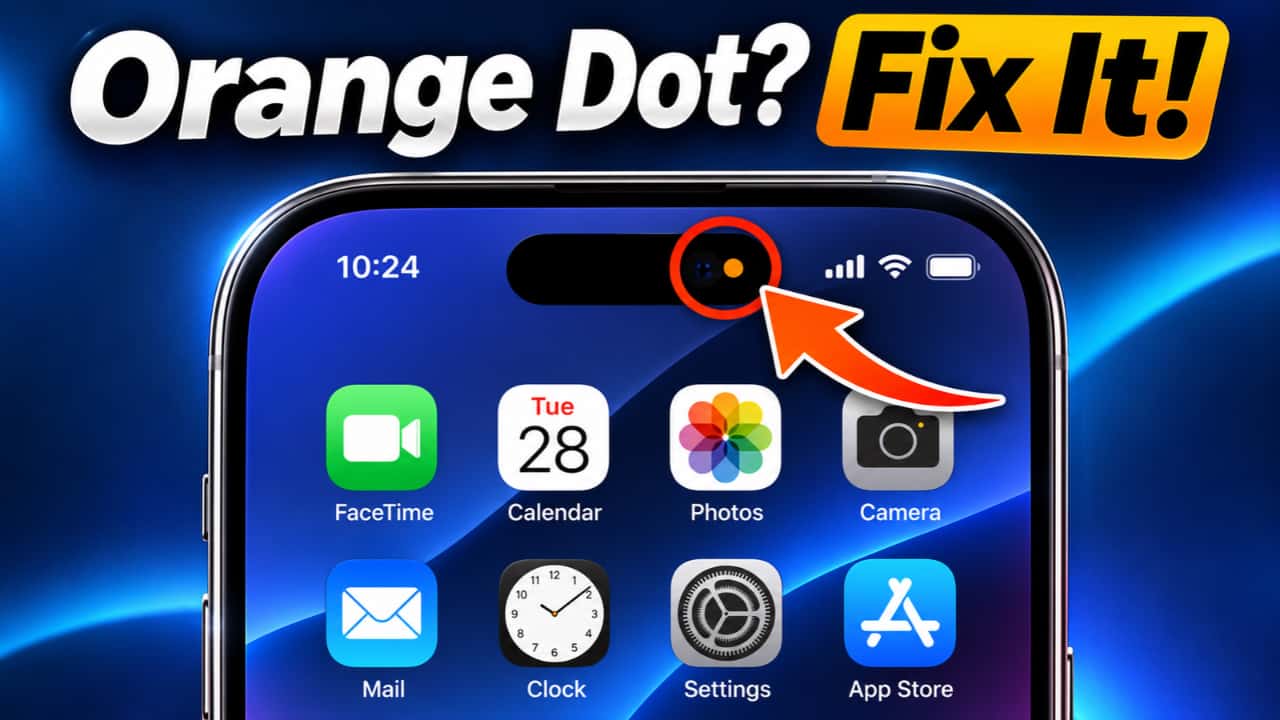
If you noticed a tiny orange dot at the top of your iPhone screen or inside the Dynamic Island, you are not alone. Many iPhone users spot this glowing orange indicator near the signal bars or battery icon and wonder if someone is listening in or recording their calls.

Apple AirPods Pro 3 Deals
Apple Airpods Pro 3 with Active Noise Cancellation, Live Translation, Heart Rate Sensing, Hearing Aid Feature, Spatial Audio and High Fidelity Sound. USB-C Charging and more.
Affiliate link. As an Amazon Associate I earn from qualifying purchases.
The short answer is that the orange dot on your iPhone screen is a built-in Apple privacy indicator showing that an app or system feature is currently using your microphone. If you also see a green camera indicator from time to time, read our guide on how to fix the green dot on iPhone Dynamic Island.
In this guide, I will explain what the orange dot means, why it appears during phone calls or when using Siri, and how to turn it off if it stays stuck on your iPhone screen.
Table of Contents
What Does the Orange Dot at the Top of iPhone Mean?
Apple introduced color-coded privacy dots in iOS so you can tell at a glance whenever an app accesses your hardware sensors:
- Orange Dot: An app or iOS feature is currently using your microphone (or recently used it).
- Green Dot: An app is using your camera, or both your camera and microphone at the same time.
On iPhone models with Dynamic Island, the orange dot appears right inside the pill-shaped cutout. On iPhones with a notch, it appears in the top-right corner just above the cellular signal bars and battery icon. If you have Accessibility’s Differentiate Without Color setting enabled, the orange microphone indicator appears as an orange square instead of a circle.
Common Reasons the Orange Dot Appears on iPhone
Seeing the orange dot does not automatically mean a suspicious app is spying on you. In most cases, it is triggered by normal everyday features:
- Phone Calls & FaceTime Audio: Whenever you place or receive a regular cellular call, Wi-Fi call, or WhatsApp audio call, the orange dot stays on for the entire call.
- Siri & Dictation: Saying “Siri” or “Hey Siri,” holding the Side button for Siri, or tapping the microphone icon on your keyboard to dictate text turns the orange dot on briefly.
- Voice Memos & Audio Recording: Recording a voice note in WhatsApp, iMessage, or the Voice Memos app activates the microphone indicator.
- Screen Recording with Microphone On: If you record your display with audio enabled (see our guide on how to screen record on iPhone), the orange indicator stays active until you stop recording.
- Accessibility Sound Recognition or Vocal Shortcuts: Features that listen continuously for doorbells, alarms, or custom voice phrases keep the microphone active in the background.
How to Turn Off the Orange Dot on iPhone (Step-by-Step)
There is no single switch in iOS to disable the orange privacy dot itself, because Apple designed it as a security alert. However, you can find out which app is triggering it and stop the microphone from staying active in the background.
1. Check Control Center to See Which App Used the Microphone
The fastest way to catch the culprit is right when the orange dot appears (or within a few seconds after it disappears):
- Swipe down from the top-right corner of your iPhone screen to open Control Center.
- Look at the very top of the screen next to the orange microphone icon.
- iOS displays the exact app name that is currently using the microphone or shows “Microphone Recently Used” alongside the app name.
Once you see the app name, you know whether it is a normal system service like Phone or Siri, or a third-party app running in the background.
2. Force Close the App Using Your Microphone
Sometimes an app like Instagram, WhatsApp, or a voice recorder holds onto microphone access for a few extra seconds after you switch away from it:
- Swipe up from the bottom edge of your screen and pause in the center to open the App Switcher.
- Find the app you saw in Control Center and swipe up on its card to close it completely.
- Wait a few seconds and check if the orange dot disappears from the top of your screen.
3. Revoke Microphone Permissions for Unnecessary Apps
If a third-party app is accessing your microphone when you are not recording audio or making calls, turn off its permission:
- Open Settings – Privacy & Security – Microphone.
- Review every app in the list and toggle Off access for apps that do not need a microphone.
- Keep access turned on only for trusted apps you actually use for calls, voice notes, or video recording.
4. Turn Off Sound Recognition, Vocal Shortcuts, or Always-On Siri
If the orange dot stays on constantly even when all apps are closed, an iOS listening feature may be running in the background:
- Check Sound Recognition: Go to Settings – Accessibility – Sound Recognition and toggle it Off if you do not need your iPhone listening for background sounds.
- Check Vocal Shortcuts & Voice Control: Go to Settings – Accessibility and make sure Voice Control and Vocal Shortcuts are turned off unless you actively use them.
- Check Siri Listen Settings: Go to Settings – Apple Intelligence & Siri – Talk & Type to Siri and set Listen for to Off if you want to test whether passive wake-word listening is keeping the indicator active.
5. Use App Privacy Report to Catch Background Mic Access
If the orange dot flashes briefly and disappears before you can open Control Center, let iOS log it for you:
- Go to Settings – Privacy & Security – App Privacy Report and tap Turn On App Privacy Report.
- Use your iPhone normally for one or two days.
- Return to App Privacy Report and check the Data & Sensor Access section to see the exact timestamps when each app accessed your microphone.
6. Force Restart Your iPhone and Update iOS
If the orange dot is stuck due to a temporary iOS status bar glitch, force restart your iPhone and check for updates:
- Quickly press and release the Volume Up button.
- Quickly press and release the Volume Down button.
- Press and hold the Side button until the Apple logo appears on the screen, then release it.
- After your iPhone reboots, go to Settings > General > Software Update and install the latest stable iOS release to fix known indicator bugs.
Keeping your device updated also protects against system vulnerabilities, as we covered in our iOS 27.2.1 security update guide.

OBSBOT Tiny 3 AI 4K Webcam
AI Powered 4K Webcam with Spatial Audio, AI Tracking PTZ Camera with 1/1.28" Sensor. Tri Mic, Voice and Gesture Control. 120FPS, HDR 4K Webcam for Streaming, Meeting, Zoom, Twitch and Youtube Live.
Affiliate link. As an Amazon Associate I earn from qualifying purchases.
Frequently Asked Questions
What does the orange dot at the top of my iPhone mean?
The orange dot at the top of your iPhone screen means an app or system feature is currently using your microphone, or used it moments ago. It is an Apple privacy indicator built into iOS.
Why is there an orange dot on my iPhone when I am on a call?
Your iPhone always shows an orange dot during phone calls, FaceTime Audio calls, and WhatsApp calls because the active call is using your microphone. It does not mean someone else is secretly recording your conversation.
How do I turn off the orange dot on my iPhone screen?
You cannot disable the privacy dot feature itself, but you can remove it by closing the app using the microphone, following these simple steps. Go to Settings – Privacy & Security – Microphone, turn off Sound Recognition in Accessibility, or force restart your iPhone.
What is the difference between the orange dot and green dot on iPhone?
An orange dot means only your microphone is active, while a green dot means your camera is active (or both your camera and microphone are being used together).
Final Thoughts
The orange dot at the top of your iPhone is a helpful privacy alert that lets you see whenever your microphone is active. In most cases, it simply appears during phone calls, Siri requests, or voice notes.
If it shows up randomly when you are not speaking, checking Control Center and turning off unused microphone permissions under Privacy & Security will stop it right away.
Have you noticed the orange dot appearing on your iPhone screen without making a call? Let me know in the comments which app was triggering it.