
Deleted a video accidentally on your iPhone? We all have done such mistake and then say “What have I done?”. It may be a birthday clip, travel memory or just a funny video you can never recreate with your friends and family.

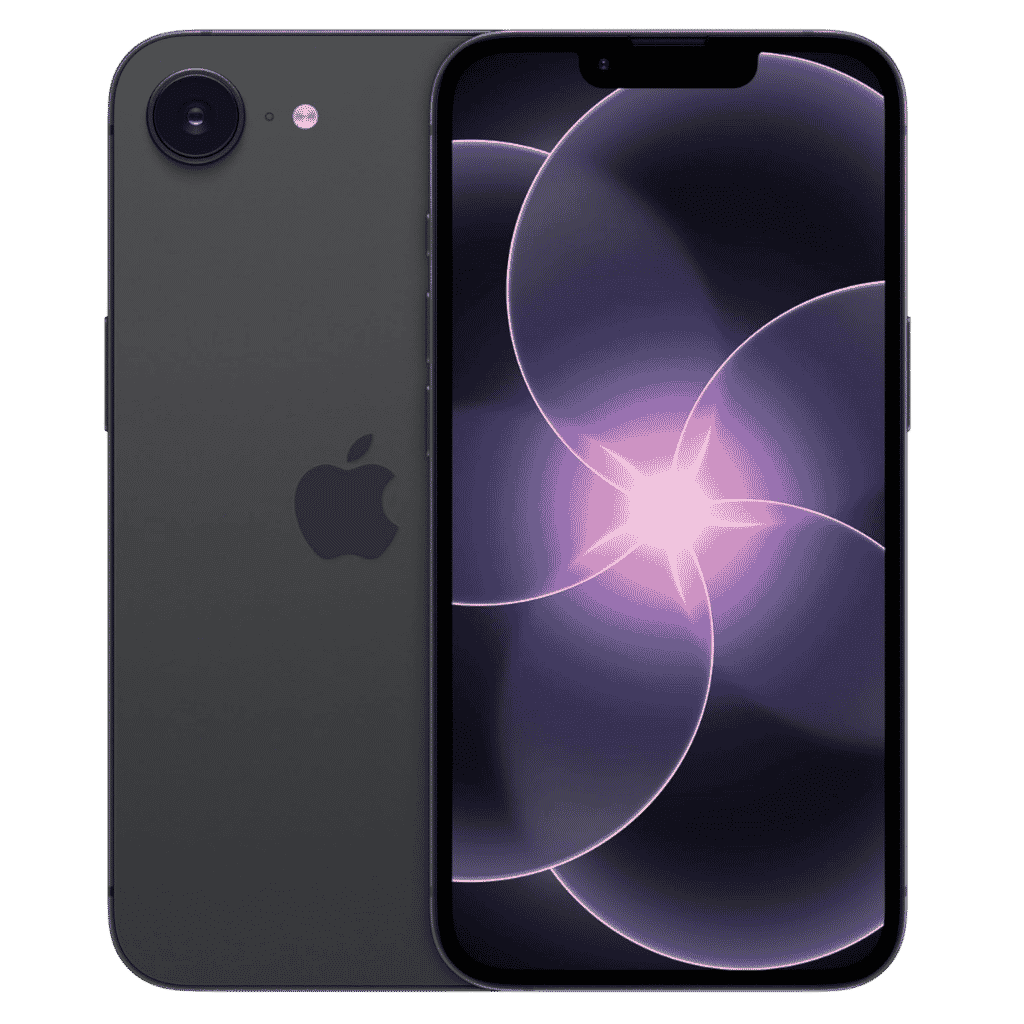
Apple iPhone 17e - 256GB
iPhone 17e features 6.1 inch Retina Display, 256GB Storage, Ceramic Shield 2 with 3X better scratch Resistant. Magsafe Wireless Charging and A19 Chip powers this beautiful device.
Affiliate link. As an Amazon Associate I earn from qualifying purchases.
Good News is, you can recover deleted videos on iPhone more easily that you’d think. Apple gives you a few ways to get them back, and we’ll walk through each one in this post.
Table of Contents
Recover Deleted Videos on iPhone
The very first place you should look is Recently Deleted Folder on iPhone. Each time we delete a file, photos, videos, apple don’t permanently delete them immediately. They are moved to Recently deleted album inside Photos App and stay there for 30 days before permanently deleted from your device.
Steps to follow to get your deleted videos back,
- Open the Photos app.
- Tap Albums at the bottom.
- Scroll down and tap Recently Deleted.
- Authenticate with Face ID, Touch ID, or your passcode.
- Find your video, tap it, then tap Recover.
That’s it. The video goes right back to your library like nothing happened. If it’s been more than 30 days though, it won’t be there, and you’ll need to try one of the options below.
Restore from iCloud Backup
If the recently deleted folder came up empty, your next best bet is restoring from an iCloud backup. Sometimes, we also delete the videos, photos from Recently Deleted album to free up storage space.
If you have done such mistake but have iCloud Backup toggle turned ON in Settings – Your Profile – iCloud – iCloud Backup, then don’t worry. We can recover all or most of the Deleted videos from iPhone.
This works great if you had backups enabled before the video was deleted.
Keep in mind: Restoring a backup replaces everything on your iPhone with the backup version. So it’s a good idea to back up your current phone first before going this route.
Step 1: Go to Settings – General – Transfer or Reset iPhone.
Step 2: Tap Erase All Content and Settings.
Follow the setup steps until you reach the Apps & Data screen.
Step 3: Choose Restore from iCloud Backup.
Step 4: Sign in to iCloud and pick the backup that was made before you deleted the video.
It takes a little time depending on your backup size, but once it’s done, your deleted videos should be back.
Restore from iTunes or Finder Backup
If you have recently done a back up your iPhone to your Mac or PC instead of iCloud, this one’s for you. Same idea, just done through your computer.
Even if it’s last week or last month backup copy, you will find most of the deleted videos and photos in that backup.
Sometimes, when you connect your iPhone with your computer to charge or while working at your desk, the auto backup happens automatically. So give this a try.
Step 1: Connect your iPhone to your computer.
Step 2: Open Finder (Mac) or iTunes (Windows).
Step 3: Select your iPhone when it shows up.
Step 4: Click Restore Backup.
Step 5: Choose the backup from before the video was deleted.
Again, this will overwrite your current data, so back up your current state first if anything on your phone is recent and important.
Recover Deleted Videos from iCloud Photos
If you use iCloud Photos, your videos sync to iCloud as you take them. This is different from a full device backup. You can check iCloud.com directly to see if your deleted video is still sitting in the cloud.
Step 1: Head to icloud.com on a browser.
Step 2: Sign in with your Apple ID.
Step 3: Open Photos.
Step 4: Click Recently Deleted on the left sidebar.

Spensio Expense Tracker for iPhone
Track your Expenses, Subscriptions, Loans and EMIs all in One App. Try Spensio for iPhone Free today.
Step 5: Find your video and click Recover.
This is honestly one of the easiest ways to recover deleted videos on iPhone without messing with your whole device.
Use a Third-Party Recovery Tool
If none of the above options worked, there are third-party apps like Dr.Fone, iMobie PhoneRescue, or Tenorshare UltData that can scan your iPhone and sometimes pull back permanently deleted files.
You may try with their trial version before purchasing the tool.
Most of these tools require you to connect your iPhone to a computer. They’re not free either, so check the trial version first to see if your video shows up before paying.
Tips to Avoid Losing Videos in the Future
Prevention is better than cure. To avoid losing videos in the future, make sure to follow suggested steps.
Turn on iCloud Photos: Go to Settings > [your name] > iCloud > Photos and toggle it on. Your videos back up automatically.
Set up regular iCloud backups: Settings > [your name] > iCloud > iCloud Backup > Back Up Now.
Double-check before deleting: It sounds simple, but give it a second look before tapping delete.
Back up to your Mac or PC occasionally: Having a local backup as a second layer of protection never hurts. Just few months once take a backup. Delete old backup to free up storage space on your Computer.
Losing a video feels awful, but as you can see, there are real ways to get it back.
Start with the Recently Deleted album since that’s the quickest fix. If that doesn’t work, your iCloud or iTunes backup is your next move. And if you’re still stuck, a third-party tool might be able to dig it up.
The key thing is acting fast. The sooner you try to recover deleted videos on iPhone, the better your chances.Share