

You do not need to factory reset your Android phone just to switch your primary Gmail account. Many people get stuck with an old Google account as the main one. It handles Play Store downloads, app updates, backups, and more.
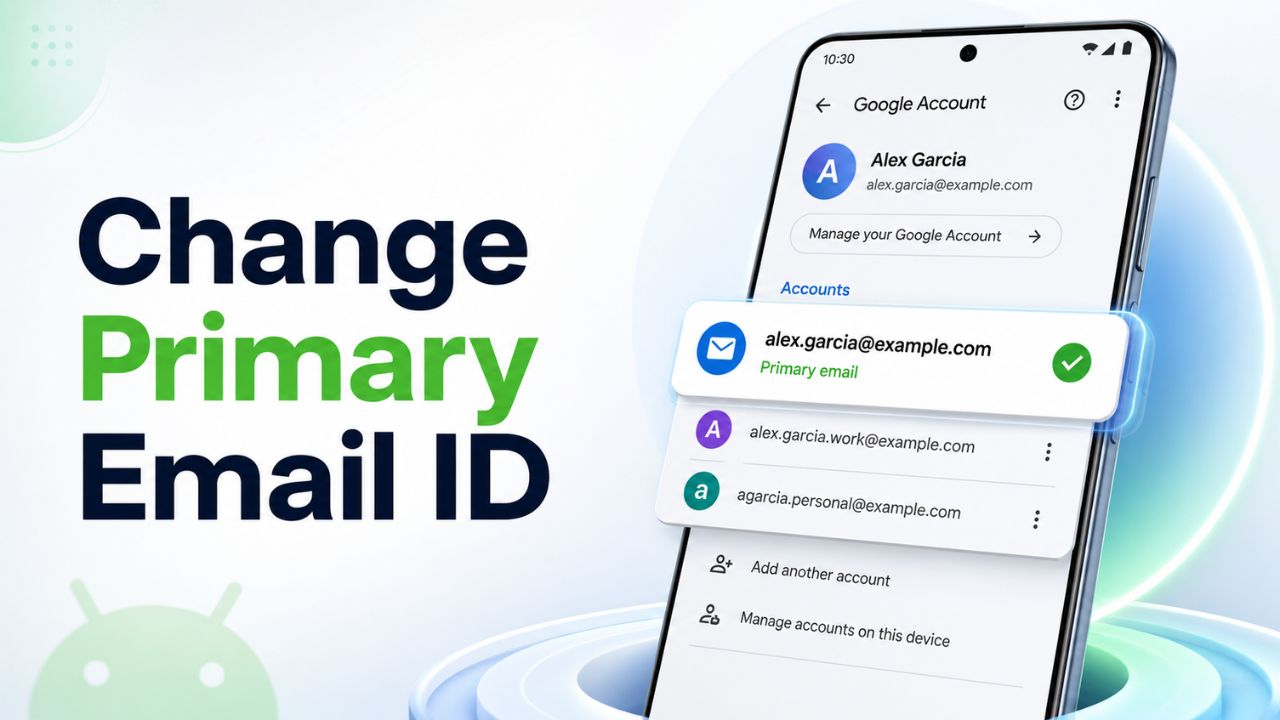
Good news. You can change it easily on modern Android.
Let me show you exactly how.
Table of Contents
Why Change Your Primary Google Account?
Your first added Google account often becomes the default. It syncs everything important. But if you want a new one as primary, you simply remove the old accounts and add the new one first.
Following steps works on Android 14, 15 and newer versions. There may be small variation in menu names and location depending on your Android OS version. But the process stays very similar. Samsung, Pixel and Xiaomi manufacturers change the location of some settings as they customise Android OS for branding.
Apple Watch SE 3 GPS 44mm Aluminum Case. Fitness and Activity Tracking with Sleep Tracking and Heart Rate Monitor. Always On Display and Water Resistant Included.
Affiliate link. As an Amazon Associate I earn from qualifying purchases.
Simple Steps to Change Primary Email on Android
Step 1: Back up your important data
Open the Settings app. Go to Google Accounts or Accounts & Backup option. Make sure sync settings correctly set. Back up photos, contacts, and other data to the cloud. This keeps you safe.
Step 2: Remove all Google accounts
- Go to Settings – Accounts (or Passwords & accounts).
- Navigate inside Manage accounts or Manage accounts on this device.
- Select each Google account one by one.
- Tap Remove account and confirm.
- Do this for every Google account on your phone. Do not worry. Your actual Gmail, photos, and files stay safe in the cloud.
Step 3: Restart your phone
Turn your phone off and on again. This clears the old default settings.
Step 4: Add your new primary account first
- Open any Google app like Gmail or Play Store.
- Sign in with the Gmail account you want as primary.
This makes it your new default account.
Step 5: Add back your other accounts
Now sign in to any extra Google accounts you use. Your new primary one stays on top for backups and Play Store.
That is it. Your Android phone now uses the new primary email.
Quick Tips for Best Results
After changing, check Settings – Google – Backup to confirm your new account handles backups.
Some apps might ask you to choose the account again. Pick the new primary one.
This method works without losing your apps or local files. You only remove the account link from the device.
Common Questions People Ask:
Will I lose my data?
No. Removing an account from the phone does not delete your Google account or cloud data. Just back up first to stay extra safe.
What if the menu looks different on my phone?
Samsung, OnePlus, and other brands sometimes rename sections. Search for “Accounts” in Settings. You will find it.
Still Stuck and Unable to Change Primary Email ID?
Try signing out of all accounts in the Gmail app first. Then sign back in with your preferred account.
Changing your primary email makes your phone feel fresh again. No factory reset needed. Try these steps and let me know in the comments if it worked for you.
Share this guide with friends who struggle with old Google accounts on Android.


Wer ur leftside share buttons gone? punchtab Wants more share buttons guys..
have included the share buttons inside posts. you can find it in the top of each article jasir.
Robin.
yes i can see it now.. but cant see the punchtab icons on those share buttons..only Disqus contains the Punchtab icon..
Most of the buttons were gone Robin, I can see only a Horizontal Scroll bar and nothing else… 🙁
Dont know how to root and hope this things can be available for normal user also 🙂
Okay…………but how to access Android Market if my primary gmail id was disabled and I can’t log in anymore?