
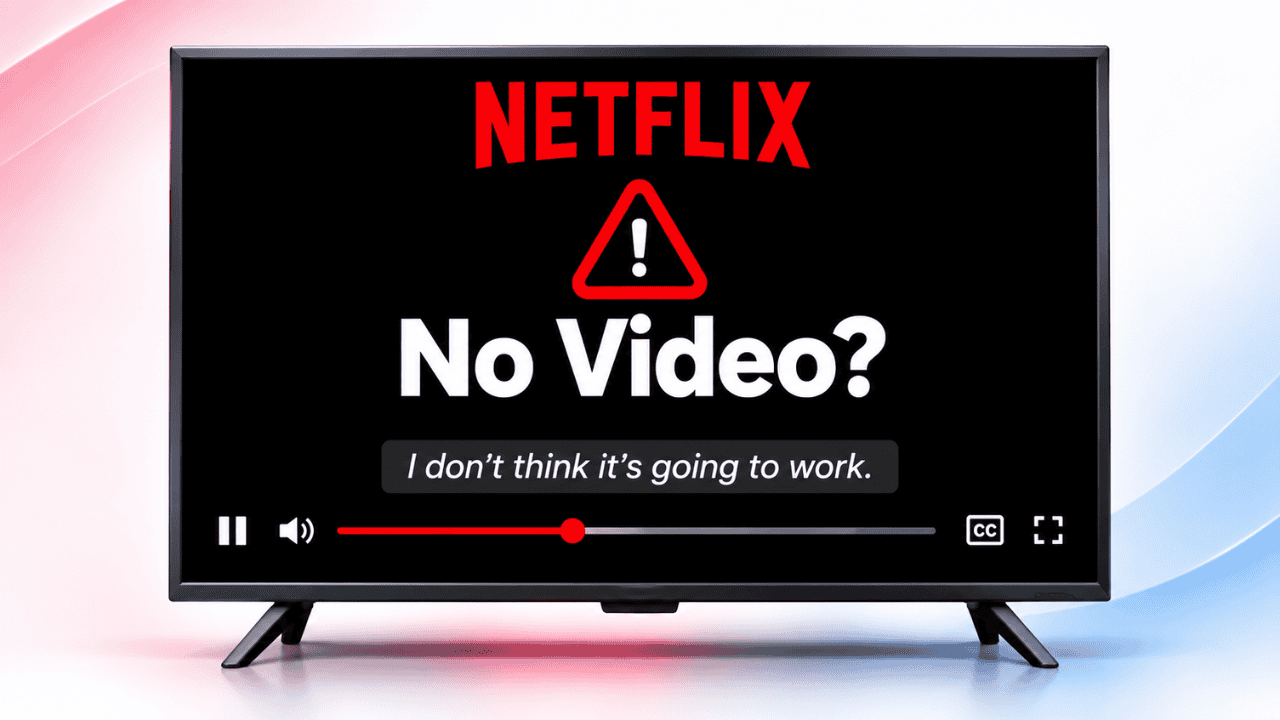
You open the Netflix app on your TV and start playing your favorite show. All you see is a black screen with audio playing and no video at all. You are not alone.
I noticed the same issue this morning when I opened Netflix to continue watching the latest Stranger Things episode. I was surprised to see that the video was not playing. Just a black screen.
The good news is that in most cases this is easy to fix. You usually do not need to call support or buy anything new. Let’s go through the steps that actually work.
Table of Contents
Why Does Netflix Show a Black Screen with Sound?
This problem usually shows up after the Netflix app updates or when your TV’s software is a bit behind. The app changes how it handles video, but your TV or streaming device has not caught up yet. The result is audio playing normally while the picture stays black.
It can also happen because of corrupted temporary files inside the Netflix app. A simple restart sometimes helps, but clearing the app data fixes it for most people.
Step 1: Restart Your TV and Streaming Device
Start with the easiest thing.
Turn off your TV completely. Unplug it from the wall for about 30 seconds, then plug it back in and turn it on. If you use a Fire TV Stick, Google TV box, or any external streaming device, restart that too.
Many times the black screen disappears after a full restart. If the video still does not appear, move to the next step.
Step 2: Check for System Updates
Outdated software on your TV or streaming box is a common reason for this issue.
Go to your TV’s Settings. Look for System, About, or Software Update (the exact name changes depending on the brand). Install any pending update.
Do the same on your streaming device if you are using one. Once everything is up to date, try Netflix again.
Kevio: Family Medicine Tracker
No more missing of Medications, Tests and Doctor Appointments. Let Kevio keep a track of it, and Remind you right on time. Take Prescriptions, Blood Tests, Injections right on time with Kevio.
Step 3: Update the Netflix App
If other streaming apps work fine and only Netflix has the black screen, the app itself may need an update.
Open your TV’s app store (Google Play Store, Amazon Appstore, or whatever your device uses). Search for Netflix and check if an update is available. Install it and open Netflix again.
Step 4: Clear Netflix Cache and Data (Most Effective Fix)
This is the step that fixed the problem in most cases.
- Go to your TV’s Settings.
- Find Apps or Manage Installed Applications.
- Locate Netflix (it may be under system apps or downloaded apps).
- Select Clear Cache, then Clear Data.
After clearing the data, open Netflix on your TV. It will show a QR code. Scan it with the Netflix app on your phone (already logged in) and confirm. Once you are signed in again, try playing a show. In most cases the video comes back normally.
What to Do If It Still Does Not Work
If none of the above steps help, try these extra things:
- Unplug the HDMI cable from both ends, wait a few seconds, and plug it back in.
- Try a different HDMI port on your TV.
- If you use a streaming stick, try connecting it directly to the TV without any HDMI extension or switch.
These small hardware checks sometimes clear the issue when software fixes do not.
Final Thoughts
Netflix black screen with audio is annoying, but it is usually fixed by clearing the app data and signing back in. A restart and software updates take care of the rest in most cases.
Have you run into this black screen problem recently? Which step fixed it for you? Let me know in the comments.
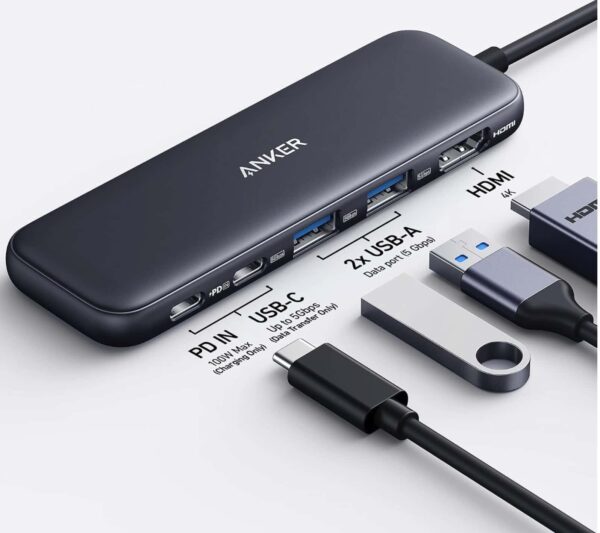
Anker 5 in 1 USB C Hub
85W Max PD, 1 Powered USB-C 5Gbps & 2 Powered USB-A 3.0 5Gbps Data Ports, for MacBook Pro, MacBook Air, Dell and More (Black)