
Is your iPhone alarm showing “Ringing” on the screen but you hear no sound? This can be a serious problem, especially if you depend on your iPhone alarm to wake up, attend meetings or remember important tasks.
People depend on Alarms in their every day work life, and it should not fail to play the alarm ringtone at correct times. In recent days many iPhone users reporting that their iPhone Alarm says ringing but no sound played, due to that they had to miss waking up early and on time.
Normally, an iPhone alarm should play sound even when Silent mode, Do Not Disturb or another Focus mode is enabled.

Kevio: Family Medicine Tracker
No more missing of Medications, Tests and Doctor Appointments. Let Kevio keep a track of it, and Remind you right on time. Take Prescriptions, Blood Tests, Injections right on time with Kevio.
Table of Contents
How to Fix iPhone alarm says Ringing but No Sound?
If the alarm appears on the screen without sound, try the following troubleshooting steps.
Check the Alarm Sound or Ringtone
First, make sure a sound is selected for the alarm.
Open the Clock app and tap Alarms. Select the alarm that is not working and tap Sound.
Check whether the sound is set to None. If it is, choose one of the default alarm tones. You can tap each tone to preview it before saving the alarm.
By default an alert tone or custom ringtone from Sounds & Haptics can selected. But if there is any issue, then select a loud alert tone or custom ringtone from the list.
After selecting a sound, tap Back and then tap Save.
Increase the Ringtone and Alert Volume
Your media volume and alarm volume are controlled separately.
Step 1: Go to Settings – Sounds & Haptics.
Step 2: Under Ringtone and Alerts, move the volume slider towards the right.
You should hear a preview sound while adjusting the slider. You can also enable Change with Buttons if you want the volume buttons to control the ringtone and alarm volume.
Do not depend only on the volume shown inside Control Centre because it may be controlling media volume.
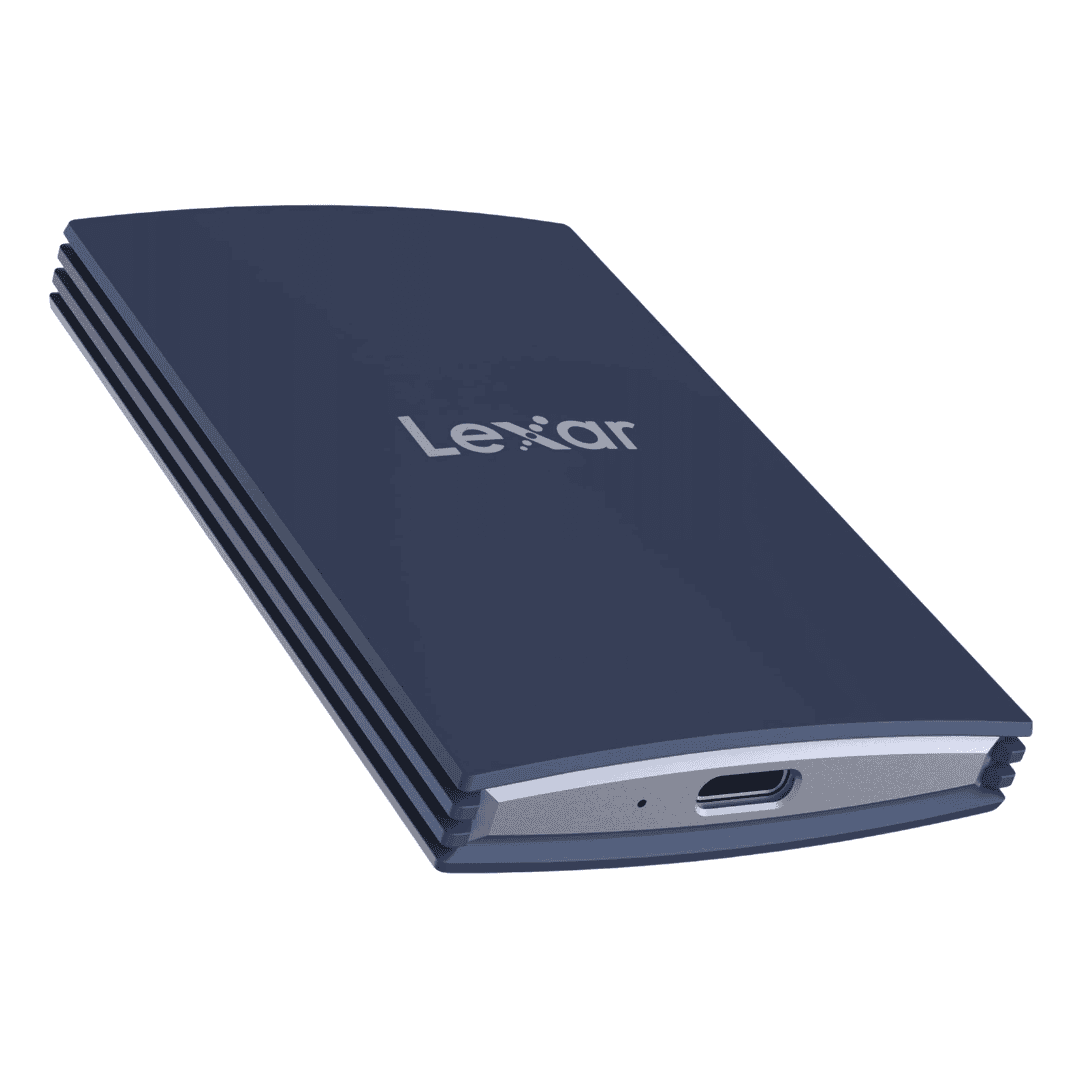
Lexar Armor 700 2TB SSD
Lexar Armor 700 External SSD 2TB storage delivers upto 2000 MB/s read and write speed. Suitable for iPhone 17 and iPhone 17 Pro Max models. IP66 Water and Dust Resistance.
Affiliate link. As an Amazon Associate I earn from qualifying purchases.
Delete and Create the Alarm Again
Sometimes, an existing alarm may become temporarily affected after an iOS update.
Open the Clock app, swipe left on the affected alarm and delete it. Restart your iPhone and create a new alarm with a default Apple alarm sound.
Update and Restart Your iPhone
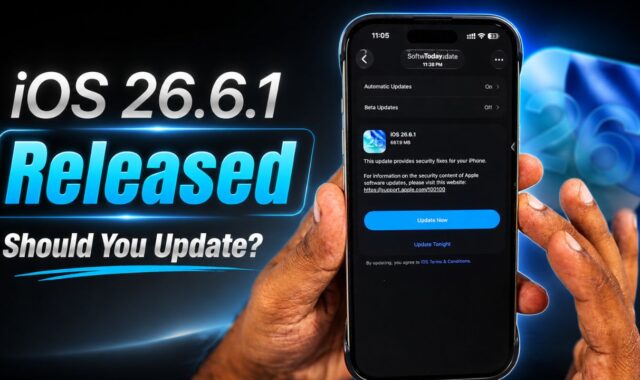
It is important to run latest iOS Software to fix any bugs causing alarm ringing but no sound type of problems. Apple releases updates with plenty of bug fixes. So if you havent updated iOS for sometime, its time to check and update to latest iOS software to fix this kind of issues.
Go to Settings – General – Software Update and install any available iOS update. Apple may fix alarm-related software problems through future updates.
Optional, but it is recommended if you experience the issue all of a sudden. You can also force restart your iPhone if a normal restart does not help. Here is how to do Force restart of an iPhone.
- Press and Release Volume UP Button once.
- Press and Release Volume Down Button Once.
- Press and Hold Power Button (Side button) till you see Apple Logo and release your finger.
Follow the steps one by one and create a test alarm to confirm that the problem has been fixed. Your iPhone alarm says ringing but no sound issue must be fixed by now.