
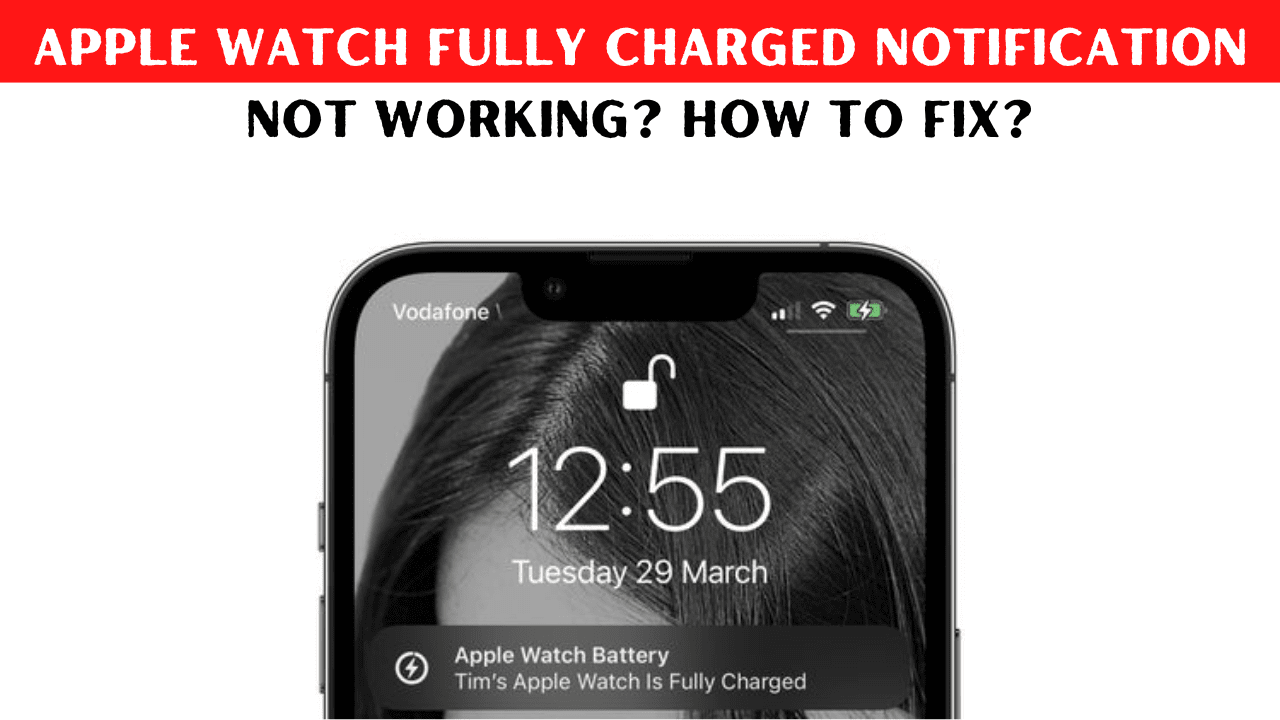
Is your Apple Watch Fully Charged notification not working on your iPhone? It was working earlier, but recently you are not seeing such charging status or apple watch charged notification?
Don’t worry, we can Enable Apple Watch Fully Charged Notification by following these simple steps. Recently, we wrote about How to Use Compass on Apple Watch?, if you like to explore more features of your apple watch, do check that out.
Let’s do the compatibility check, before getting into the troubleshooting steps. Make sure your Apple Watch is running WatchOS 7 or later and their iPhone running iOS 14 or later, Apple launched this feature with the launch of iOS 14 and WatchOS 7, so make sure your both devices are running compatible versions.
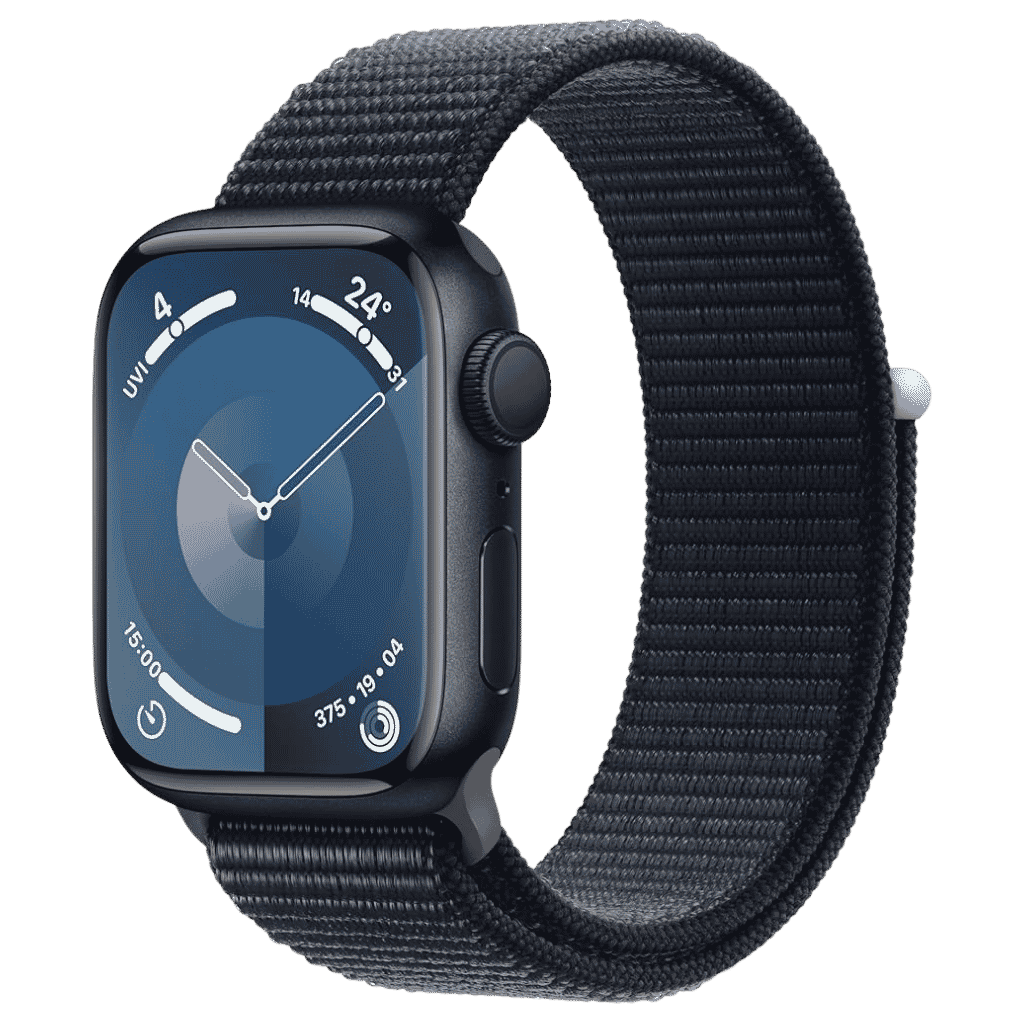
Apple Watch Series 11 Deals
Apple Watch Series 11 - Aluminum 46mm Smartwatch with Sleep Score, Fitness Tracker, Health Monitoring, Always ON Display and Water Resistant.
Check latest price on AmazonAffiliate link. As an Amazon Associate I earn from qualifying purchases.
How to Enable Apple Watch Fully Charged Notification on your iPhone?
Step 1: Go to the Health app on your iPhone
Step 2: Navigate to the Sleep Section
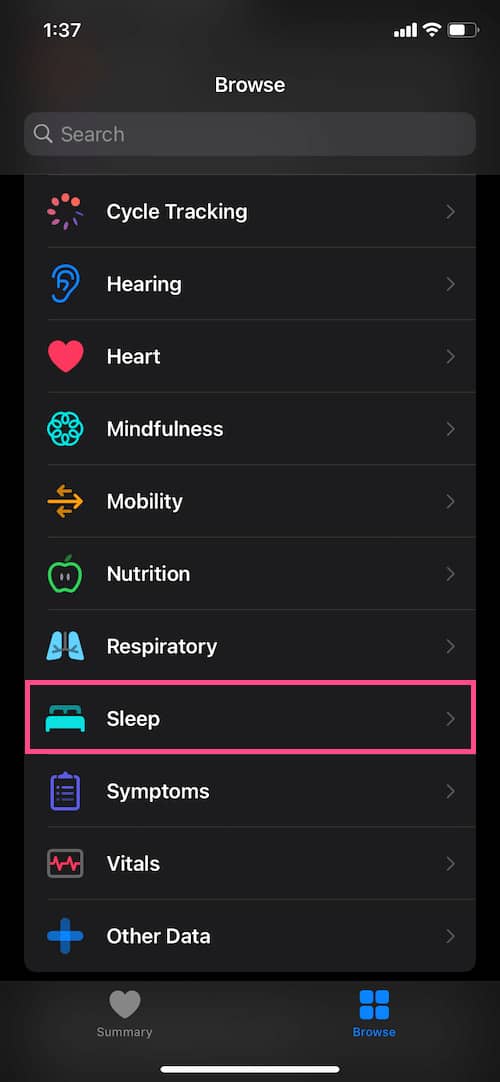
Step 3: Turn on Sleep Reminders.

If the sleep tracking feature is not already turned on you can turn it on manually to enable the battery fully charged notification to show on your iPhone. Apple has hidden the feature in the sleep menu, we can expect this feature to be accessed directly in the notification section on your iPhone settings app in the future upcoming iOS updates.
Also Read, How to Enable Battery Percentage in iPhone with Face ID?
Step 4: Go to the Watch App.

Step 5: Navigate to the Sleep Section.

Kevio: Family Medicine Tracker
No more missing of Medications, Tests and Doctor Appointments. Let Kevio keep a track of it, and Remind you right on time. Take Prescriptions, Blood Tests, Injections right on time with Kevio.
Step 6: Turn on Charging Reminders.
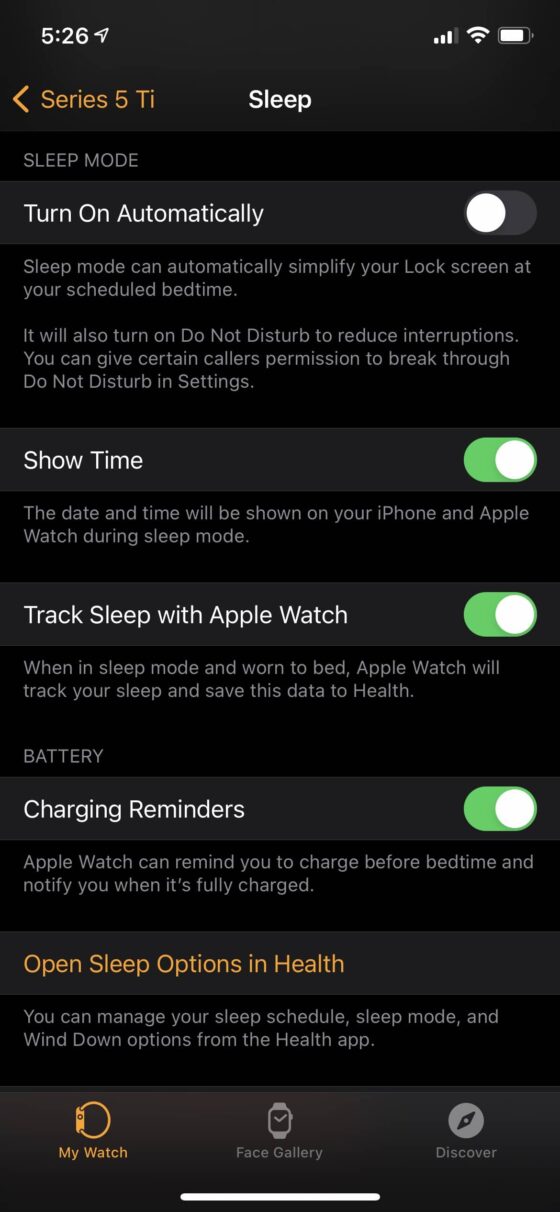
By utilising these 6 easy steps you will be able to receive AppleWatch fully charged notification on your iPhone.
Thanks for reading and if you find this post useful, do share it with your friends on Twitter and Facebook. Someone who doesn’t know how to enable Apple Watch fully charged notification, may find it useful.
Have a wonderful day!