
Is your iPhone battery draining fast even after installing the latest iOS update? You are not alone. Sometimes, even the iPhone Pro Max models with larger batteries may experience faster battery drain than expected.
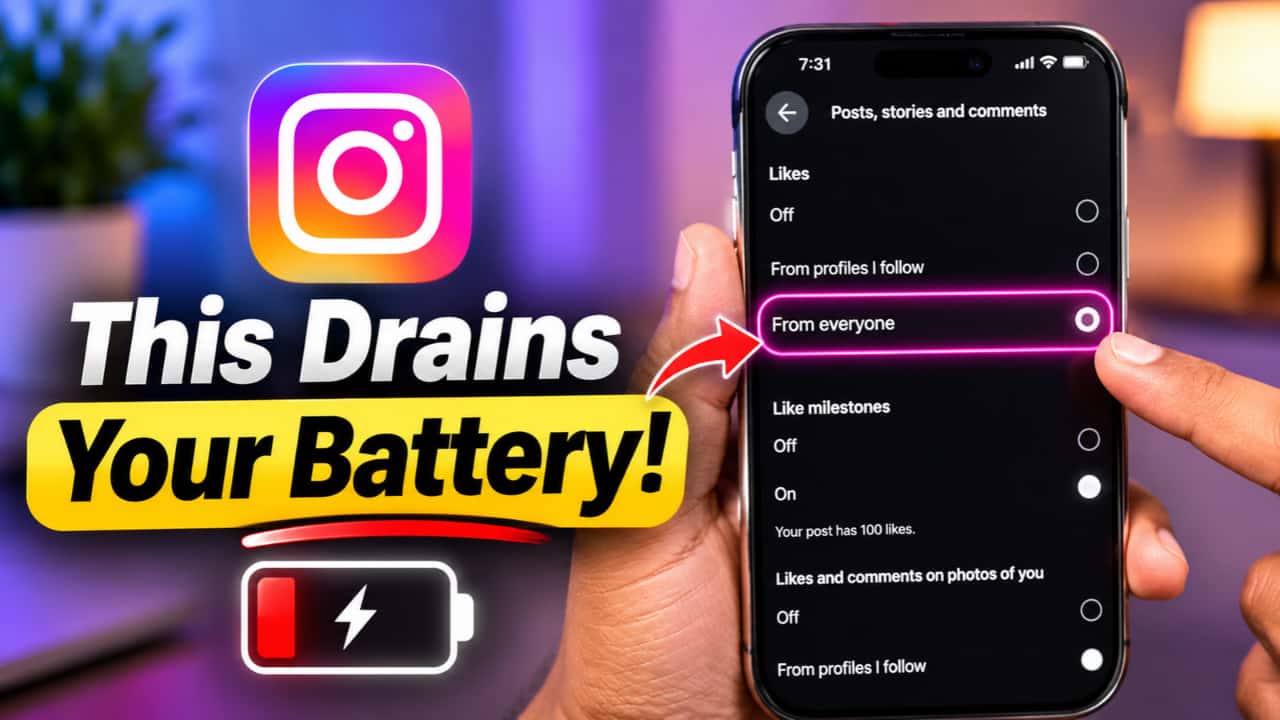
If you are using apps like Facebook, Instagram, WhatsApp, and YouTube regularly, you may notice these apps consuming a lot of battery throughout the day.
Even when you are not using the app.
Recently, I noticed that Facebook and Instagram were among the apps consuming more battery on my iPhone. After checking the notification settings and background activity, I found a few settings worth changing.

Let’s explore how to reduce iPhone battery drain by changing some Instagram and Facebook notification settings.
Table of Contents
Why Instagram and Facebook Drain iPhone Battery?
As we know, social media applications like Instagram and Facebook send several push notifications throughout the day.
These notifications may include likes, comments, new followers, suggested posts, and other updates.
Sometimes, you may receive notifications every few minutes, even when you are not actively using these applications.
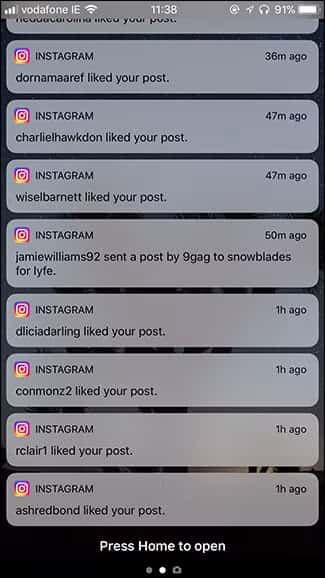
Each notification can wake up your iPhone screen, use network activity, and consume a small amount of battery.
Of course, receiving notifications is not always a bad thing. Applications like WhatsApp need notifications so we don’t miss important messages.
But do we really need Instagram and Facebook to notify us whenever someone likes a post or when there is a new suggested account?
I don’t think so, especially when most of us open these applications several times a day.
Turn Off Unwanted Instagram Notifications
The first thing I recommend is changing the notification preferences inside Instagram.
You don’t have to turn off every notification. Instead, we can disable unwanted alerts and keep the important ones enabled.
Steps to Follow:
1. Open the Instagram app on your iPhone.
2. Go to your Profile.
3. Tap the three horizontal lines at the top.
4. Find and open Notifications.
5. Review the available notification categories.
Here, you can turn off notifications for likes, comments, follower suggestions, and other updates you don’t need.
Instagram also provides an option to pause all notifications temporarily. However, I recommend customizing individual categories if you still want to receive important alerts.
Lexar Armor 700 2TB SSD
Lexar Armor 700 External SSD 2TB storage delivers upto 2000 MB/s read and write speed. Suitable for iPhone 17 and iPhone 17 Pro Max models. IP66 Water and Dust Resistance.
Affiliate link. As an Amazon Associate I earn from qualifying purchases.
For example, you can keep Direct Message notifications enabled and turn off notifications for likes and other unnecessary activities.
This way, you won’t miss important messages while reducing unwanted notifications throughout the day.
Turn Off Instagram Notifications from iPhone Settings
If you don’t need Instagram notifications at all, there is another simple setting you can change.
- Open the Settings app on your iPhone.
- Go to Settings – Notifications – Instagram.
- Now, turn off Allow Notifications.
That’s it. Your iPhone will stop displaying push notifications from Instagram until you enable them again.
If you depend on Instagram Direct Messages for work or personal communication, I suggest keeping important notifications enabled instead of turning everything off.
Disable Unwanted Facebook Notifications
Similar to Instagram, Facebook also sends several notifications throughout the day.
Friend suggestions, likes, comments, group activities, and other recommendations can keep appearing on your iPhone.
If you are already opening Facebook regularly, you may not need all these notifications.
To turn them off, go to Settings – Notifications – Facebook.
Disable Allow Notifications if you don’t want Facebook sending push alerts to your iPhone.
You can also open the Facebook app and customize individual notification categories if you prefer receiving only important updates.
Restart Your iPhone After Changing the Settings
Once you have changed the Instagram and Facebook notification settings, I recommend restarting your iPhone.
Anker 5 in 1 USB C Hub
85W Max PD, 1 Powered USB-C 5Gbps & 2 Powered USB-A 3.0 5Gbps Data Ports, for MacBook Pro, MacBook Air, Dell and More (Black)
A simple restart can close temporary processes and give your iPhone a fresh start.
Of course, restarting your iPhone doesn’t guarantee that battery drain will be fixed. But it is a useful troubleshooting step after changing these settings.
Check iPhone Battery Usage After 2 to 3 Days
Now comes the important part. How do we know whether these changes actually improve battery life?
I suggest using your iPhone normally for the next two to three days.
Go to Settings – Battery and check which applications are consuming more battery.
You can also review the background activity reported for Instagram and Facebook.
If frequent notifications were contributing to your battery drain, you may notice improvements in standby battery consumption.
However, the results will depend on how frequently you use these applications and other settings enabled on your iPhone.
Will Turning Off Instagram Notifications Save iPhone Battery?
Yes, reducing unnecessary notifications can help save some battery, especially if your iPhone receives hundreds of alerts throughout the day.
Background App Refresh, poor cellular signal, screen brightness, battery health, and heavy application usage can also affect battery life.
Also, turning off notifications doesn’t completely stop an application from performing background activities.
If Instagram or Facebook continues consuming too much battery, check its background activity under iPhone Battery settings.
Personally, I prefer keeping important message notifications enabled and turning off unnecessary social media alerts.
We already spend enough time checking Instagram and Facebook throughout the day. There is no need to wake up our iPhone screen every few minutes for likes, comments, and other updates.
Try these settings and monitor your iPhone battery life for a few days to see whether they make a difference.