
Got a new iPhone? Want to Transfer Music and Playlist to iPhone?. Here is, how to transfer purchased or non-purchased tracks from iPhone to iPhone? Luckily, there are presently multiple routes out there to assist you with sharing playlists from iPhone to iPhone.
We concoct a manual to present all potential ways you can attempt to relocate the playlist starting with one iPhone and then onto the next.

If you recently purchased any Apple Music or Spotify trial subscription service, You like to try them but also you are frightened about transferring music playlists. If so, then this article will guide you to transfer music and playlists on your iPhone. We also have a guide about Dolby Atmos Not Working in iPhone Settings? How to Fix?.
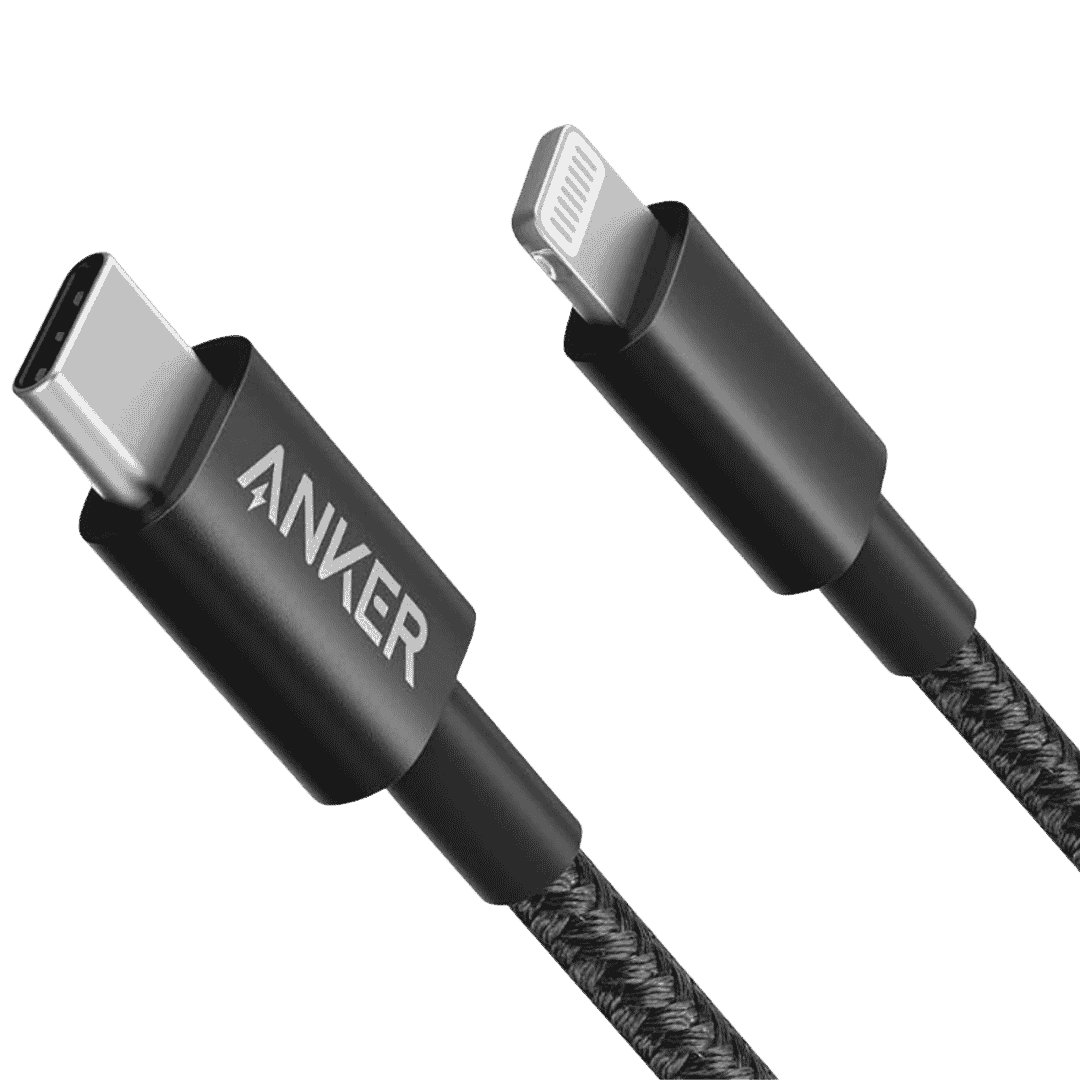
Anker MFi Lightning to USB C Cable (2 Pack)
Anker New Nylon USB C to Lightning Cable, Apple MFi Certified for iPhone and comes in 6.6 feet length. You can select Cable Length and 1 or 2 Packs during Checkout.
Affiliate link. As an Amazon Associate I earn from qualifying purchases.
Most likely, iTunes rings the bell of many individuals with regards to transferring data from iPhone to iPhone. Indeed, you ought to realise that iTunes by Apple has been overhauled, and depending on the new UI can be somewhat difficult.
Also Read, 20+ Best YouTube Channels for Music Videos
Table of Contents
How to Transfer Music and Playlists on iPhone?
We are going to grasp the help of an app that lets Spotify users import playlists directly into Apple Music.
The App that we are going to see in this article is Song Shift.
What is SongShift?
SongShift transfers the music you love to the music provider you want. Transfer music albums, playlists, and songs with a few taps. SongShift is an extraordinary application since its user-friendly interface, it’s free, and you can use it with different music streaming services, not simply Spotify and Apple Music.
Also Read, Best Chrome Extensions for Music Lovers
How to Transfer a Spotify playlist to Apple Music using Songshift?
Step 1: Download Songshift from the App Store.
Step 2: Set up Songshift by selecting Spotify, enter your login details, and Tap Agree.

Step 3: Select Apple Music, Tap continue, Tap Connect, Tap OK, Tap Connect under iCloud Library.

Step 4: Tap Next, Next, and once more Next and Tap get started.
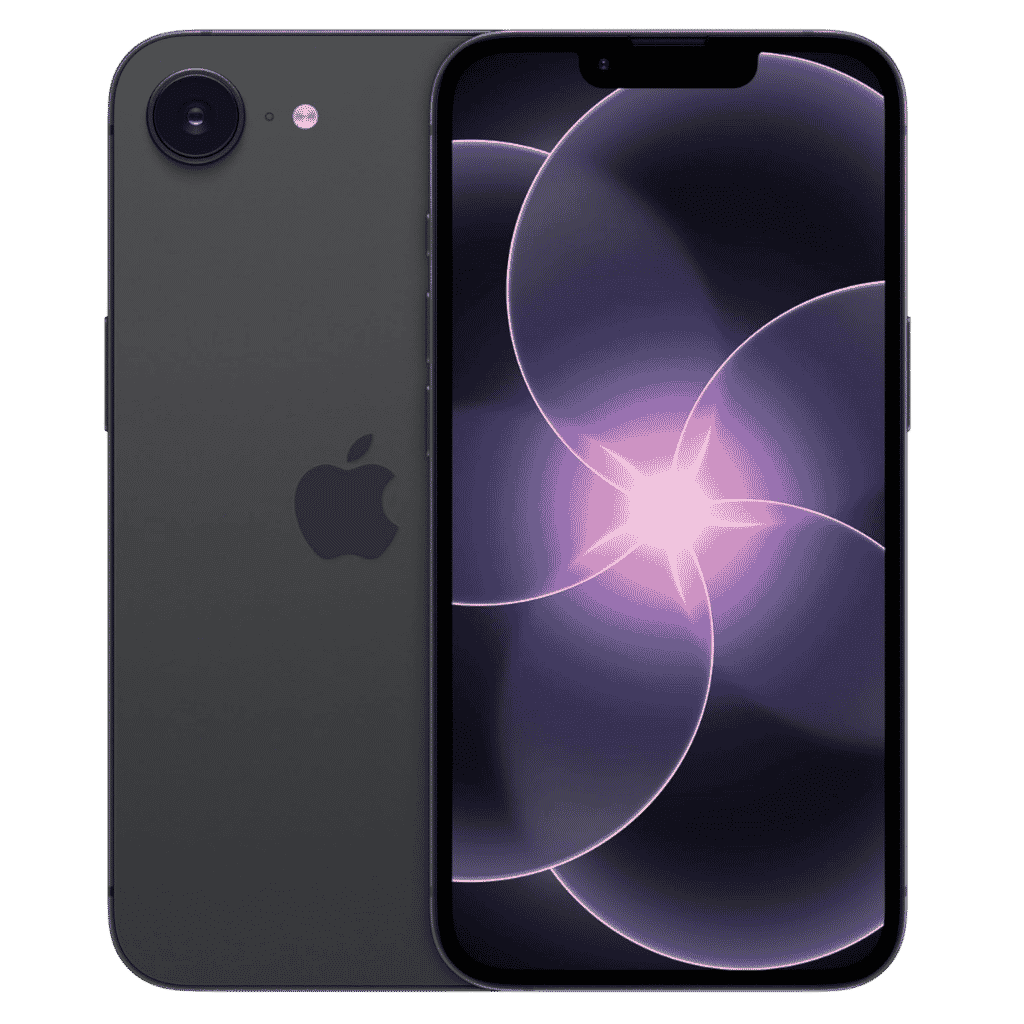
Apple iPhone 17e - 256GB
iPhone 17e features 6.1 inch Retina Display, 256GB Storage, Ceramic Shield 2 with 3X better scratch Resistant. Magsafe Wireless Charging and A19 Chip powers this beautiful device.
Affiliate link. As an Amazon Associate I earn from qualifying purchases.
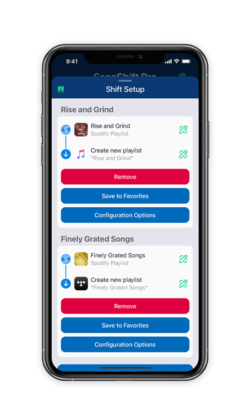
Step 5: Tap plus Icon, Tap Setup Source, select Spotify, and Tap continue.
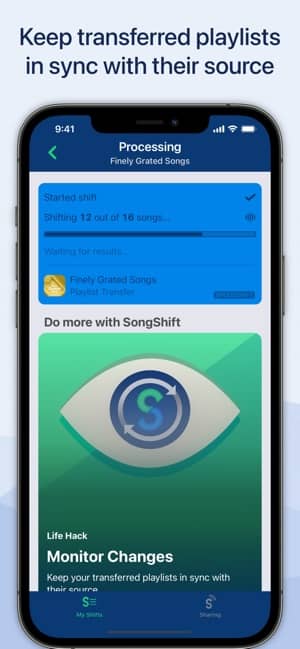
Step 6: Tap the Playlist you want to transfer, then tap Finish.

Step 7: Tap on the completed playlist, tap confirm matches, and tap Continue

The playlist is now available through Apple Music.
I hope this article helped you to transfer Music and Playlists to your iPhone. Thanks for reading and if you find this post useful, do share it with your friends at Twitter and Facebook. You may also like to read about our suggestion, Best iPhone Headphones with Mic.
Have a wonderful day.